
Enable displayable fields to decrease page load times and retrieve product data faster on search, product, cart, and checkout pages for B2B Commerce stores.
Required Editions

Note Displayable Fields is a pilot or beta service that is subject to the Beta Services Terms
at Agreements - Salesforce.com or a written Unified Pilot Agreement if executed by
Customer, and applicable terms in the Product Terms Directory. Use of this pilot or beta
service is at the Customer's sole discretion.
- In the navigation sidebar, select any store from the Store dropdown.
- Select Settings | Store, and then click Displayable Fields.
-
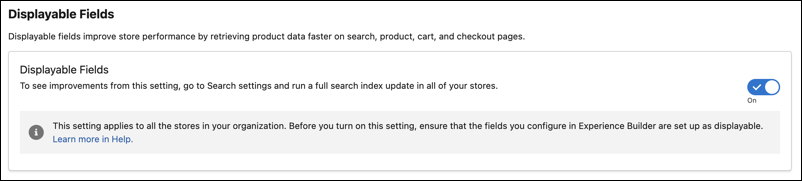
Turn on Displayable Fields.
This setting applies to all stores in your org. However, if a product is marked as Not Searchable, direct links to the Product Detail page don’t work when you enable displayable fields. See Mark Products as Searchable or Not Searchable.
-
Update the search index using the Full Update method.
It’s important to fully rebuild the index after product updates. If Product Suggestions is enabled and you don’t update the full index, the suggested product names and images that appear below the search bar might not match the names on the Product List page. Displayable fields can increase the time needed to update the index. See Update the Commerce Search Index.