Create Multiple Shipping Profiles for a B2B Store

Create multiple shipping profiles to categorize products. After you set up the shipping profiles, you can define shipping rules based on different zones for each profile. Assign rates based on order value or delivery group weight to meet your store's specific needs. For example, Emma owns a home decor store with a wide range of products. She creates different shipping profiles based on shipping zones and rates. One profile is for light items like wall art and candles, with affordable rates. Another profile is for heavy items like sofas and dining tables, with higher rates to cover professional delivery. By doing this, Emma can manage shipping costs more efficiently.
Required Editions

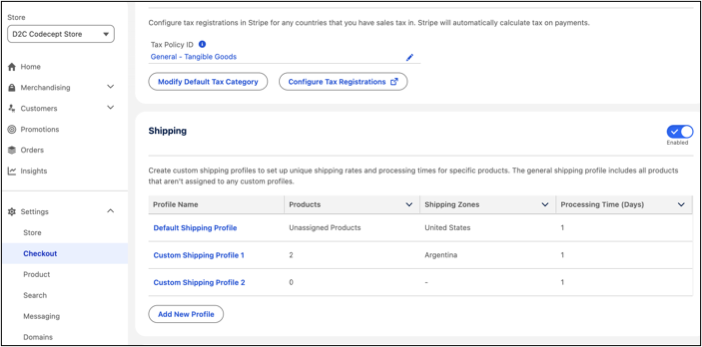
  1. In the navigation sidebar, select a store from the Store dropdown.
  2. Select Settings | Checkout.
  3. Click Shipping.
  4. Click Add New Profile. (Optional) Enter the profile name to match your requirements.
  5. Click Save.
    Create custom shipping profile
  6. To add products to the custom shipping profile:
    1. Click Assign and select the products.
    2. Click Next.
  7. Set the shipping zone and shipping rates for the profile. For information about zones and rates, go to Manage Shipping Zones and Rates for a B2B Store

Return to the Shipping page to see the custom profile you created.