Create Geo States for the Manual Salesforce Tax Solution

When you configure the manual Salesforce tax solution for a B2B store, you assign a geo state to a tax rate to specify which state or province the tax rate applies to. Create a geo state for each state and province that you want to specify a tax rate for. The geo state is the state or province to which a product is shipped, not from where the order was placed.
Required Editions

View supported editions.

Which Salesforce Commerce Product Do I Have?

Before adding a geo state, configure the states, countries, and territories in Setup and create geo countries for your store. See Let Users Select States, Countries, and Territories from Picklists and Create Geo Countries for a B2B Store.

  1. From the App Launcher, search for and select Geo States.
  2. Click New.
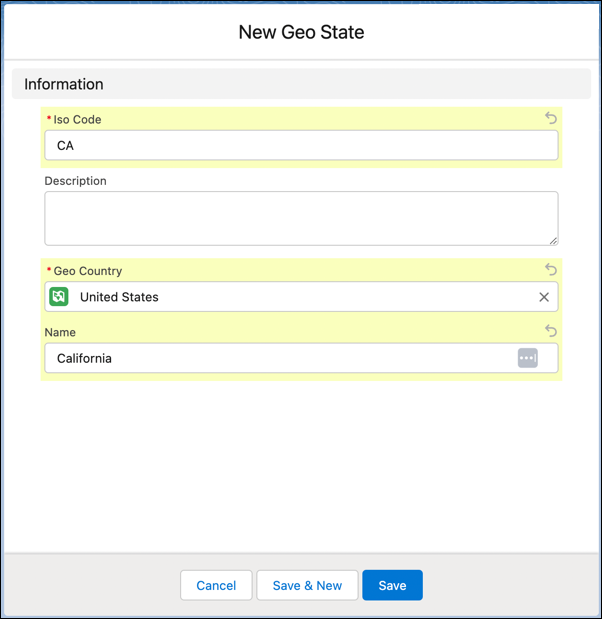
  3. Enter the two-character ISO code for the state or province. For example, enter CA for California.
  4. Select the geo country that the state or province is in.
  5. Enter a description, and click Save.
    Add the ISO code and name for the new geo state.