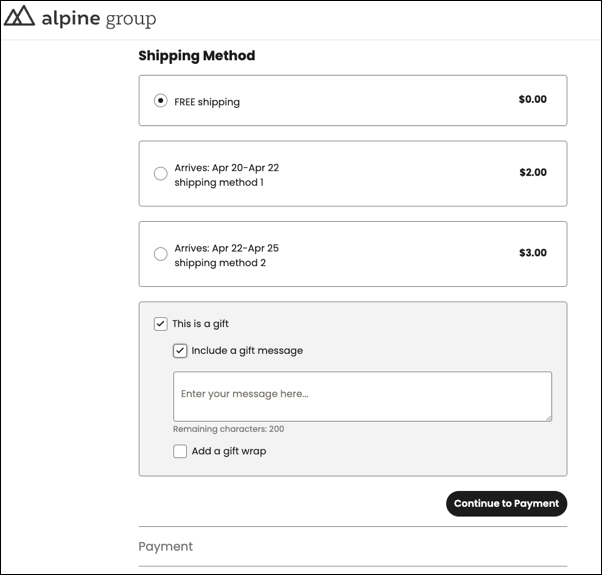
Enable gifting options for your store. Add gift messaging and gift wrapping features to offer personalized services to your customers.
Required Editions
If you have a store created before Summer ’25, make sure you complete step 1 to update the checkout page.
-
To update the checkout component.
- From the store home page, select the store from the dropdown menu.
- Select Website Design, and then click Experience Builder.
- For stores with custom checkout, add the Gifting component from the Components dropdown to the checkout page.
- For stores with managed checkout, delete the checkout page. Drag and add the checkout from the page dropdown.
- Publish the site.
- In the navigation sidebar, select a store from the store dropdown.
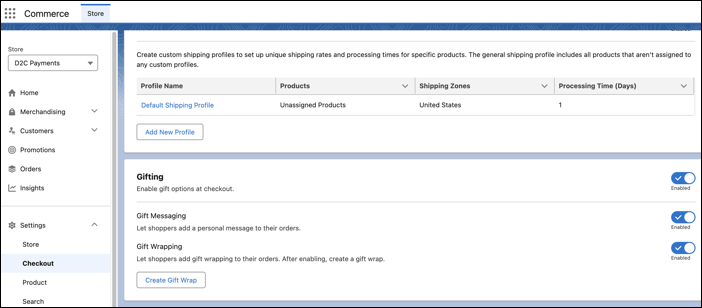
- Select Settings | Checkout.
- Enable Gifting.
-
Select Gift Messaging and Gift Wrapping
features for your store.
If Gift Wrapping isn’t available in your store, your Salesforce admin must enable the read and edit access for the Product Purpose field.
-
At the top of the page, click
 and select Setup.
- In the Quick Find box, enter and select Profiles.
- Click System Administrator.
- Click View next to Products in the Field-Level Security section.
- Click Edit.
- Select Read and Edit access checkboxes for Product Purpose field.
- Click Save.
-
At the top of the page, click
- If you enable Gift Wrapping, click Create Gift Wrap to add the gift wrap option to your store.
- Add gift wrap product details and click Save.
When a customer checks out, the gifting options show up on the checkout page.