Categories make products easier to discover in searches and through navigation. Build a
category structure that shows product relationships and makes products easier to find. When you
create a store, a default catalog with one Products category is assigned to the
store.
Required Editions
Which
Salesforce Commerce Product Do I Have?
Build your category structure using these elements:
- Categories
- Filters
- Values
Map out your structure before you create it. Keep it as simple as possible without
sacrificing product discoverability.
Categories
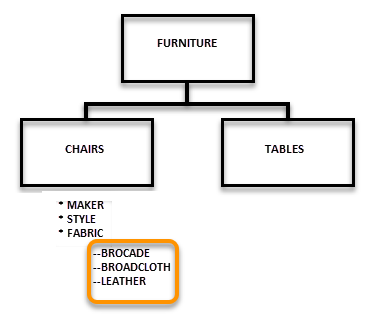
A category represents the top-level classification of your products or services, for
example, furniture, tools, and garden. You can create up to 15,000 categories, and up to
five levels of categories and subcategories. You can also assign one of the categories as
primary. A store uses the primary category to construct paths for breadcrumbs on the Product
Detail page. When you create a category, you can choose whether to include it in menus and
in which order it appears on the navigation menu and in filters.
You can assign a product to more than one category. For example, a buyer who navigates your
store can find chairs and tables under both Furniture and Garden.
Filters
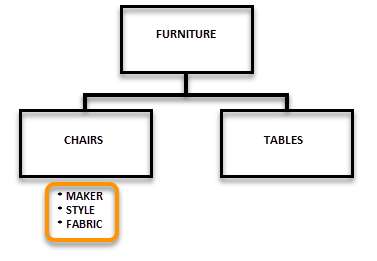
A filter represents an attribute of a product in the category. For example, the chairs
subcategory has filters for maker, style, and fabric. A filter is derived from the fields on
a product record. You choose which product fields act as filters.
Values
A value describes a filter’s available options. For example, the chair fabric options
include brocade, broadcloth, and leather. A value is derived from the fields on a product
record. If a filter has values, the values appear under the parent filter on the results
page.