You can send custom Welcome, Order Confirmation, and Abandoned Cart emails to your
customers in any language supported by your B2B store. Create email templates in each
language, and then customize the email flows to trigger sending localized emails based on the
language the customer selects in the store.
Required Editions
-
In the navigation sidebar, select a store from the Store
dropdown.
-
Click Content Manager.
-
Select your store’s content manager namespace.
-
Clone the email template you want to localize, and edit it.
Update the required fields with text in a language supported by your store, and save your
changes. Alternatively, if you want to create an email template, see
Create an Email in Marketing Cloud.
-
In the Store navigation sidebar, select a store from the Store
dropdown.
-
Click .
-
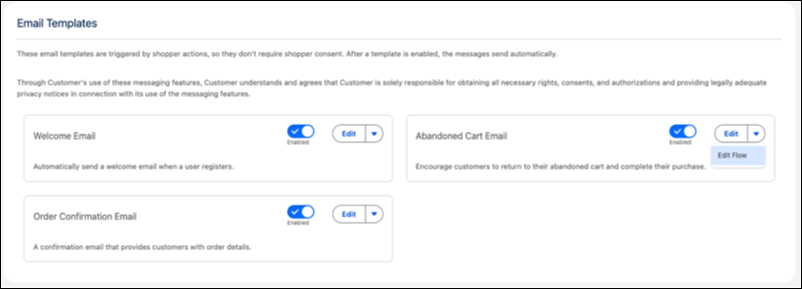
Under Email Templates, use the quick actions menu for the email template, and click
Edit Flow.
-
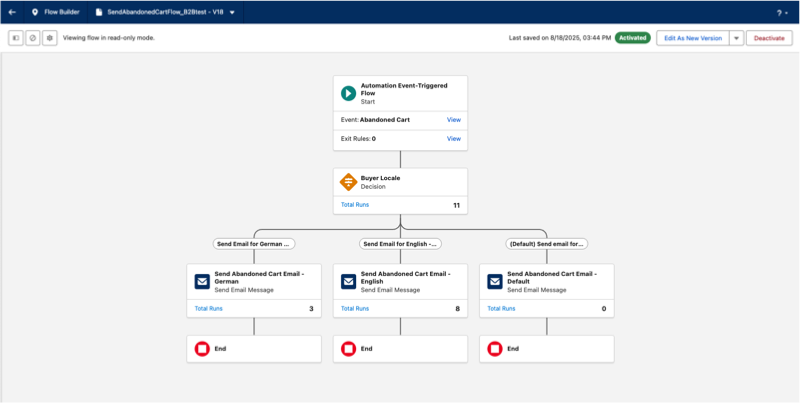
Click Edit As a New Version.
-
Add a decision element in the flow, with an outcome for each language supported by the
store.
-
For each path after the decision, select the approporiate email template.
-
Save your changes and activate the flow.