
Create a Guided Shopping Agent to unlock agent capabilities in your store. Guided Shopping Agent includes standard subagents, which are preconfigured categories of actions that help the agent recognize how to behave and respond for different jobs.
Required Editions

Note The Commerce Product Details subagent doesn't support custom branding.
The Commerce Cart Management subagent supports only simple products.
Qualification rules and localization on Lightning web components aren't supported by the agent.
- In the App Launcher, search for and select Agentforce Studio.
- To create an agent, click New Agent.
-
Select the Agentforce for Agentforce for Guided Shopping - B2B
template, and then click Next.
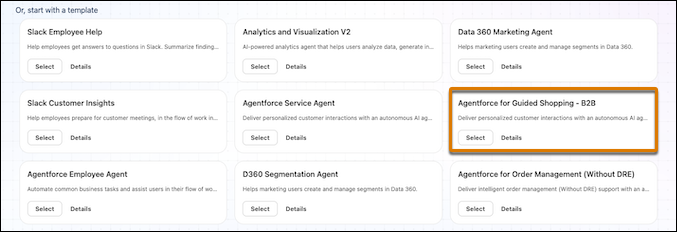
- Specify a name and developer name for your B2B guided shopping agent.
-
Select a user and click Let's Go.
Your agent is created with subagents already included. Salesforce recommends keeping all the default subagents. Use the standard subagents as a starting point for common use cases. After creating your agent, you can customize or create custom subagents in Agentforce Studio.
-
(Optional). Add a subagent to a pre-existing agent.
-
In the App Launcher, search for and select Agentforce
Studio.
The agent opens in Agentforce Builder.
- If the agent is active, create a new version.
-
Click
 and select Add to Agent.
-
In the App Launcher, search for and select Agentforce
Studio.
-
Configure Messaging Settings.
- In the Quick Find box, enter and select Messaging Settings.
- EnableMessaging.
- Click New Channel
- Specify the type of channel to create. For example, select Enhanced Chat.
- Specify the Channel Name and Domain, and click Next.
- Specify the Agentforce Service Agent and the queue, and save your changes.
- To enable the agent to interact with buyers in their selected locale, enable Identify preferred language of users.
-
(Optional) To enable enhanced agent interactions, switch your embedded service deployment
to V2.
- In the messaging channel you created, under Embedded Service Deployments, click the embedded service deployment associated with the messaging channel.
- On the Embedded Service Deployment Settings page, click Switch to V2.
- Click Switch and Publish.
- Publish your embedded service.
- In Agentforce Builder, select the Commerce Customer Verification subagent.
-
Under Reasoning Instructions, locate the instruction,
Always use the hardcoded
      value 'webStoreIdValue' for the input webStoreId parameter in any action requiring this
      identifier.
. ChangewebStoreIdValueto your store's webstore ID.The webstore ID is a 15-character record ID beginning with OZE. You can find the webstore ID in your store URL. - Save your work.
- In Agentforce Builder, select the Commerce Order subagent.
-
Under Reasoning Instructions, locate the instruction
For the Cart URL, use the cart
      ID from the response of Add Order to Cart as the cartId to create a URL. Present the URL as
      text and not a link. The URL should be like this
      :loginPageUrl}?startURL={cartPageUrl}/cart
. Change the webStoreIdValue value to your store's webstore ID. Replace{loginPageUrl}?startURL={cartPageUrl}/cartwith webStoreUrl/cart, wherewebStoreUrlis your store’s URL. For example, https://mydomain.com/store/cart. -
Locate the instruction
For the Order Url, use the orderSummary.id retrieved from
      Look Up Order Summary as orderId to create a URL. The URL should be presented as text and not
      a link. The URL should be like this
      {loginPageUrl}?startURL={orderSummaryPageUrl}/orderId.
. Replace{loginPageUrl}?startURL={orderSummaryPageUrl}/orderIdwith webStoreUrl/orderSummary/{orderId}, where webStoreUrl is your store's URL. For example, https://mydomain.com/store/orderSummary/{orderId}. - Save your work.
- Add your domain URL as a trusted site.