---
schema_version: "1"
id: a785fad2aad21dce0bf9b93491f97b221ed1e10f6f2b1bf1f474de47d84b8043
title: Pricing and Price Books in B2C Commerce
collection: admin
version: current
locale: en-us
portal_url: https://docs.salesforce.com/admin/current/en-us/cc/264-0-0/b2c_pricing_and_price_books.md
canonical_url: https://help.salesforce.com/s/articleView?id=cc.b2c_pricing_and_price_books.htm&release=264.0.0&type=5
source_site: help.salesforce.com
content_type: documentation
content_hash: e4e703e9e076874a084cc6797161c3e93910d46774c2f25631c6541eabccecca
description: Price books are the way you define prices for products. A price book contains price definitions for a group of products, based on a currency. Each product in the price book can have multiple price tables in which you define prices for varying quantities.
products:
  - Commerce
  - B2C Commerce
release: "264"
---
# Pricing and Price Books in B2C Commerce

Price books are the way you define prices for products. A price book contains price definitions for a group of products, based on a currency. Each product in the price book can have multiple price tables in which you define prices for varying quantities.

Price books are defined for an entire organization rather than a specific storefront site. For a price book to be effective in the storefront, assign it to a site. Assign one or more price books to a storefront, and assign a price book to one or more storefronts in an organization.

It’s recommended to have a set of fixed price books with fixed price book names, and use the merge or replace mode to update the price books. We don’t recommend deleting and re-creating price books in a regular cadence.

![Note](https://sf-zdocs-cdn-prod.zoominsoftware.com/tdta-cc-b2c_merchandiser_administrator-264-0-0-production-enus/ea76f372-6cfa-42a6-8e7c-05c6df7abed8/images/icon_note.png)

Note See the SiteGenesis application Wireframes and the Functional specifications for details on how Salesforce B2C Commerce implements pricing in the SiteGenesis application.

## Scenario 1: Volume Pricing with Price Tables

<table class="slds-table slds-table_bordered slds-max-medium-table_stacked slds-m-bottom_small ">
        <colgroup>
          <col>
          <col>
        </colgroup>
        <tbody>
          <tr class="">
            <td class="slds-cell-wrap" style="vertical-align:top;">
              <a name="b2c_pricing_and_price_books__image_og5_cgy_fwb"><!-- --></a><span style="vertical-align:text-bottom;display:inline-block;"><img style="margin-bottom:0;" id="b2c_pricing_and_price_books__image_og5_cgy_fwb" src="https://sf-zdocs-cdn-prod.zoominsoftware.com/tdta-cc-b2c_merchandiser_administrator-264-0-0-production-enus/ea76f372-6cfa-42a6-8e7c-05c6df7abed8/cc/b2c_merchandiser_administrator/images/b2c_pricebooks_slide_1.gif" alt="Price books diagram: volume pricing with price tables"></span>
            </td>

            <td class="slds-cell-wrap" style="vertical-align:top;">
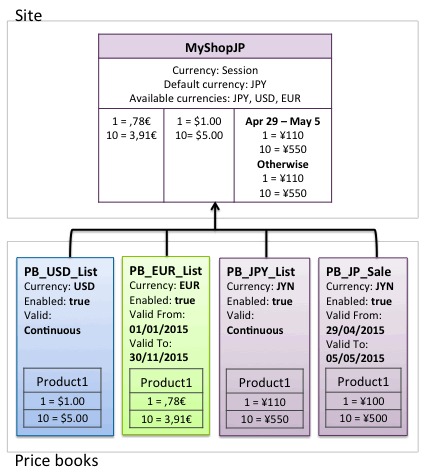
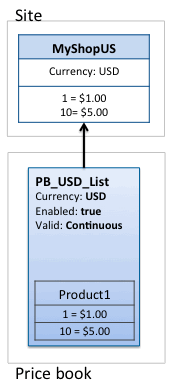
              <p>In this scenario, Product1 has different prices depending upon the amount
                of the product purchased.</p>
              <p>The storefront uses a site currency specified for the storefront. The
                site currency is the US Dollar. </p>
              <p>The PB_USD_List price book is enabled and assigned to the MyShopUS
                storefront. </p>
              <p style="margin-bottom:0;">Product 1 has two price tables, where a quantity of 1 costs $1.00 and a
                quantity of 10 costs $5.00. </p>
            </td>

          </tr>
        </tbody>
      </table>

Price Tables

Each price table defines prices for that product. Each product must have a price defined for a quantity of one (1) in some price book that is active for the site. Computed prices are computed from this price. If there’s no price for a quantity of one, B2C Commerce returns NA. A price table can also be volume-based so that lower prices apply for higher quantities.

Create multiple price tables for a given SKU in a price book. Each price table defines prices for that product. If there’s no price for a quantity of one, B2C Commerce returns NA. A price table can also be volume-based so that lower prices apply for higher quantities. A product can define multiple price tables within a price book as long as they each have a different valid period.

Each price table must have a unique start date, where null (an empty field) is a valid start date representing a continuous price. At any given time, at most one price table for a given SKU is _active_ within a price book. A price table is active if the current time falls within its start and end dates, and its start date is the most current of all tables with this property.

Automatic Cleanup of Expired Price Tables

B2C Commerce automatically deletes expired price tables. This reduces how many obsolete prices are stored in price books for merchants who are heavy users of price activation dates. A job runs nightly to remove the following:

- Price tables that have an expiration date at least 2 weeks in the past
- Price tables that are permanently obsolete (as of 2 weeks ago) because other price tables with more recent starts dates are active

![Note](https://sf-zdocs-cdn-prod.zoominsoftware.com/tdta-cc-b2c_merchandiser_administrator-264-0-0-production-enus/ea76f372-6cfa-42a6-8e7c-05c6df7abed8/images/icon_note.png)

Note

If there's only one price table for a SKU in a given price book, it isn't deleted, even if it matches the preceding criteria.

![Note](https://sf-zdocs-cdn-prod.zoominsoftware.com/tdta-cc-b2c_merchandiser_administrator-264-0-0-production-enus/ea76f372-6cfa-42a6-8e7c-05c6df7abed8/images/icon_note.png)

Note

All price books in B2C Commerce are processed automatically. This behavior can't be disabled. B2C Commerce selects price tables based on the `Valid Period` field.

You can configure global settings to delete price tables that don't have an associated product ID, based on the `lastModified` field. See [Configuring Retention Settings](https://help.salesforce.com/s/articleView?id=cc.b2c_configuring_retention_settings.htm&release=264.0.0&type=5 "Configure the lifetime of inventory and product price records that no longer reference products. You can also configure the lifetime for lists created by anonymous shoppers to retain this information for a longer time period. This information is typically for wish lists and gift registries.").

## Scenario 2: Sale Pricing with Multiple Price Books

<table class="slds-table slds-table_bordered slds-max-medium-table_stacked slds-m-bottom_small ">
        <colgroup>
          <col>
          <col>
        </colgroup>
        <tbody>
          <tr class="">
            <td class="slds-cell-wrap" style="vertical-align:top;">
              <a name="b2c_pricing_and_price_books__image_axk_mgy_fwb"><!-- --></a><span style="vertical-align:text-bottom;display:inline-block;"><img style="margin-bottom:0;" id="b2c_pricing_and_price_books__image_axk_mgy_fwb" src="https://sf-zdocs-cdn-prod.zoominsoftware.com/tdta-cc-b2c_merchandiser_administrator-264-0-0-production-enus/ea76f372-6cfa-42a6-8e7c-05c6df7abed8/cc/b2c_merchandiser_administrator/images/b2c_pricebooks_slide_2.gif" alt="Price books diagram: sale pricing with multiple price books"></span>
            </td>

            <td class="slds-cell-wrap" style="vertical-align:top;">
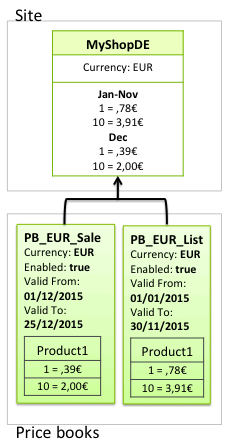
              <p>In this scenario, the list price is going to be used throughout the year,
                except for the Christmas sale that takes place in December.</p>
              <p style="margin-bottom:0;">The site currency is the Euro. The PB_EUR_List and the PB_EUR_Sale price
                books are enabled and assigned to the MyShopDE storefront. In this case,
                Product 1 has two price tables in each price book. In December, when the
                PB_EUR_Sale price book is active, a quantity of 1 costs ,39₡ and a
                quantity of 10 costs 2,00₡. During the rest of the year, a quantity of 1
                costs ,78₡ and a quantity of 10 costs 3,91₡</p>
            </td>

          </tr>
        </tbody>
      </table>

Valid Periods

By default, a price book is always valid and the valid period appears as `Continuous`. However, specify that price books are only valid for a specific period, such as a sale. However, only one price book can be active at a time. If two price books are assigned to a site, with overlapping valid periods, the price book whose `Valid From` date is the most recent is active. If a continuous price book and a price book with a specific valid period are assigned to a site, and if the date is within the valid period of the specific price book it’s active. Otherwise the continuous price book is active.

## Scenario 3: Multicurrency Storefronts

<table class="slds-table slds-table_bordered slds-max-medium-table_stacked slds-m-bottom_small ">
        <colgroup>
          <col>
          <col>
        </colgroup>
        <tbody>
          <tr class="">
            <td class="slds-cell-wrap" style="vertical-align:top;">
              <a name="b2c_pricing_and_price_books__image_hjl_pgy_fwb"><!-- --></a><span style="vertical-align:text-bottom;display:inline-block;"><img style="margin-bottom:0;" id="b2c_pricing_and_price_books__image_hjl_pgy_fwb" src="https://sf-zdocs-cdn-prod.zoominsoftware.com/tdta-cc-b2c_merchandiser_administrator-264-0-0-production-enus/ea76f372-6cfa-42a6-8e7c-05c6df7abed8/cc/b2c_merchandiser_administrator/images/b2c_pricebooks_slide_3.gif" alt="Price books diagram: multicurrency storefronts"></span>
            </td>

            <td class="slds-cell-wrap" style="vertical-align:top;">
              <p>In this scenario, the storefront is a Japanese multi-currency site that
                uses the currency selected in the storefront session by the customer. The
                default currency is the Japanese Yen. The site preference for the
                storefront sets the Yen, US Dollar, and Euro as available currencies on
                the storefront. The currency selected in the session determines the price
                book used.</p>
              <p>For each currency, only one price book can be active. In this case, for
                the Yen there are two price books, one that is continuous and one for a
                sale during golden week. The continuous price book is active except for
                the valid period for the PB_JP_Sale price book.</p>
              <p style="margin-bottom:0;">If a customer doesn’t select a currency in the storefront, the active
                price book for the storefront is Yen, because that is the default
                currency. Otherwise, the active price book associated with the selected
                currency is used. </p>
            </td>

          </tr>
        </tbody>
      </table>

**If a price can't be found in a specific Currency**

In SiteGenesis, if a product doesn't have a price in the currently active price book, the price shows as N/A. The product can't be bought.

**If a currency is available but there’s no associated price book**

In SiteGenesis, if the customer selects a currency that doesn't have a valid price book, all prices show as N/A.

## Scenario 4: Assigning Multiple Price Books to Multiple Storefronts

Price lookup considers only price books of the session currency and ignores all other assigned price books. The relationship between price books and sites is N to N. If you have a read-only price book and an editable price book with the same currency, assigned to the same site, the editable price book takes precedence. To use read-only price books, contact your Salesforce admin to enable the High Scale Price Books feature.

Assign a price book to a site.

<table class="slds-table slds-table_bordered slds-max-medium-table_stacked slds-m-bottom_small ">
        <colgroup>
          <col>
          <col>
        </colgroup>
        <tbody>
          <tr class="">
            <td class="slds-cell-wrap" style="vertical-align:top;">
              <a name="b2c_pricing_and_price_books__image_f3b_sgy_fwb"><!-- --></a><span style="vertical-align:text-bottom;display:inline-block;"><img style="margin-bottom:0;" id="b2c_pricing_and_price_books__image_f3b_sgy_fwb" src="https://sf-zdocs-cdn-prod.zoominsoftware.com/tdta-cc-b2c_merchandiser_administrator-264-0-0-production-enus/ea76f372-6cfa-42a6-8e7c-05c6df7abed8/cc/b2c_merchandiser_administrator/images/b2c_pricebooks_slide_4.gif" alt="Price books diagram: assigning multiple price books to multiple storefronts"></span>
            </td>

            <td class="slds-cell-wrap" style="vertical-align:top;">
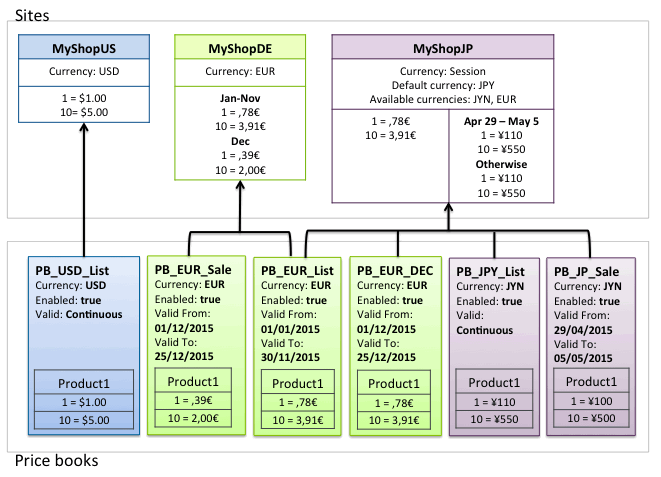
              <p>In this scenario, the merchant has three storefronts that share price
                books. </p>
              <p>MyShopUS has PB_USD_List assigned to it. </p>
              <p>MyShopDE has PB_EUR_List and PB_EUR_Sale assigned to it.</p>
              <p>MyShopJP has the list price books for JPY and EUR assigned to it, but not
                the EUR Christmas sale price book. Instead, an alternative price book
                with standard pricing is assigned. This way, there’s always a valid price
                book for the product for EUR on the Japanese site. </p>
              <p>Instead of creating an extra price book, the PB_EUR_List price book can
                be made continuous. This also makes a valid price book available for the
                Japanese site.</p>
              <p style="margin-bottom:0;">This is done so that sale prices are available for appropriate holidays
                for the Japanese consumer.</p>
            </td>

          </tr>
        </tbody>
      </table>

## Scenario 5: Prices Based on Other Prices

You can set up a relationship with price books. Indicate a _Based On_ price book for any given price book. The _child_ price book inherits all its prices from the _Based On_ price book, but can override them. The system recognizes only two levels, a price book and the one upon which it's based. This relationship becomes relevant during price lookup.

Nest price books to any level, but only one level (up) is considered during the lookup process.

## Assigning a Parent Price Book

When creating price books, use the _Based On_ setting on the Price Books page General tab. This setting specifies a more inclusive price book from which a new price book can inherit price specifications. The price book you’re defining _inherits_ all prices of the _Based On_ price book. Nest price books as deep as you want; specifying _Based On_ for many levels. However, during price lookup, B2C Commerce only navigates to the next level up.

![Note](https://sf-zdocs-cdn-prod.zoominsoftware.com/tdta-cc-b2c_merchandiser_administrator-264-0-0-production-enus/ea76f372-6cfa-42a6-8e7c-05c6df7abed8/images/icon_note.png)

Note In Salesforce Reference Architecture (SFRA) implementation, if a price book is deactivated and assigned to a site, but has an activated parent price book (assigned to a different site), then parent price book price is applicable for the product.

For example, you have a product price book defined as _List Prices._ This price book contains all the retail prices for all products on the site. You also want offer seasonal sale prices for winter clothing accessories. You create a second price book _Winter Accessory Sale._ Instead of specifying prices for all products all over again, you specify only the sale prices for only those products you want to put on sale. You then base the _Winter Accessory Sale_ price book on the _List Prices_ price book. During price lookup, any prices needed that aren’t in the _Winter Accessory Sale_ price book are looked for in the _List Prices_ price book. Because you’ve defined a relationship between the two price books, only the Winter Accessory Sale price book must be active.

## Currency (Using the $ Symbol)

B2C Commerce uses the "$" for the United States dollar (USD). For other currencies, the "$" symbol is prefixed with letters based on common convention. For example, A$ is used for the Australian dollar.

## Product Price Indexing

The prices of each product assigned to a site are incorporated into the search indexes of that site. More specifically, the prices are incorporated into the product index of the site. Discount and percentage prices aren’t included in the indexes. During storefront product searches, it's these indexed prices that are consulted instead of the price book prices stored in the database. All prices of a product are indexed throughout all price books of an organization. All price books are considered regardless of whether they’re assigned to a site or whether they’re time-constrained (valid-from / valid-to limitations). At query time, the system determines the currently applicable price books and retrieves the indexed prices for each product hit by the search. It ignores the prices associated with inapplicable price books.

See [Search Overview](https://help.salesforce.com/s/articleView?id=cc.b2c_search_overview.htm&release=264.0.0&type=5 "Use B2C Commerce to control how customers find your products on your own site and through external search engines, such as Google.") for information on dynamic price book selections, guided search, and product set search results.

## Option Prices

Product options and prices defined for option values impact the calculation of the effective sales price of a product. Based on the configuration of options by the storefront user, the sales price is higher or lower than the actual product price.

Define a price for each product option. By default, this price is the one added to the product price if the storefront shopper selects the value. However, you can define one option value as _included in product price._ If this value is defined, all prices of all option values are relative to the price of the included option.

See [Create Product Options.](https://help.salesforce.com/s/articleView?id=cc.b2c_create_product_options.htm&release=264.0.0&type=5 "Product options enable you to associate some products with other products so that B2C Commerce customers can configure a customized product.")

## Price Per Unit

To calculate a product’s price per unit (PPU), add unit quantity and unit measurement (such as kilograms or meters) to your XML or in Business Manager. Be sure to provide both, or the attribute will return the product price. The PPU is then calculated using the supplied information and is returned in the API. To expose this information to a shopper, a developer customizes your site’s code to add it to a product design or list page as an attribute.

#### See Also

- [Add a Product to the B2C Commerce Catalog (Video)](https://salesforce.vidyard.com/watch/wVTfpobCCwmXV1JnJvFe8J)