---
schema_version: "1"
id: 9343fd825b924aaf0d5f8e29f65e16f391a7568de2b108548cce9d3cfff4fec1
title: Add a Salesforce Action to a Visualization
collection: admin
version: current
locale: en-us
portal_url: https://docs.salesforce.com/admin/current/en-us/analytics/264-0-0/tua_viz_salesforce_action.md
canonical_url: https://help.salesforce.com/s/articleView?id=analytics.tua_viz_salesforce_action.htm&release=264.0.0&type=5
source_site: help.salesforce.com
content_type: documentation
content_hash: 74a9127685465340a645854dfcdb5cc177514f6f50bb030951d39ea8b26f7def
description: Add a Salesforce action to your Tableau Next visualization. Users can invoke these actions to create, update, and interact with Salesforce records. For example, add actions so users can create cases, update accounts, or post to Chatter.
products:
- Tableau Next
release: "264"
---
# Add a Salesforce Action to a Visualization
Add a Salesforce action to your Tableau Next visualization. Users can invoke these actions to create, update, and interact with Salesforce records. For example, add actions so users can create cases, update accounts, or post to Chatter.
### Required Editions
Tableau Unmetered Platform Analyst or Tableau Next Platform Analyst permission set
For more information on available actions or create your own actions, see [Object-Specific Actions](https://help.salesforce.com/s/articleView?id=platform.actions_overview_object_specific.htm&language=en_US) and [Global Quick Actions](https://help.salesforce.com/s/articleView?id=platform.actions_overview_global.htm&language=en_US).
1. Select **Salesforce Action** as the action type.
2. Select a data field to add the action to.
3. Select the record ID to run the action on.
This value is the primary ID for the record type. In Spring '25, the record ID must be part of the visualization.
4. Select up to 5 actions to add to the field.
These actions appear as menu selections when you select the field.
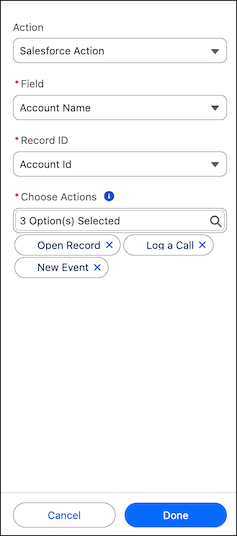
The Open Record action supports multi-org environments. When records with identical names exist across different data sources, users select the specific record they want, and it opens in its source org.