---
schema_version: "1"
id: 86632d3506088e30cf822427b5c5e969aaacbcd6f810592da8e8af01d5cb04ca
title: Add a Navigation Action to a Visualization
collection: admin
version: current
locale: en-us
portal_url: https://docs.salesforce.com/admin/current/en-us/analytics/264-0-0/tua_viz_navigate_action.md
canonical_url: https://help.salesforce.com/s/articleView?id=analytics.tua_viz_navigate_action.htm&release=264.0.0&type=5
source_site: help.salesforce.com
content_type: documentation
content_hash: 86a819296fd1f60898a4ea52658ed698e111db3941e4ee6fb28b69dc0ad4cfc3
description: Embed navigation actions into your Tableau Next visualization. The navigate action allows users to navigate to external sites with clickable links directly in a visualization data field.
products:
- Tableau Next
release: "264"
---
# Add a Navigation Action to a Visualization
Embed navigation actions into your Tableau Next visualization. The navigate action allows users to navigate to external sites with clickable links directly in a visualization data field.
### Required Editions
Tableau Unmetered Platform Analyst or Tableau Next Platform Analyst permission set
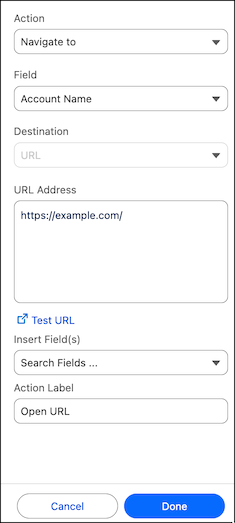
1. Select **Navigate to** as the action type.
2. Select a data field to add the action to.
3. Use **URL Address** to specify the destination URL.
The URL must start with one of the following prefixes: http, https, ftp, mailto, news, gopher, tsc, tsl, sms, or tel.
4. To create a dynamic URL, select data fields from **Insert Fields**.
Each data field value is appended to the URL. For example, to take the user to details for a state.
1. Add the action to the State field and enter a URL Address of https://en.wikipedia.org/wiki.
2. Insert the State field from the visualization.
3. When the user clicks on a state field with the value California, the dynamic URL generated is https://en.wikipedia.org/wiki/California.
5. To verify the URL works as expected, click **Test URL**.
6. Define the action label the user sees when they click on the field, for example, Open URL.