---
schema_version: "1"
id: 48e8858255c5ea12b0c4f504c9b43720ff91aa4707b3c546203f20f869efdc2d
title: Group Dimension Members to Simplify Analysis
collection: admin
version: current
locale: en-us
portal_url: https://docs.salesforce.com/admin/current/en-us/analytics/264-0-0/tua_viz_create_groups_how_to.md
canonical_url: https://help.salesforce.com/s/articleView?id=analytics.tua_viz_create_groups_how_to.htm&release=264.0.0&type=5
source_site: help.salesforce.com
content_type: documentation
content_hash: 7d769a845e97c5e56ce4c73b37da6fa42a7f7ce77b7a8da68487780c92931547
description: Group related dimension values into meaningful categories to simplify comparisons and highlight patterns in your Tableau Next data. Create groups to compare performance across segments without changing the underlying data.
products:
- Tableau Next
release: "264"
---
# Group Dimension Members to Simplify Analysis
Group related dimension values into meaningful categories to simplify comparisons and highlight patterns in your Tableau Next data. Create groups to compare performance across segments without changing the underlying data.
### Required Editions
Tableau Unmetered Platform Analyst or Tableau Next Platform Analyst permission set
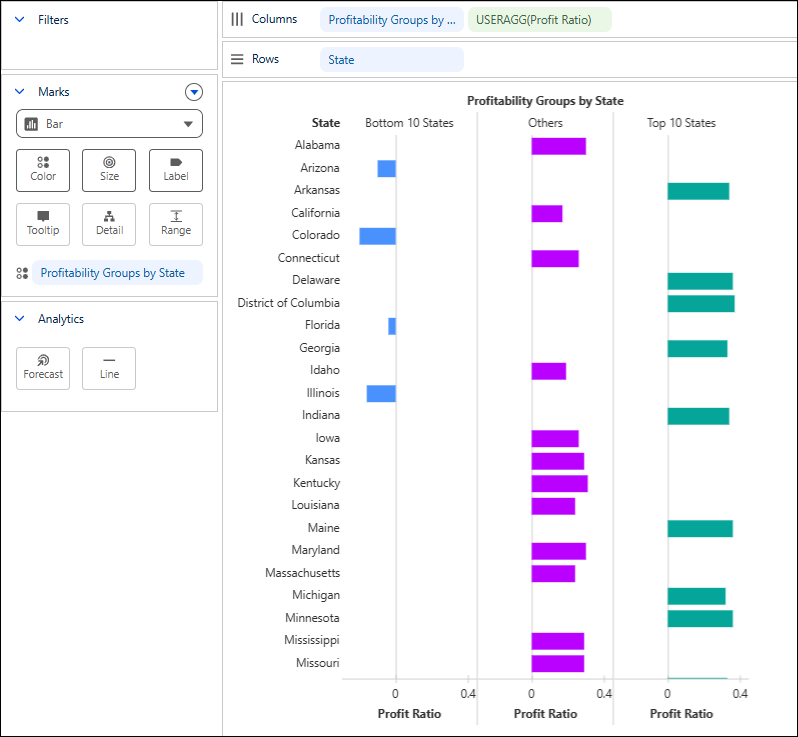
For example, create groups for states based on profitability and compare performance across Top 10 States, Bottom 10 States, and Others to compare profitability across segments and quickly identify leading and underperforming states.
1. Create a group.
1. From the dimension field's context menu, select **Create Group**.
2. Enter the group's name, and optionally, a description.
2. Define group members.
1. In **Ungrouped Values** select one ore more dimension values.
2. To enter a name for the group member, click .
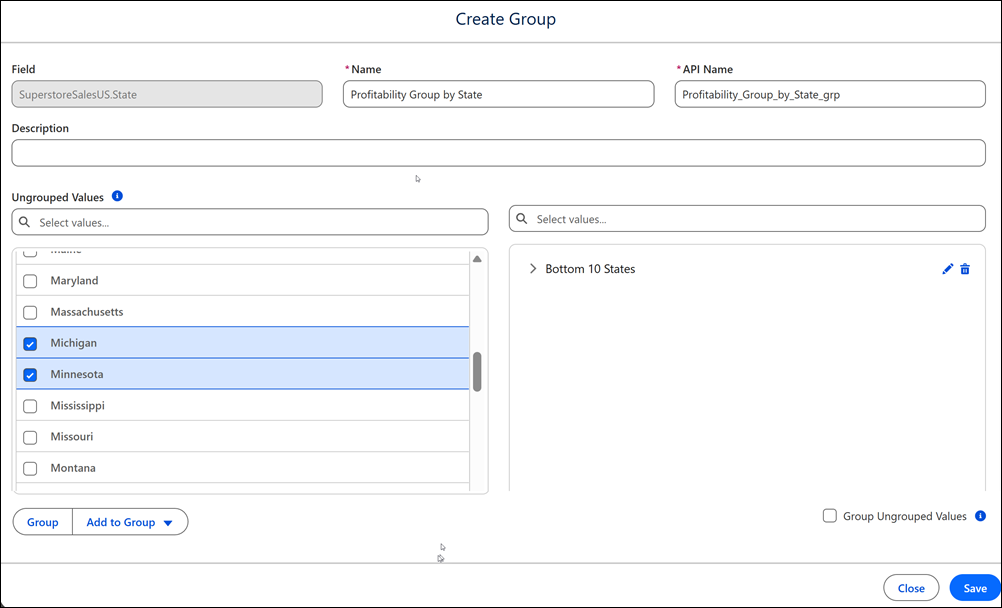
3. Create additional group members as needed.
4. Optionally, group all remaining values.
5. Save the group.
6. Apply the group to your visualization.