---
schema_version: "1"
id: e98d028688e5279f006afc2a5544da10a8c42b22a46605d990134001865c3b6e
title: Create Bins from Measure Values
collection: admin
version: current
locale: en-us
portal_url: https://docs.salesforce.com/admin/current/en-us/analytics/264-0-0/tua_viz_create_bins_how_to.md
canonical_url: https://help.salesforce.com/s/articleView?id=analytics.tua_viz_create_bins_how_to.htm&release=264.0.0&type=5
source_site: help.salesforce.com
content_type: documentation
content_hash: f50e7f1e744109a6265eab44ac4ae31747d05b4f659a7bcd3f21fb559c501569
description: Group continuous measure values into ranges, called bins, to simplify analysis and reveal patterns in your Tableau Next data. Create bins to segment values into intervals without changing the underlying data.
products:
- Tableau Next
release: "264"
---
# Create Bins from Measure Values
Group continuous measure values into ranges, called bins, to simplify analysis and reveal patterns in your Tableau Next data. Create bins to segment values into intervals without changing the underlying data.
### Required Editions
Tableau Unmetered Platform Analyst or Tableau Next Platform Analyst permission set
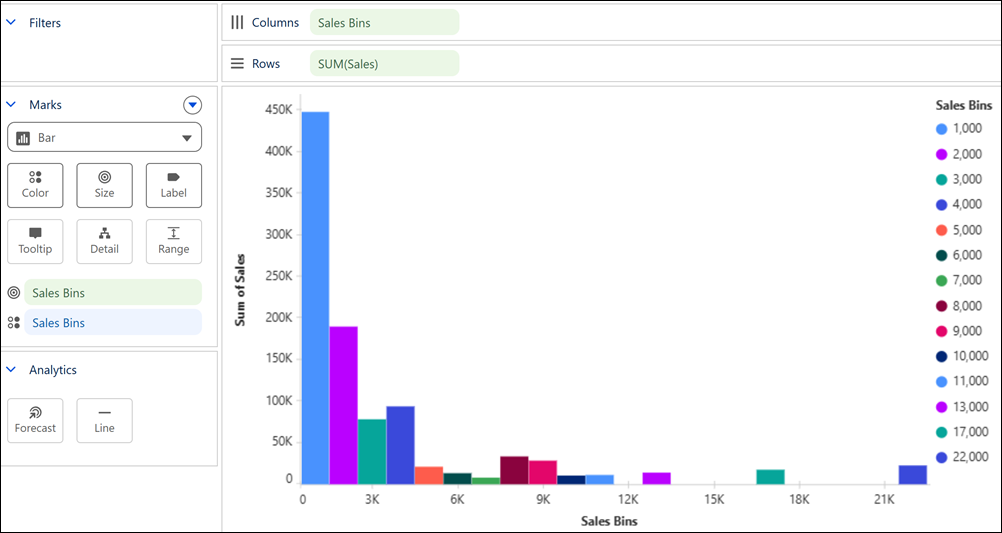
For example, create bins on Sales to group order values into ranges and identify which sales ranges contribute the most revenue.
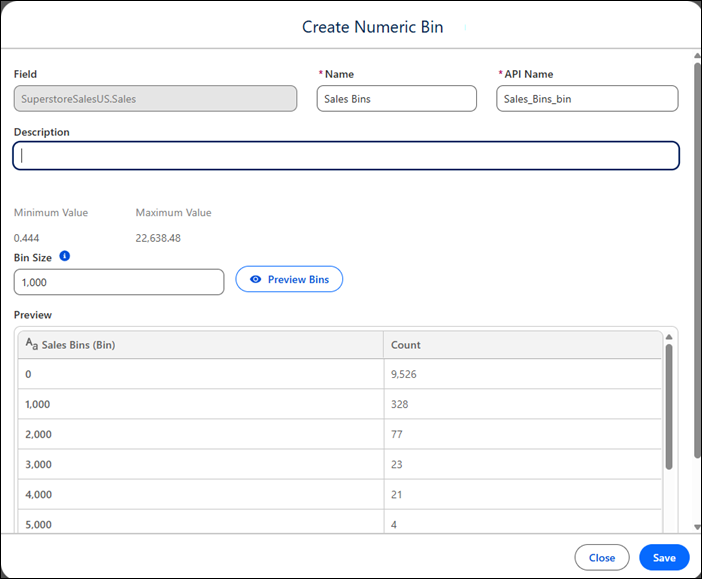
1. Create a bin.
1. In the Data pane, from the measure field's context menu, select **Create Bin**.
2. In the Create Numeric Bin window, enter the bin's name, and optionally, a description.
3. Enter a value for the bin size.
4. Preview the bin ranges and adjust the bin size if needed.
2. Save the bin.
3. Apply the bin to your visualization.