---
schema_version: "1"
id: 1ecc8f18a09290e4c00d442791ff1d5aa40b03d2a9e505b410520f16881b8a70
title: Sort Data in a Visualization
collection: admin
version: current
locale: en-us
portal_url: https://docs.salesforce.com/admin/current/en-us/analytics/264-0-0/tua_sort_vizdata_how_to.md
canonical_url: https://help.salesforce.com/s/articleView?id=analytics.tua_sort_vizdata_how_to.htm&release=264.0.0&type=5
source_site: help.salesforce.com
content_type: documentation
content_hash: 835f495d6b7026c637ec8f65d82ea3d20414dba67f000234ab21e986b6c7e002
description: Choose whether data in your visualization is sorted in ascending or descending order. For example, identify the sub-category with the highest sales in each product category.
products:
- Tableau Next
release: "264"
---
# Sort Data in a Visualization
Choose whether data in your visualization is sorted in ascending or descending order. For example, identify the sub-category with the highest sales in each product category.
### Required Editions
Tableau Unmetered Platform Analyst or Tableau Next Platform Analyst permission set
Open the visualization that shows the breakdown of sales by product category and subcategory.
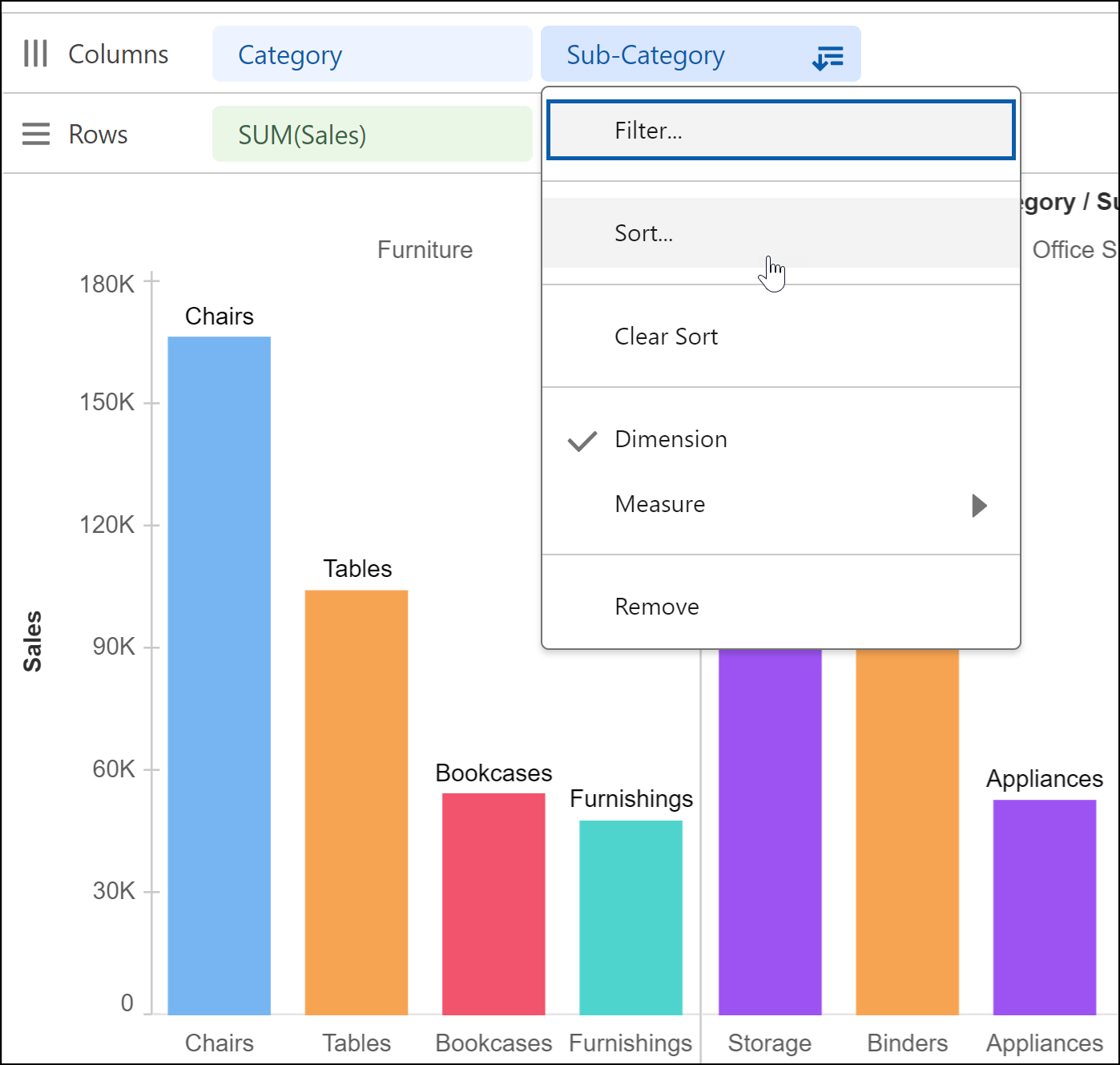
1. From the Sub-category field’s context menu, select **Sort**.
2. In the Sort dialog box, choose sort criteria.
3. Select the sort order.
4. Choose the field to sort the data by.
5. Specify the aggregate type
6. Apply your changes.