---
schema_version: "1"
id: 58d32d21ee738637c53b9eddfb5aa1b7ac816d587805d5cf0aa2b04a8341f368
title: Work with Tableau Next and Slack
collection: admin
version: current
locale: en-us
portal_url: https://docs.salesforce.com/admin/current/en-us/analytics/264-0-0/tua_metric_slack_share.md
canonical_url: https://help.salesforce.com/s/articleView?id=analytics.tua_metric_slack_share.htm&release=264.0.0&type=5
source_site: help.salesforce.com
content_type: documentation
content_hash: 2a0291876e49fa2b76acf56db7291ac94860a58fefca53a886e076b011a20135
description: Streamline sharing metrics, dashboards, and visualizations in the flow of work by previewing Tableau Next metrics in Slack. For metrics, dashboards, and vizzes, select Share to compose a message that is sent directly from Tableau Next to Slack—direct messages (DMs), group DMs, or channels. Or paste Tableau Next links to metrics, dashboards, or visualizations in Slack messages to share a preview with your team right where you’re working in Slack.
products:
- Tableau Next
release: "264"
---
# Work with Tableau Next and Slack
Streamline sharing metrics, dashboards, and visualizations in the flow of work by previewing Tableau Next metrics in Slack. For metrics, dashboards, and vizzes, select Share to compose a message that is sent directly from Tableau Next to Slack—direct messages (DMs), group DMs, or channels. Or paste Tableau Next links to metrics, dashboards, or visualizations in Slack messages to share a preview with your team right where you’re working in Slack.
### Required Editions
To share metrics, dashboards, and vizzes in Slack:
Tableau Unmetered Consumer or Tableau Next Consumer or Tableau Unmetered Self-Service Consumer or Tableau Next Self-Service Consumer
permission set
## Share Previews of Tableau Next Metrics, Dashboards, and Vizzes in Slack
There are a few ways to share previews of a Tableau Next objects in Slack:
- Share directly from Tableau Next to Slack. From a Tableau Next metric, dashboard, or viz, click **Share**, select the **Share to Slack** tab, and compose your message.
- Paste a link to a metric, dashboard, or visualization (viz) into the Slack message composer for a channel or a direct message (DM).
- Paste a link to a metric, dashboard, or viz into a Slack canvas.
If your admin [Connected Salesforce and Slack](https://slack.com/help/articles/30754346665747-Connect-Salesforce-and-Slack), then the preview appears automatically. If your Slack account isn't connected to Salesforce or if your accounts use different email addresses, then you receive a Slackbot message asking you to connect to Tableau Next. Select **Connect to Tableau Next**, and follow the prompts. After you allow Tableau Next to connect to Slack, you see a preview of Tableau Next objects shared in direct messages, channels, and canvases.
When you share a link to a Tableau Next object in Slack, a preview appears in the message composer letting you know that you’re about to share data with your team. If you choose to include the preview when sharing to a Slack channel that you’re a member of or a direct message, then the preview includes a point-in-time snapshot of the data, which can be seen by anyone who can see the message. If you don't want to share a preview, you can remove the preview from the message composer in Slack and send only the Tableau Next link.
Previews of Tableau Next objects that you share in Slack respect your permissions as the message sender, including any filters applied and any data governance policies applied to your user. For example, metrics sent in Slack include the metric value, chart, insight summary, and a time stamp to make it clear when the snapshot was captured.
Similar to sending a screenshot in Slack, anyone who can view the message can see the preview, even if they’re not Tableau Next users. To ensure trust and to respect security preferences, users can’t query live data within Slack unless they have the required permissions in Tableau Next and Data 360.
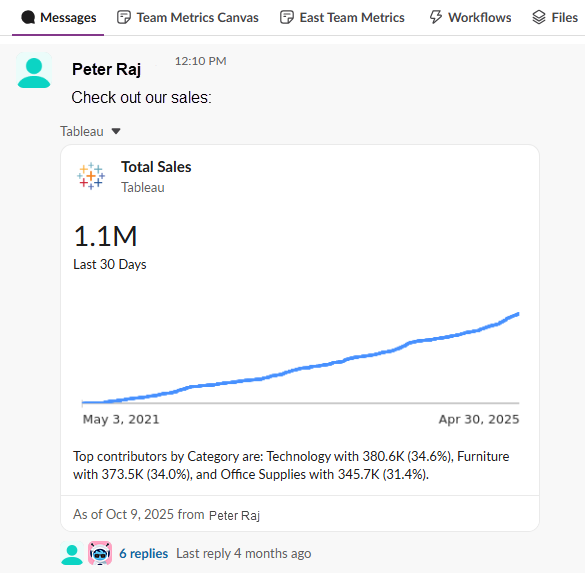

Note If you don't see a preview or receive the Slackbot message to connect to Tableau Next when you share a Tableau Next link, then your admin needs to [Enable Slack for Tableau Next](https://help.salesforce.com/s/articleView?id=analytics.tua_admin_enable_slack_collab.htm&release=264.0.0&type=5 "When enabled, users can share Tableau Next links in Slack with a preview of the metric. After an admin Connects Salesforce and Slack, previews sent in Slack are displayed according to the senders’ permission access that is governed by Tableau Next. And this seamless integration between Slack and Tableau Next requires no additional apps. From Slack or Tableau Next, users can view related conversations that they have access to about Tableau Next analytics that have been shared in Slack."). You can still share Tableau Next links in Slack, but you won't see a preview.
## Access Live Data in Slack
Metrics, dashboards, and vizzes shared into a Slack canvas can be embedded as a live preview or static snapshot. From any preview shared in Slack, users who have access can open the side pane to see live detailed data, loaded from your perspective.
For all live data previews, Slack and Tableau always load the data from the viewer’s perspective, respecting each viewer’s own security and data permissions. Viewers can also open the metric, dashboard, or viz in the Tableau Next app in Salesforce, where they can filter and explore more.
If a user views a preview of a live embedded preview in Slack but doesn’t have access to view the metric, dashboard, viz, or its underlying data in Tableau Next, then they see a message stating that they don’t have access to view the preview.
- **[Explore Tableau Next in the Slack Side Pane](https://help.salesforce.com/s/articleView?id=analytics.tua_metric_slack_explore.htm&release=264.0.0&type=5)**
When a Tableau Next metric, dashboard, or viz is shared in Slack, users can click the preview to open a side pane in Slack that shows details and live insights.
- **[Find Related Slack Conversations for Tableau Next](https://help.salesforce.com/s/articleView?id=analytics.tua_metric_slack_related_conversations.htm&release=264.0.0&type=5)**
When a Tableau Next metric, dashboard, or viz is shared in Slack, you’re able to browse other related messages that you have access to in Slack. You can also view related conversations for metrics from the Tableau Next app.
- **[Share Previews of Tableau Next Metrics, Dashboards, and Visualizations in Slack](https://help.salesforce.com/s/articleView?id=analytics.tua_metric_slack_share_preview.htm&release=264.0.0&type=5)**
When you send previews of Tableau Next metrics, dashboards, and visualizations (vizzes) in Slack, anyone who can see the message will see the preview, including any filters applied. Before sending, make sure you’re not sharing sensitive data.
- **[Add Tableau Next Metrics, Dashboards, and Visualizations to a Slack Canvas](https://help.salesforce.com/s/articleView?id=analytics.tua_metric_slack_canvas.htm&release=264.0.0&type=5)**
When you paste a Tableau Next link into a Slack canvas, you can choose to display a preview of the metric, dashboard, or visualiation (viz) as a card. Unlike sharing a Tableau Next link in a direct message or channel, previews in Slack canvases regularly refresh data from each viewer’s perspective. And you can see when the data was last refreshed at the bottom of the card in the canvas.
- **[Ask Questions About Shared Metrics and Dashboards in Slack Using Tableau Agent](https://help.salesforce.com/s/articleView?id=analytics.tua_metric_analytics_qa_slack.htm&release=264.0.0&type=5)**
When an agent based on the Analytics and Visualization template is installed and enabled in Slack, you can use Tableau Agent to ask questions and dive deeper into your shared Tableau Next metric and dashboard data.
- **[Use the Tableau Next Model Context Protocol (MCP) in Slack](https://help.salesforce.com/s/articleView?id=analytics.tua_metric_slack_mcp.htm&release=264.0.0&type=5)**
After your admins enable the Tableau Next Model Context Protocol (MCP) Server, you can ask Slackbot about your Tableau Next data.
#### See Also
- [_Salesforce Help_: Enable Slack for Tableau Next](https://help.salesforce.com/s/articleView?id=analytics.tua_admin_enable_slack_collab.htm&language=en_US)
- [_Salesforce Help_: Receive Inspector Proactive Data Alerts in Tableau Next (Beta)](https://help.salesforce.com/s/articleView?id=analytics.tua_metric_data_alerts_about.htm&language=en_US)