---
schema_version: "1"
id: 906a9c8a62171e10616abf0ff25749bbec98132d3518e359660b88da4a40307b
title: Create Goals and Set Thresholds with Tableau Next
collection: admin
version: current
locale: en-us
portal_url: https://docs.salesforce.com/admin/current/en-us/analytics/264-0-0/tua_metric_goals_about.md
canonical_url: https://help.salesforce.com/s/articleView?id=analytics.tua_metric_goals_about.htm&release=264.0.0&type=5
source_site: help.salesforce.com
content_type: documentation
content_hash: af279b25e619bf010645405fcd3ed7b6014576bbf720ce7fcd2d1e41f73a06f4
description: With Tableau Next, you can track important metrics and receive updates right where you’re working in Salesforce or in Slack. When you set a goal in Tableau Next, you can also track a metric’s progress toward that goal. And you can set thresholds to add context to your metrics. For example, if you have a metric that tracks sales over time, you can set a goal and turn on forecasting to monitor your progress toward that goal. And you can add labels for ranges such as “at risk,” “healthy,” for more context. Or set thresholds independently of goals, which is particularly valuable for noncumulative metrics. For example, you could set a threshold that indicates that it’s time to investigate when a metric is less than a specified value.
products:
- Tableau Next
release: "264"
---
# Create Goals and Set Thresholds with Tableau Next
With Tableau Next, you can track important metrics and receive updates right where you’re working in Salesforce or in Slack. When you set a goal in Tableau Next, you can also track a metric’s progress toward that goal. And you can set thresholds to add context to your metrics. For example, if you have a metric that tracks sales over time, you can set a goal and turn on forecasting to monitor your progress toward that goal. And you can add labels for ranges such as “at risk,” “healthy,” for more context. Or set thresholds independently of goals, which is particularly valuable for noncumulative metrics. For example, you could set a threshold that indicates that it’s time to investigate when a metric is less than a specified value.
### Required Editions
Tableau Unmetered Consumer or Tableau Next Consumer or Tableau Unmetered Self-Service Consumer or Tableau Next Self-Service Consumer
permission set
When you create a goal or threshold, the goal and thresholds are visible to anyone who views that metric. And all users can create, edit, or delete a goal or thresholds for a metric.
When you create a goal or threshold, it’s based on the metric’s current filters. Goals and thresholds also use the time range selected by the user. For example, if the metric’s time range is quarter to date, then the goal and thresholds set are from the beginning of the quarter to the end of the quarter.
When the goal’s time period has passed, the goal and thresholds don’t recur. If you have recurring goals and thresholds, then set them at the beginning of each time period.
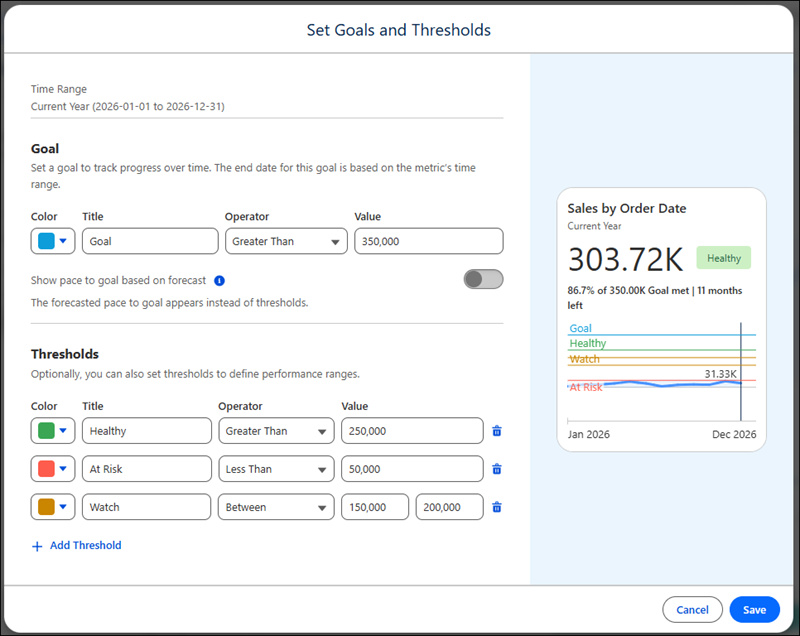
- **[Set Goals and Thresholds for Tableau Next Metrics](https://help.salesforce.com/s/articleView?id=analytics.tua_metric_goals.htm&release=264.0.0&type=5)**
When you set a goal, you see your progress toward that goal on your Tableau Next Following page. And thresholds give more context to your metric's value. For example, you can create thresholds for performance ranges, such as "healthy," "at risk," and "critical." You can set thresholds with or without goals. And you can also set goals without thresholds.
- **[Edit or Delete Tableau Next Goals or Thresholds](https://help.salesforce.com/s/articleView?id=analytics.tua_metric_goals_edit.htm&release=264.0.0&type=5)**
Editing a goal or deleting a goal or threshold changes them for all users who follow that Tableau Next metric.