---
schema_version: "1"
id: 6d67ef0b823fd200122f92d01ab13fdfdba6e10808ea69a6be46393cd716be6c
title: Use Metric Forecasting in Tableau Next
collection: admin
version: current
locale: en-us
portal_url: https://docs.salesforce.com/admin/current/en-us/analytics/264-0-0/tua_metric_forecast.md
canonical_url: https://help.salesforce.com/s/articleView?id=analytics.tua_metric_forecast.htm&release=264.0.0&type=5
source_site: help.salesforce.com
content_type: documentation
content_hash: 9cf893d29a4627d3bdb2a9b36072b4937cd9fb7dec6b019df989774c8ad8a9b2
description: When you follow a metric, you can see the data that’s most important to you at a glance. And when you turn on forecasting, you can also see the metric’s predicted performance. When forecasting is turned on, Tableau Next uses historical data to anticipate future trends. The forecast extends only as far into the future as Tableau Next can maintain 95% confidence. For example, if there isn’t data for the previous year, Tableau Next won’t provide a forecast for the entire period because it doesn’t have enough historical data to forecast with high accuracy. When forecasting is turned on, the metric’s historic value is a solid line, the forecasted value appears in a dashed line, and the confidence range appears as a shaded band around the line.
products:
- Tableau Next
release: "264"
---
# Use Metric Forecasting in Tableau Next
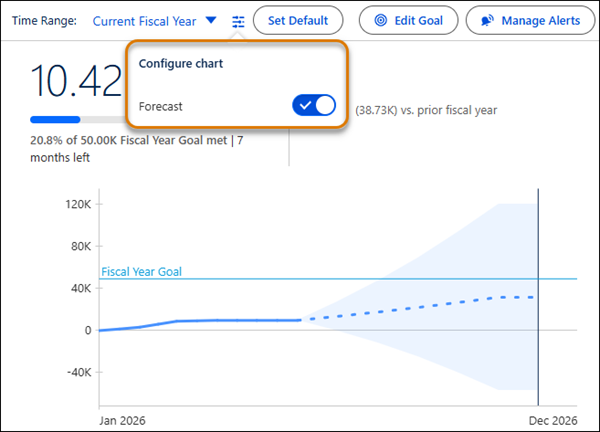
When you follow a metric, you can see the data that’s most important to you at a glance. And when you turn on forecasting, you can also see the metric’s predicted performance. When forecasting is turned on, Tableau Next uses historical data to anticipate future trends. The forecast extends only as far into the future as Tableau Next can maintain 95% confidence. For example, if there isn’t data for the previous year, Tableau Next won’t provide a forecast for the entire period because it doesn’t have enough historical data to forecast with high accuracy. When forecasting is turned on, the metric’s historic value is a solid line, the forecasted value appears in a dashed line, and the confidence range appears as a shaded band around the line.
### Required Editions
Tableau Unmetered Consumer or Tableau Next Consumer or Tableau Unmetered Self-Service Consumer or Tableau Next Self-Service Consumer
permission set
1. Open a metric in Tableau Next, and select the filters and time period most important to you.
2. Follow the metric.
3. From the chart configuration menu (slider icon), turn on the toggle for **Forecast**.
You can also turn on forecasting when creating or editing a goal or thresholds. Or from a dashboard in Tableau Next, edit the dashboard, select the metric, and check the box for Show Forecast.
#### See Also
- [_Salesforce Help_: Create Goals and Set Thresholds with Tableau Next](https://help.salesforce.com/s/articleView?id=analytics.tua_metric_goals_about.htm&language=en_US)