---
schema_version: "1"
id: 5ae1cee149acbcfb2faa1e13365da298729aa3cdd11ad1fb2d4a857a5c1ee6ef
title: Enable the Data Analysis and Data Alert Management Topics for Tableau Next
collection: admin
version: current
locale: en-us
portal_url: https://docs.salesforce.com/admin/current/en-us/analytics/264-0-0/tua_metric_data_alerts_enable.md
canonical_url: https://help.salesforce.com/s/articleView?id=analytics.tua_metric_data_alerts_enable.htm&release=264.0.0&type=5
source_site: help.salesforce.com
content_type: documentation
content_hash: f3136458c84969991b2a5e4ad6d0bb43730aa1e79cbb9cfccb8b7f53141ba358
description: Add the Data Analysis and Data Alert Management subagents, so Agentforce can analyze Tableau Next metrics and semantic data models (SDMs) and send you alerts about them.
products:
- Tableau Next
release: "264"
---
# Enable the Data Analysis and Data Alert Management Topics for Tableau Next
Add the Data Analysis and Data Alert Management subagents, so Agentforce can analyze Tableau Next metrics and semantic data models (SDMs) and send you alerts about them.
### Required Editions
If you're using the new Agentforce Builder template, see [Set Up Tableau Agent in Tableau Next](https://help.salesforce.com/s/articleView?id=analytics.tua_admin_enable_agentforce_templates.htm/&language=en_US).
Tableau Unmetered Admin or Tableau Next Admin permission set and Assign Permission sets
1. Select the Setup icon (gear).
2. In the Quick Find box, type Agent and choose **Agentforce Agents**.
3. Select **New Agent**. Or choose the name of an existing agent, then select **Open in Builder** to edit, and skip to step 9.
4. If you’re building a new agent, select the **Analytics and Visualization** agent template in the Agent Creator page. Then click **Next**.
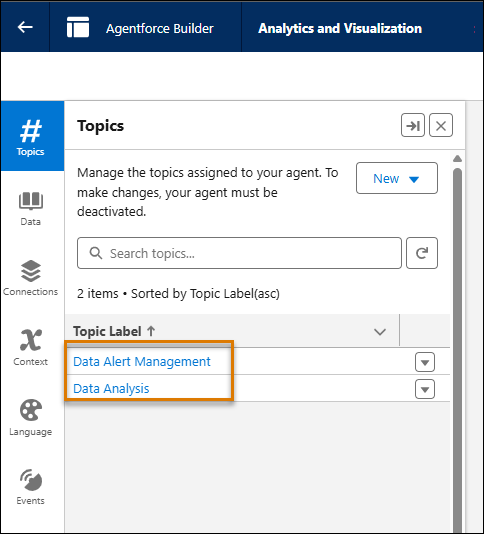
5. Confirm that Data Analysis and Data Alert Management are both added, and click **Next**.
6. Enter a Name, API Name, Description, Role, and Company for your agent. Then click **Next**.
7. Confirm your Default Language and Tone, and click **Create**.
8. In the Agentforce Builder page, select the dropdown arrow next to Data Alert Management. Then select **View Details**.
9. On the **This Topic’s Actions** tab, confirm that **Create Data Alert** is listed, and click **Activate**.
10. From the app picker, go to Tableau Next.
11. On the left side of Tableau Next, choose **Administration** and choose **Settings**.
12. Confirm that **Tableau Agent: Data Alerting** is enabled. If you don't see **Tableau Agent: Data Alerting**, make sure that **Concierge: Analytics Q&A** is enabled first.

Note If the Data Alert Management subagent isn't listed, click **New** and then **Add from Asset Library**. Search for Data Alert Management, check the box for that subagent, and click Finish. Then, open the agent in Agentforce Builder, and open the **Data Alert Management** subagent. Click the tab for **This Subagent's Actions**, and open **Create Data Alert**. Finally, assign the following variables to their corresponding input instructions, and save your changes when you're done:
- `targetEntityID` for **Target Entity Id**
- `targetEntityType` for **Target Entity Type**
- `targetEntityState` for **Target Entity State**
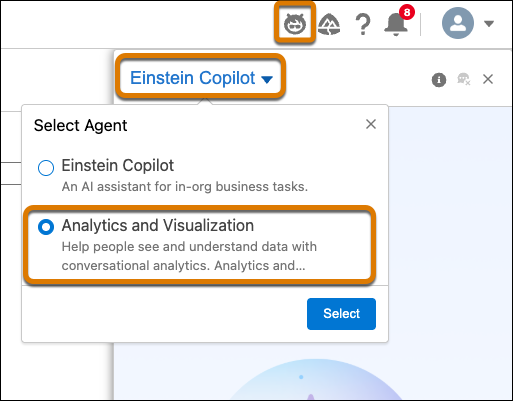
Finally, users must select the **Analytics and Visualization** agent from Agentforce in Tableau Next. Then to create an alert, open a Tableau Next metric, and open the Agentforce panel by clicking the Agentforce icon. Using natural language, ask Agentforce to send you an alert when a specified metric meets a certain condition, for example “Send me an alert when this metric reaches 10,000.”