---
schema_version: "1"
id: b3281960c434c0e5713227c8b464733baedc9b652287d07ac5b0665063f0e8a9
title: Get Custom Data Alerts in Slack with Agentforce in Tableau Next or Tableau Next MCP
collection: admin
version: current
locale: en-us
portal_url: https://docs.salesforce.com/admin/current/en-us/analytics/264-0-0/tua_metric_data_alerts.md
canonical_url: https://help.salesforce.com/s/articleView?id=analytics.tua_metric_data_alerts.htm&release=264.0.0&type=5
source_site: help.salesforce.com
content_type: documentation
content_hash: 064fbcf90dae95361950216e82a0702116be7d251cf736a1b42d0007abcbd363
description: Receive alerts about your queries for your data or for custom metric alerts by using Tableau Next Model Context Protocol (MCP) in Slack, or ask Agentforce to alert you when specific conditions are met. To create alerts for queries about your semantic data model (SDM), make sure that you have access to the SDM.
products:
- Tableau Next
release: "264"
---
# Get Custom Data Alerts in Slack with Agentforce in Tableau Next or Tableau Next MCP
Receive alerts about your queries for your data or for custom metric alerts by using Tableau Next Model Context Protocol (MCP) in Slack, or ask Agentforce to alert you when specific conditions are met. To create alerts for queries about your semantic data model (SDM), make sure that you have access to the SDM.
### Required Editions
Tableau Unmetered Consumer or Tableau Next Consumer or Tableau Unmetered Self-Service Consumer or Tableau Next Self-Service Consumer permission set
Open Agentforce in Tableau Next or [use Tableau Next MCP in Slackbot](https://help.salesforce.com/s/articleView?id=analytics.tua_metric_slack_mcp.htm&release=264.0.0&type=5 "After your admins enable the Tableau Next Model Context Protocol (MCP) Server, you can ask Slackbot about your Tableau Next data."), and use natural language to create alerts that monitor your metrics or their underlying data in Tableau Next.
When you create an alert by using Agentforce in Tableau Next, select the **Analytics and Visualizations** agent at the top of the Agentforce chat window. Alerts created by Agentforce or Tableau Next MCP are sent to channels set by your admin. By default, alerts appear under the Notifications icon (bell) in Tableau Next and on mobile. Admins can also enable data alerts to be sent to the user's email or to Slack. For more information, see [Choose Where Users Receive Data Alerts from Agentforce Tableau Next](https://help.salesforce.com/s/articleView?id=analytics.tua_metric_data_alerts_channels.htm&release=264.0.0&type=5 "When a Tableau Next user asks Agentforce to send them an alert, the notification is sent to the channels selected by an admin.").
When you create an alert by using Tableau Next MCP, notifications are sent in Slack and appear in the Notifications icon (bell) in Tableau Next.
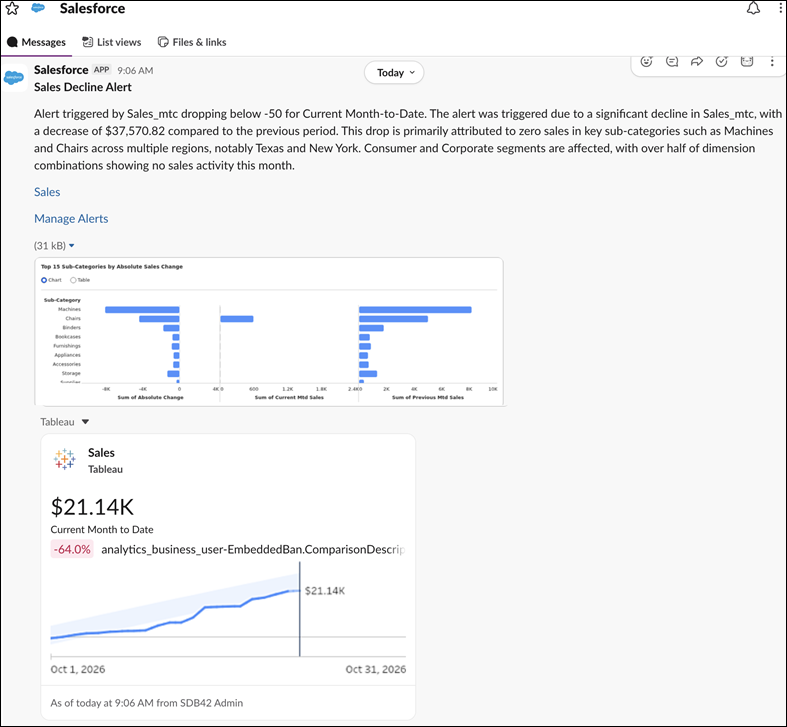
1. Open Tableau Next, and click the Agentforce icon  to open the Agentforce chat, and select the Analytics and Visualizations agent at the top of the pane. Or open Slackbot, and make sure that Tableau Next MCP is turned on.
2. Using natural language, describe the type of alert that you want to create. For example, type “Alert me when the number of high-priority open cases for any account is greater than 10.”
3. After Agentforce or Slackbot repeat the correct conditions for the alert, reply and confirm that you want alerts for the event.
To view, test, or delete your custom data alerts, select **Manage Data Alerts** from the Tableau Next Following page. From the **Manage Alerts** window, select **Run Alert** to check the conditions of a data alert at any time.
- **[Enable the Data Analysis and Data Alert Management Topics for Tableau Next](https://help.salesforce.com/s/articleView?id=analytics.tua_metric_data_alerts_enable.htm&release=264.0.0&type=5)**
Add the Data Analysis and Data Alert Management subagents, so Agentforce can analyze Tableau Next metrics and semantic data models (SDMs) and send you alerts about them.
- **[Choose Where Users Receive Data Alerts from Agentforce Tableau Next](https://help.salesforce.com/s/articleView?id=analytics.tua_metric_data_alerts_channels.htm&release=264.0.0&type=5)**
When a Tableau Next user asks Agentforce to send them an alert, the notification is sent to the channels selected by an admin.
- **[Get Tableau Next Data Alerts from Agentforce in Slack](https://help.salesforce.com/s/articleView?id=analytics.tua_metric_data_alerts_slack.htm&release=264.0.0&type=5)**
When you create data alerts by using Agentforce, your alerts appear under Notifications in Tableau Next. And with help from an admin, you can also receive data alerts in Slack. When the conditions of the alert are met, Agentforce sends an alert to Tableau Next and Slack with insights about what contributed to the change.