---
schema_version: "1"
id: 3864d745ec939b7e4e58939e503341dfa871674c2e94e4b40ea013f6c4dd0091
title: Add a Tableau Next Metric to a Lightning Page
collection: admin
version: current
locale: en-us
portal_url: https://docs.salesforce.com/admin/current/en-us/analytics/264-0-0/tua_embed_metric.md
canonical_url: https://help.salesforce.com/s/articleView?id=analytics.tua_embed_metric.htm&release=264.0.0&type=5
source_site: help.salesforce.com
content_type: documentation
content_hash: bb025b4e912334acd8b57d27b4ea843efcd6d5dec5d7f96d9f1740ee28f12461
description: Integrate your Tableau Next metrics into Lightning pages to bring specific insights directly to your users. To embed a metric component in the page, follow these steps.
products:
- Tableau Next
release: "264"
---
# Add a Tableau Next Metric to a Lightning Page
Integrate your Tableau Next metrics into Lightning pages to bring specific insights directly to your users. To embed a metric component in the page, follow these steps.
### Required Editions
To access Tableau Next components in Lightning App Builder:
Tableau Unmetered Admin or Tableau Next Admin permission set
1. On the Lightning home or record page you want to embed a metric in, click the Setup icon and select **Edit Page**.
If you have multiple page layouts, open the Lightning App Builder in Setup to see the list of page layouts. Click **Edit** for the page layout you want to update.
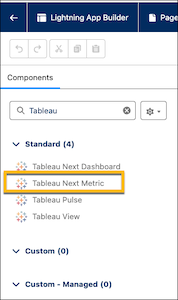
2. From the Lightning App Builder component palette, select **Tableau Next Metric** and drag the component onto the page.
3. In the component properties panel, configure these properties
1. Choose the semantic data model to embed a metric from.
2. Use the metric defintion dropdown list to select the metric to embed.
3. Select the attributes you want to display for the metric, including period-over-period change, insight summary, and charts.
4. To apply filters to the metric, click **Add Filter**.
Use the filter builder to select the metric dimension, the filter values, and the operator. You can also select **Record Value** or **Static Value** as the filter value type on a record page. For more information on filter values, see [Filter Values for Embedded Visualizations, Dashboards, and Metrics](https://help.salesforce.com/s/articleView?id=analytics.tua_embed_filter_values.htm&release=264.0.0&type=5 "Create filters for embedded Tableau Next visualizations, dashboards, and metrics with the filter builder to show relevant embedded content. You can use the builder to set dynamic or static values in the filter when the visualization, dashboard, or metric renders. On a record page, you can also base filter values on the page context, such as account ID, or specify static values so that the embedded content shows only relevant data.").
5. To control the component visibility, add filters in Set Component Visibility. For more information, see [Visibility Rules on Lightning Pages](https://help.salesforce.com/s/articleView?id=platform.lightning_page_components_visibility.htm&language=en_US).
After you embed your component, save and activate your Lightning page. For more information on page activation, see [Activate Lightning Experience Record Pages](https://help.salesforce.com/s/articleView?id=platform.lightning_app_builder_customize_lex_pages_activate.htm&language=en_US).
#### See Also
- [Create and Configure Lightning Experience Record Pages](https://help.salesforce.com/s/articleView?id=platform.lightning_app_builder_customize_lex_pages.htm&language=en_US)