---
schema_version: "1"
id: 8a7dd232aaee8f0b518ff9b3207cca23ffdf5cc123392ddb751ac2cc2e162302
title: Copy Tableau Next Component Code for Embedding
collection: admin
version: current
locale: en-us
portal_url: https://docs.salesforce.com/admin/current/en-us/analytics/264-0-0/tua_embed_external_tab.md
canonical_url: https://help.salesforce.com/s/articleView?id=analytics.tua_embed_external_tab.htm&release=264.0.0&type=5
source_site: help.salesforce.com
content_type: documentation
content_hash: ebb7a330a8caa2779d0db185be00055c2382c10b70f0c673f866fa890f6d81bf
description: Tableau Next provides a quick start for embedding code directly from your dashboard, visualization, or metric. The embed feature creates JavaScript component code for your selected asset, that you can copy and use in your web app.
products:
- Tableau Next
release: "264"
---
# Copy Tableau Next Component Code for Embedding
Tableau Next provides a quick start for embedding code directly from your dashboard, visualization, or metric. The embed feature creates JavaScript component code for your selected asset, that you can copy and use in your web app.
### Required Editions
Tableau Unmetered Platform Analyst or Tableau Next Platform Analyst permission set
To embed Tableau Next components, an External Client App (ECA) for authentication is required and the Tableau Next Embedding SDK must be installed in your web app. For more information on ECA setup and SDK usage, see the [Tableau Next Embedding SDK](https://developer.salesforce.com/docs/analytics/sdk/guide/sdk-overview.html) developer guide.
1. Open your dashboard, visualization, or metric in Tableau Next, click **Share**, and select the Embed tab.
2. To copy the code snippet for use in your web app, click **Copy Embed Code**.
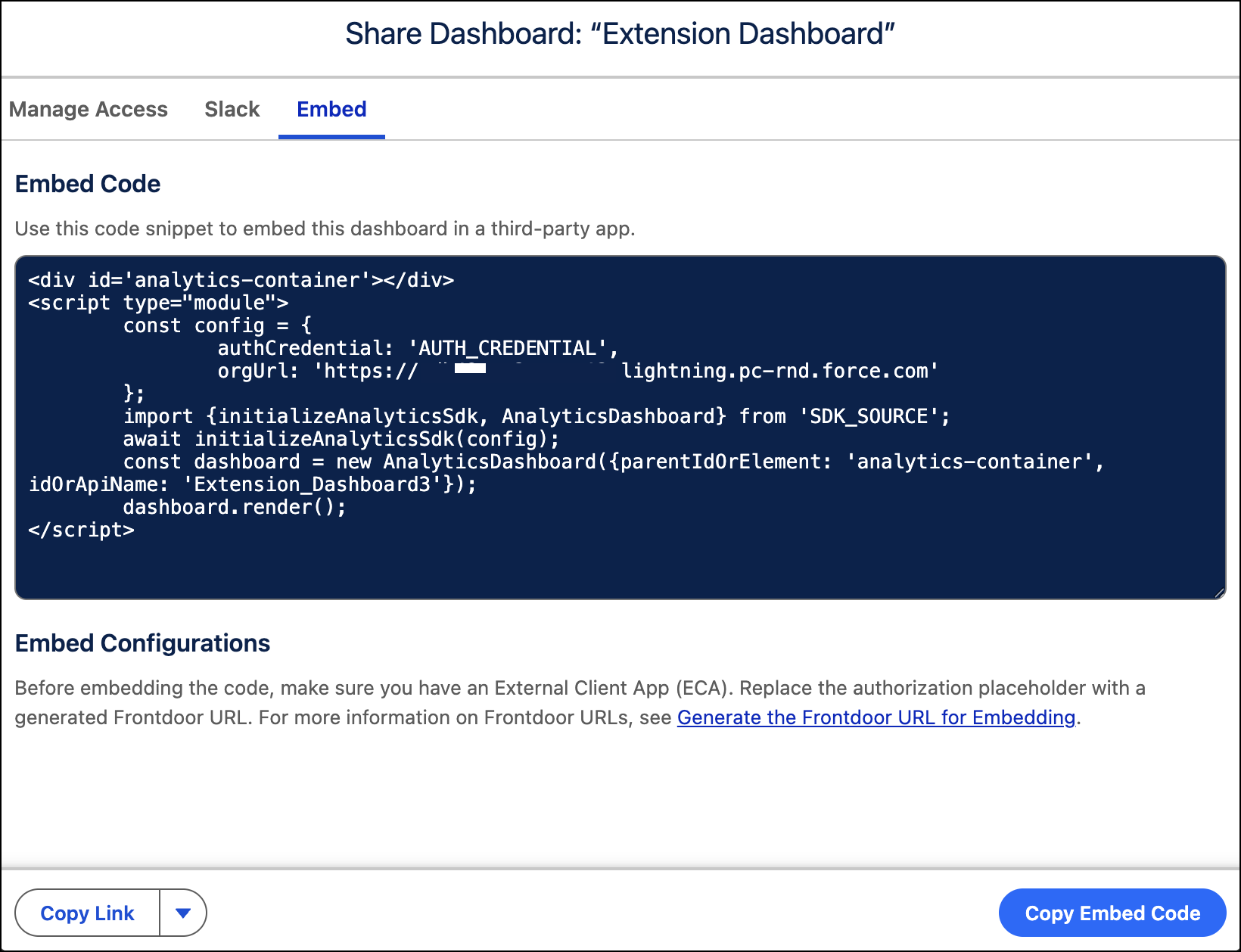
This snippet has placeholders for the AUTH\_CREDENTIAL and SDK\_SOURCE values. These placeholders must be replaced with actual values after you copy the code to your web app.

Note If you have any filters applied to your dashboard, visualization, or metric, they're present in the code snippet. In Winter ‘26, these filters aren’t supported. Adding and using filters must be done programmatically in your web app code.