---
schema_version: "1"
id: dc82ccff2f0f51fa6ee1e81b3be85d1030c51564705e61f39edd5b9d73e56d13
title: Add a Batch Data Transform
collection: admin
version: current
locale: en-us
portal_url: https://docs.salesforce.com/admin/current/en-us/analytics/264-0-0/tua_data_transforms_create.md
canonical_url: https://help.salesforce.com/s/articleView?id=analytics.tua_data_transforms_create.htm&release=264.0.0&type=5
source_site: help.salesforce.com
content_type: documentation
content_hash: fe2d2e7d4e3c5dcfa5f72127722aadf99fd0df43ddd121cedcbef2ad2f335fd6
description: Create a batch data transform with data objects by using the in-app builder.
products:
- Tableau Next
release: "264"
---
# Add a Batch Data Transform
Create a batch data transform with data objects by using the in-app builder.
### Required Editions
1. On your Tableau Next home page, click **Add**, and then select **Data Transform**.
2. Select an existing workspace or create a workspace.
3. Click **Continue**.
4. Add an existing transform or create a transform on the data objects.
- To start with an existing transform, select the transform, click **Add**, and then go to the **Data Transforms** section to open the added data transform in the canvas.
- To start with a data object, select the data object and the specific columns that you want to include. Click **Add** to open the canvas.
5. When the canvas is open, click **Add Data** to add more input data objects.
6. Add a node to the batch data transform by clicking the Add Node button () between two nodes or at the end of the batch data transform. Then, select the node type. To show the Add Node button between two nodes, hover on the connecting line.
7. Preview the results of each node and transformation that you added by selecting the node or transformation in the canvas.
To edit or delete a node, select the node, click the , and then select the appropriate action. To edit or delete a transformation in a transform node, select the transform node, click the , and then select the appropriate action.
8. To connect, join, or append nodes in the canvas, drag the Add Node button () next to a node or Branch button () on top of another node in the canvas. Select one of the Connect Nodes options.
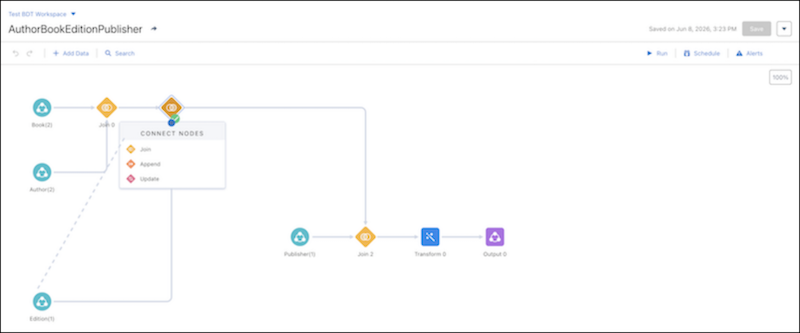
9. End the data transform with 1 or more output nodes.
10. Select either **Replace** or **Upsert** for the output Write Mode.
Upsert loads all input data in every run, merging it into the output. Replace attempts incremental transforms, loading only changes from previous runs into the output. For more information, see [Write the Batch Data Transform Results to a Data Lake Object Output Node](https://help.salesforce.com/s/articleView?id=data.c360_a_batch_transform_output_node_dlo.htm&language=en_US) and [Write the Batch Data Transform Results to a Data Model Object Output Node](https://help.salesforce.com/s/articleView?id=data.c360_a_batch_transform_output_node_dmo.htm&language=en_US).
11. Select an existing data lake or data model object to write the results to, or create a new object, and then click **Apply**.
12. On the Batch Transform canvas, click **Save**.
13. Enter a descriptive name that indicates the specific manipulation or operation being performed on the data. A definition name is auto-populated in the Definition Name field.
14. **Save** your work.