---
schema_version: "1"
id: ae44cd1ddb155fb1d5027ba0a0473bd8b5df0a1841104af97c2b1f4715625d07
title: Add Semantic Models
collection: admin
version: current
locale: en-us
portal_url: https://docs.salesforce.com/admin/current/en-us/analytics/264-0-0/tua_data_sdm_add_models.md
canonical_url: https://help.salesforce.com/s/articleView?id=analytics.tua_data_sdm_add_models.htm&release=264.0.0&type=5
source_site: help.salesforce.com
content_type: documentation
content_hash: 35229d6e4ef00550db87f1c0f7ed56523c0624e260f24329519d879b339a16c4
description: Within Tableau Next, create a new semantic model from an existing asset.
products:
- Tableau Next
release: "264"
---
# Add Semantic Models
Within Tableau Next, create a new semantic model from an existing asset.
### Required Editions
Tableau Unmetered Platform Analyst or Tableau Next Platform Analyst permission set
1. From your workspace, click **Add** and select **New Semantic Model**.
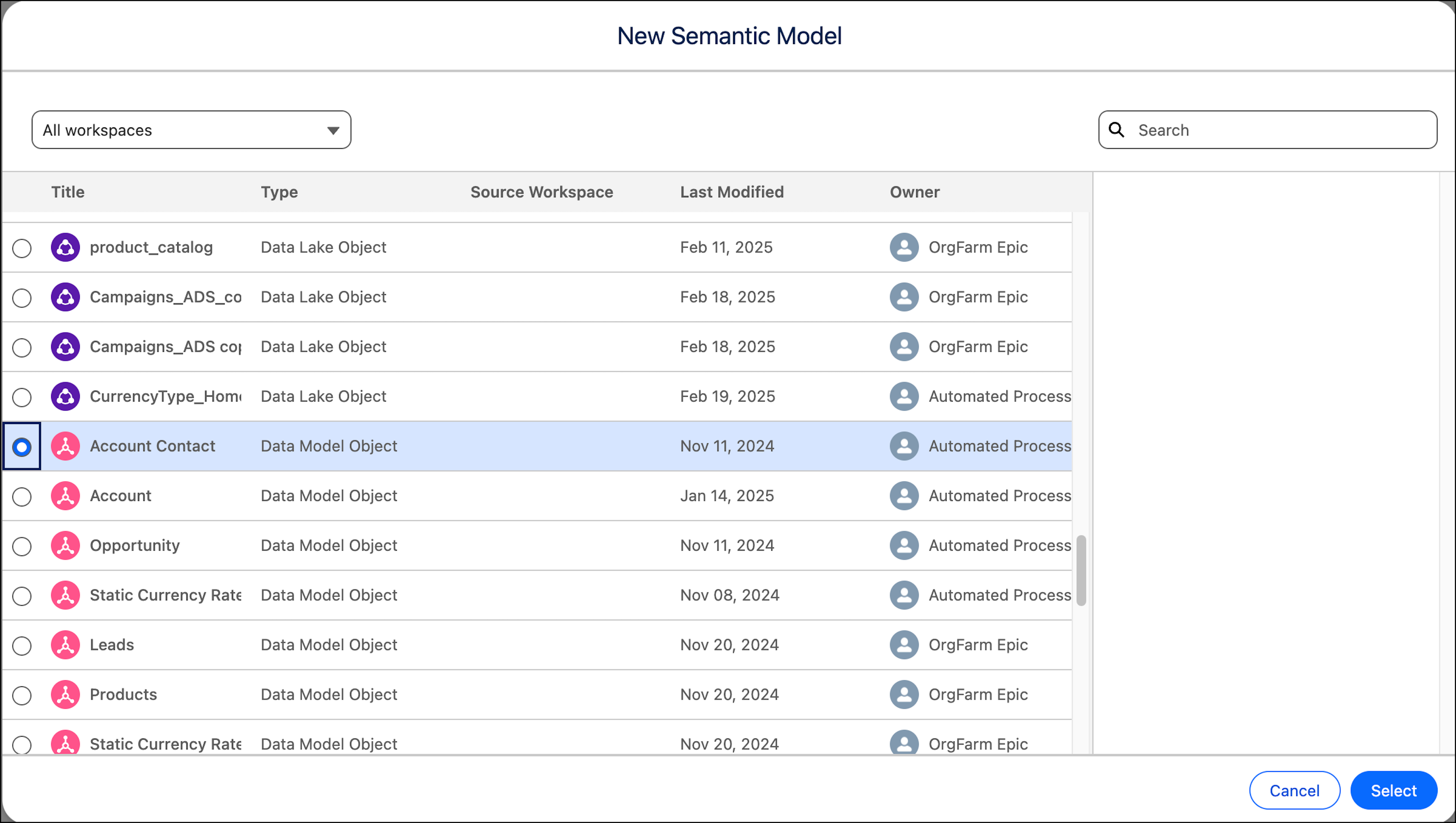
2. Select the data model object that you want to build relationships on, and click **Select**.

Note You can only select one data object at a time.

3. To add another data object, under Data Objects, click the plus icon.

Note For performance reasons, avoid mixing data objects with a Live Query Federation conection and data objects from other sources.
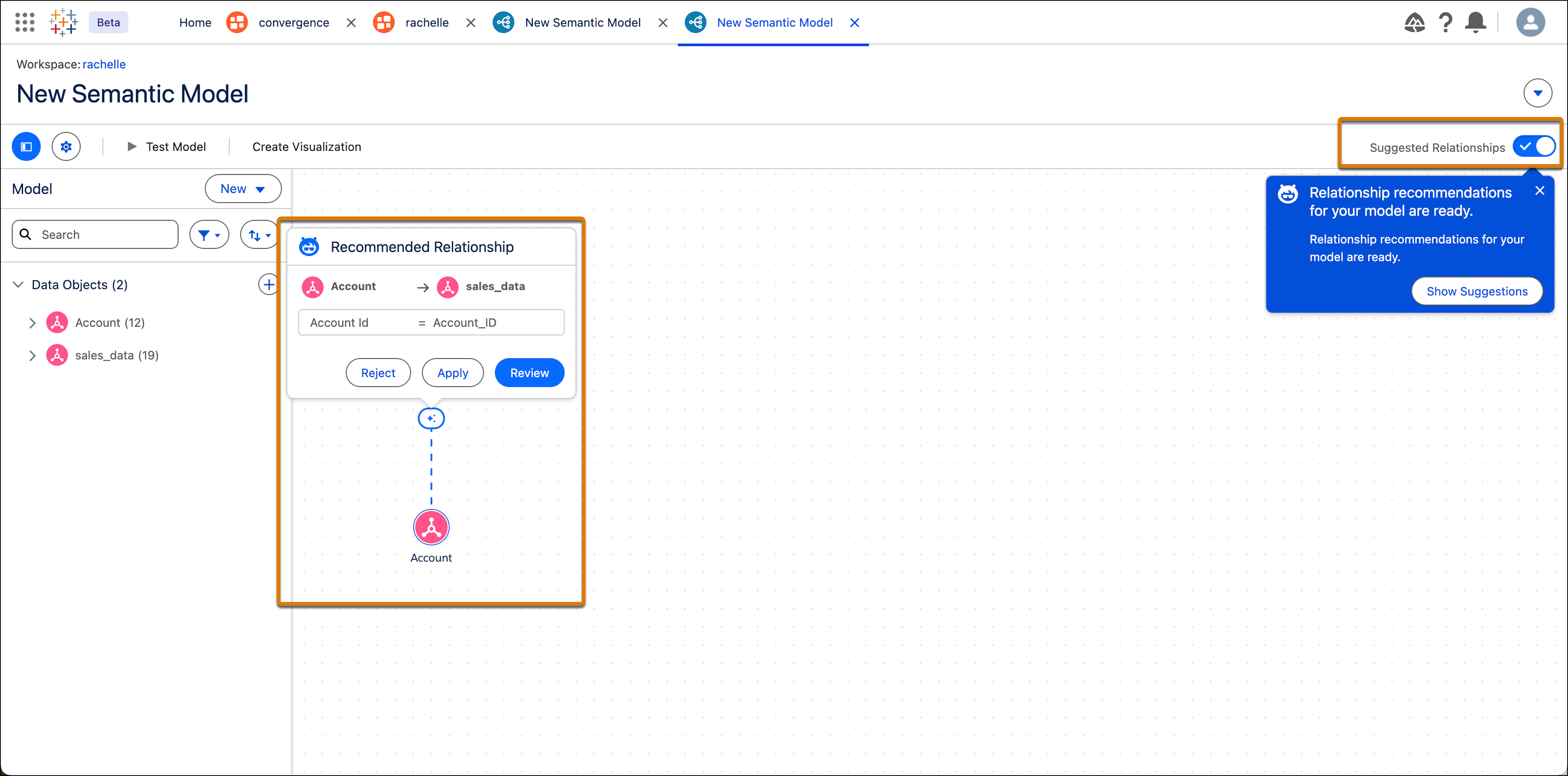
4. If you want to connect the data objects based on a common field, you can create a relationship. You can either do this manually, or you can let Einstein [suggest relationships](https://help.salesforce.com/s/articleView?id=analytics.c360_a_sl_create_rel_with_einstein.htm&language=en_US) for you.
5. Click **Show Suggestions** and then review the suggestions and apply if needed. You can always turn suggestions on or off using the **Suggested Relationships** toggle.
6. Continue building your model by adding more data objects, calculated fields, parameters, and logical views. For more information, see [Semantic Model Builder in Tableau Semantics](https://help.salesforce.com/s/articleView?id=analytics.c360_a_sl_data_model_builder.htm&language=en_US).
7. To add a name and description to your semantic model, click the Settings icon.
8. To test your model and make sure the semantic model works as expected, click **Test Model**. Tableau Semantics runs your model through the Tableau Semantics Query Generator and gives you test results. For more information, see [Test a Semantic Model](https://help.salesforce.com/s/articleView?id=analytics.c360_a_sl_testing_smodel_test.htm&language=en_US).
9. After you’re finished creating a semantic model, you can now create a metric or a visualization. For more information, see [Add a Metric to a Semantic Model](https://help.salesforce.com/s/articleView?id=analytics.tua_data_sdm_add_metrics.htm&release=264.0.0&type=5 "Within Tableau Next, create a metric based on a semantic model.") and [Create Visualizations](https://help.salesforce.com/s/articleView?id=analytics.tua_create_viz.htm&release=264.0.0&type=5 "Visualizations are visual representations of your data as a chart or graph. A visualization is a powerful way to explore and analyze data. In Tableau Next, you can build visualizations with rich features, filters, calculations, and actions.").