---
schema_version: "1"
id: 660c45a633f4e23acf50b8bcff07145b11c42abb3d6fe0304bd75e640650c6ef
title: Review Data Uploaded to Tableau Next
collection: admin
version: current
locale: en-us
portal_url: https://docs.salesforce.com/admin/current/en-us/analytics/264-0-0/tua_data_review_data.md
canonical_url: https://help.salesforce.com/s/articleView?id=analytics.tua_data_review_data.htm&release=264.0.0&type=5
source_site: help.salesforce.com
content_type: documentation
content_hash: 6d8a8ce0fd790d701f8ab8f30ec9e5702c068dbe99aa4c71323721da572794e3
description: After you upload an existing data asset or a file to a Tableau workspace, you can review the fields and data types, along with up to 100 rows of data in each field. After reviewing, you can use newly uploaded data immediately for models or visualizations.
products:
- Tableau Next
release: "264"
---
# Review Data Uploaded to Tableau Next
After you upload an existing data asset or a file to a Tableau workspace, you can review the fields and data types, along with up to 100 rows of data in each field. After reviewing, you can use newly uploaded data immediately for models or visualizations.
### Required Editions
To upload data and create visualizations in Tableau Next:
Tableau Unmetered Platform Analyst or Tableau Next Platform Analyst permission set
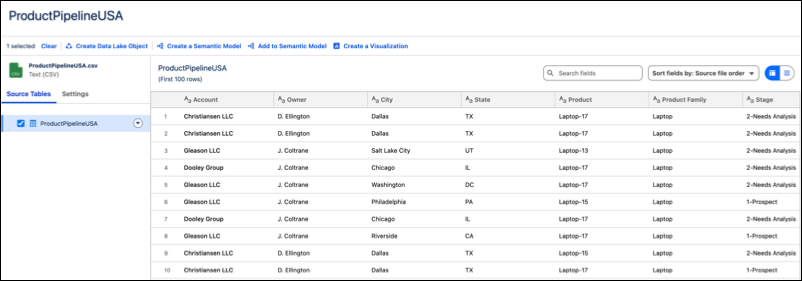
1. Review the column headers to make sure that the metadata is clear and accurate.
2. Check that the sampled data matches what’s expected in each column, including the data type.
3. Save the uploaded data and decide next steps.
- To finalize the uploaded data and return to the workspace, click **Save**.
- To model the metadata associated with the data, click **Create a Semantic Model**.
- To visualize the data, click **Create a Visualization**. Because a visualization is based on a semantic model, Tableau generates a basic semantic model to create the visualization.