---
schema_version: "1"
id: 3b35df5a5c1ef57acacbdf757ed45f79ec911667ae3fce00a85d7afd73bf9b04
title: Monitor Your Data in Tableau Next
collection: admin
version: current
locale: en-us
portal_url: https://docs.salesforce.com/admin/current/en-us/analytics/264-0-0/tua_data_monitoring.md
canonical_url: https://help.salesforce.com/s/articleView?id=analytics.tua_data_monitoring.htm&release=264.0.0&type=5
source_site: help.salesforce.com
content_type: documentation
content_hash: 434812cbdb5ee7c8ee7a396aa212b9a5f9963559614a88bd66eb9844e83d33a4
description: Monitor your data objects, data connections, and data transforms created or referenced in workspaces directly in Tableau Next without switching contexts. Use the Tableau Next Data Monitor to track data assets, including status, refresh history, source workspace, and other details. To quickly find assets, use the filter or search on any tab.
products:
- Tableau Next
release: "264"
---
# Monitor Your Data in Tableau Next
Monitor your data objects, data connections, and data transforms created or referenced in workspaces directly in Tableau Next without switching contexts. Use the Tableau Next Data Monitor to track data assets, including status, refresh history, source workspace, and other details. To quickly find assets, use the filter or search on any tab.
### Required Editions
Tableau Unmetered Consumer or Tableau Next Consumer Self-Service permission set and
Data Cloud User permission set

Note All users with the correct permissions can view the Data Monitor. Users can only see data objects and connections for the asset types and individual assets they have permission to access. For more information, see [Data Governance and Sharing in Tableau Next](https://help.salesforce.com/s/articleView?id=analytics.tua_governance.htm&type=5&language=en_US).
Only data assets referenced in Tableau Next workspaces are visible in the Data Monitor.
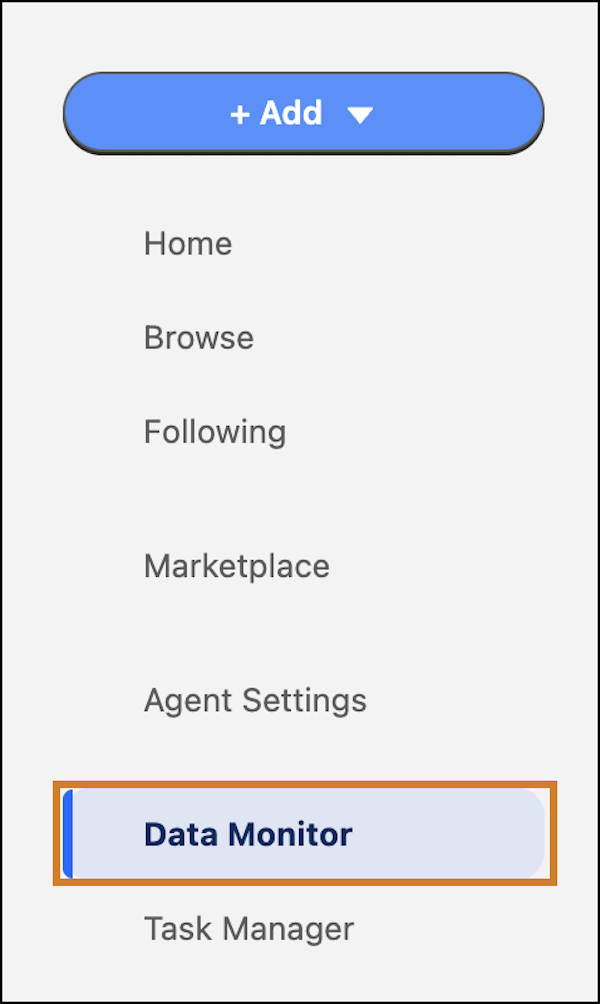
1. From Tableau Next, click **Data Monitor**.
2. The default view is Data Objects displaying your Data Lake Object (DLO) details.
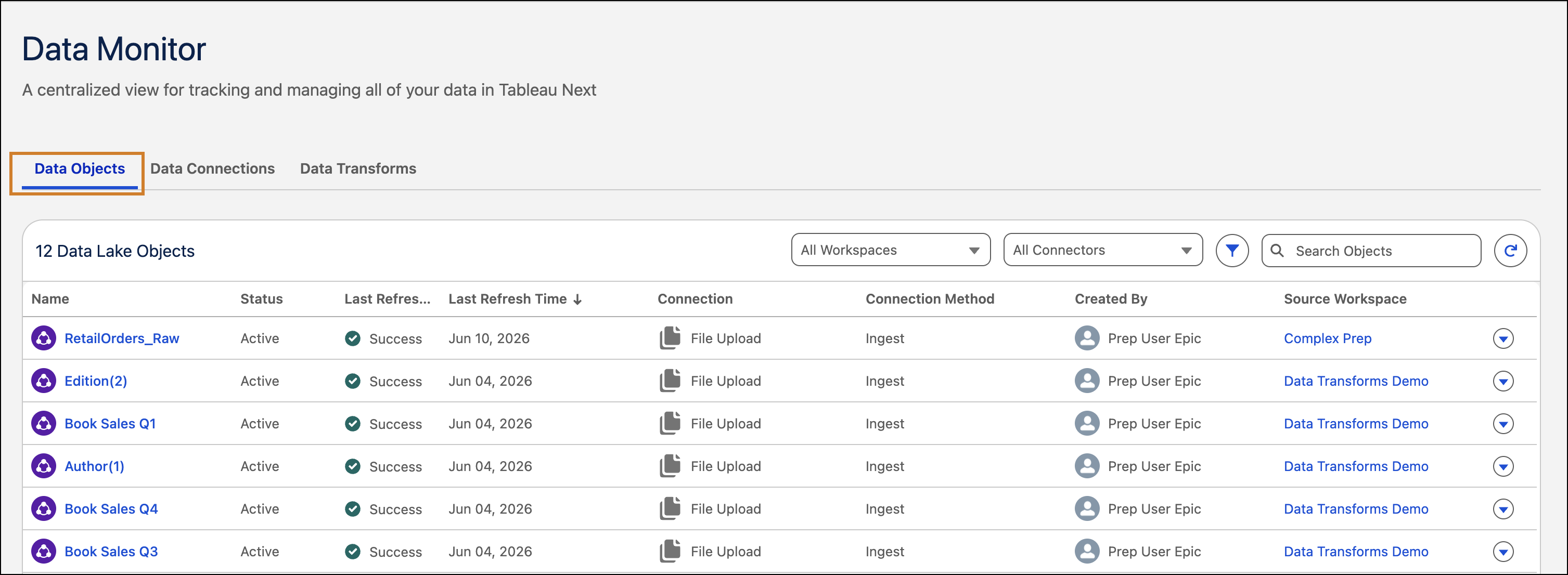
1. To view the DLO details, refresh history, or to open the DLO, use the action menu .
2. Filter objects by connector type, connection name, status, last run status, and so on. Filter the list by workspace or connector, or search by using specific text.
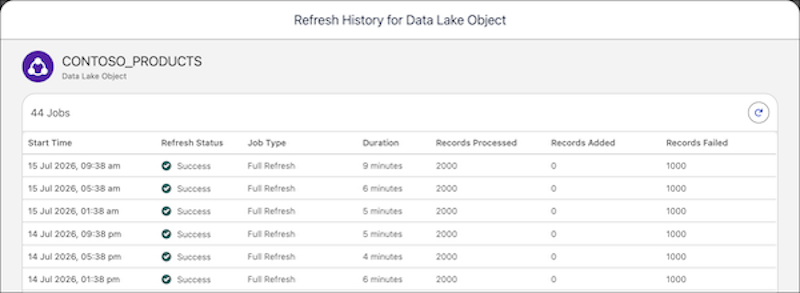
3. To review the past refresh activity, open the refresh history. The refresh history shows each refresh attempt with its status, start time, and duration so you can track successful runs and failures.
3. To view the list of your connections, click the **Data Connections** tab.
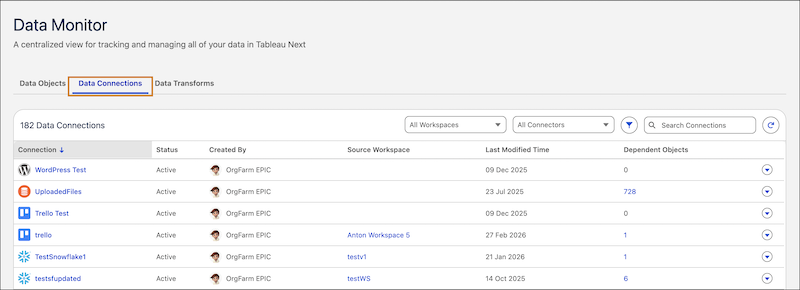
1. To view the connection details or open the connection, use the action menu .
2. To view a list of all dependent assets, click the value in the Dependent Assets column.
3. Filter connections by connector type, connection name, status, last run status, and so on. Filter by workspace or connector, or search by using specific text.
4. To view the list of your data transforms, click the **Data Transforms** tab.
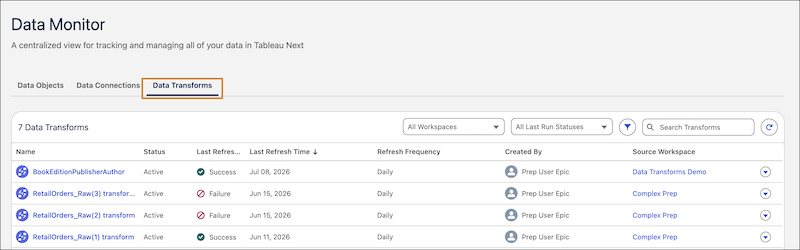
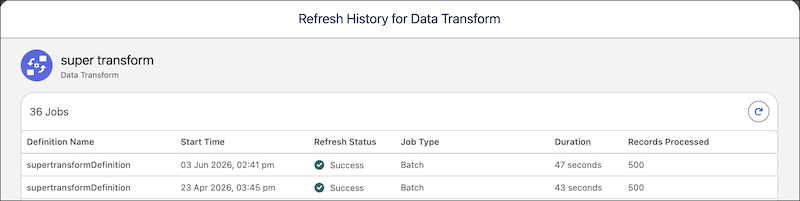
1. Use the action menu  to view data transform details, refresh history, open the data transform, run it immediately, or schedule a run.
2. Filter data transforms by status, last refresh time, and so on. Filter by workspace or status, or search by using specific text.
3. To review past refresh activity, open the refresh history. The refresh history shows each transform run with its status, start time, and duration so you can track successful runs and failures.