---
schema_version: "1"
id: 8af45d03737f1915c6f9e3d06996474a4ccd9754bfce331f1aec70922c05c244
title: Re-Upload Excel Files Using Data Interpreter
collection: admin
version: current
locale: en-us
portal_url: https://docs.salesforce.com/admin/current/en-us/analytics/264-0-0/tua_data_interpreter_excel_refresh.md
canonical_url: https://help.salesforce.com/s/articleView?id=analytics.tua_data_interpreter_excel_refresh.htm&release=264.0.0&type=5
source_site: help.salesforce.com
content_type: documentation
content_hash: 063e19c1a91b6d6ab32888eabb5c2eb0bdfbc5c3384ae6d60faae6c609f18f54
description: Use the Data Interpreter during Excel (.xlsx) file re-uploads to refresh Data Lake Objects built from non-standard layouts. A built-in sheet selector enables you to manually identify specific sub-tables rather than relying on automatic matching logic.
products:
- Tableau Next
release: "264"
---
# Re-Upload Excel Files Using Data Interpreter
Use the Data Interpreter during Excel (.xlsx) file re-uploads to refresh Data Lake Objects built from non-standard layouts. A built-in sheet selector enables you to manually identify specific sub-tables rather than relying on automatic matching logic.
### Required Editions
Tableau Unmetered Platform Analyst or Tableau Next Platform Analyst permission set
1. Open to the Data Lake Object for the table you want to update.
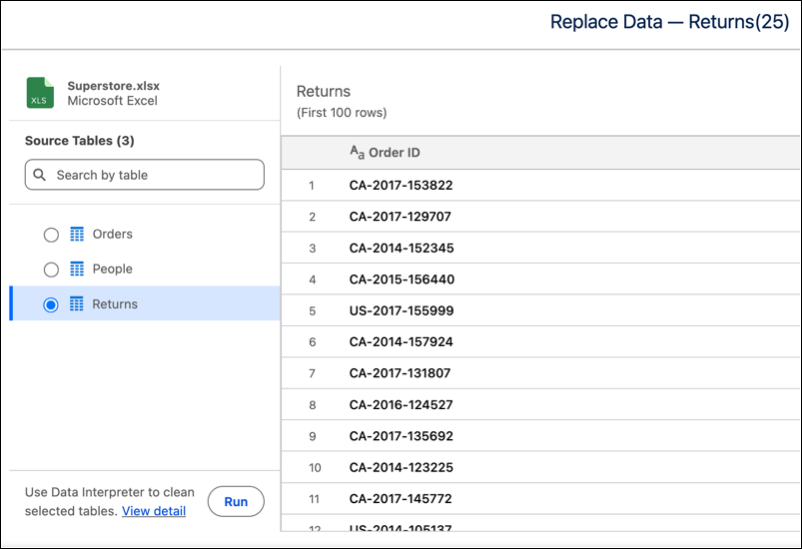
2. Click **Replace Data…**
3. Click **Upload File** and select your updated Excel file.
4. Initiate the data interpreter by clicking **Run**.
#### See Also
- [_Salesforce Help_: Prepare Excel Files for Ingestion by Using Data Interpreter](https://help.salesforce.com/s/articleView?id=analytics.tua_data_add_data_interpreter.htm&language=en_US)