---
schema_version: "1"
id: 95d008645355480eb64d03951157e4e455a603d541663b96288ad824c3152ede
title: Upload Salesforce CRM Data Directly into Tableau Next (Beta)
collection: admin
version: current
locale: en-us
portal_url: https://docs.salesforce.com/admin/current/en-us/analytics/264-0-0/tua_data_add_salesforce_connections.md
canonical_url: https://help.salesforce.com/s/articleView?id=analytics.tua_data_add_salesforce_connections.htm&release=264.0.0&type=5
source_site: help.salesforce.com
content_type: documentation
content_hash: cf8e88b95bd3c0f3aa69add9846742dd93b7e7017e8bac718fc15d2a1e6bd231
description: You can now convert standard and custom CRM objects into Data Lake Objects without leaving Tableau Next.
products:
- Tableau Next
release: "264"
---
# Upload Salesforce CRM Data Directly into Tableau Next (Beta)
You can now convert standard and custom CRM objects into Data Lake Objects without leaving Tableau Next.
### Required Editions
Tableau Unmetered Platform Analyst or Tableau Next Platform Analyst permission set

Note Salesforce Connections is a pilot or beta service that is subject to the Beta Services Terms at Agreements - Salesforce.com or a written Unified Pilot Agreement if executed by Customer, and applicable terms in the Product Terms Directory. Use of this pilot or beta service is at the Customer's sole discretion.
1. On the workspace tab, select an existing workspace or create one.
2. Click **Add**, select **Data**, select **Salesforce Connections (Beta)**.
3. Select your org and click **Continue**.
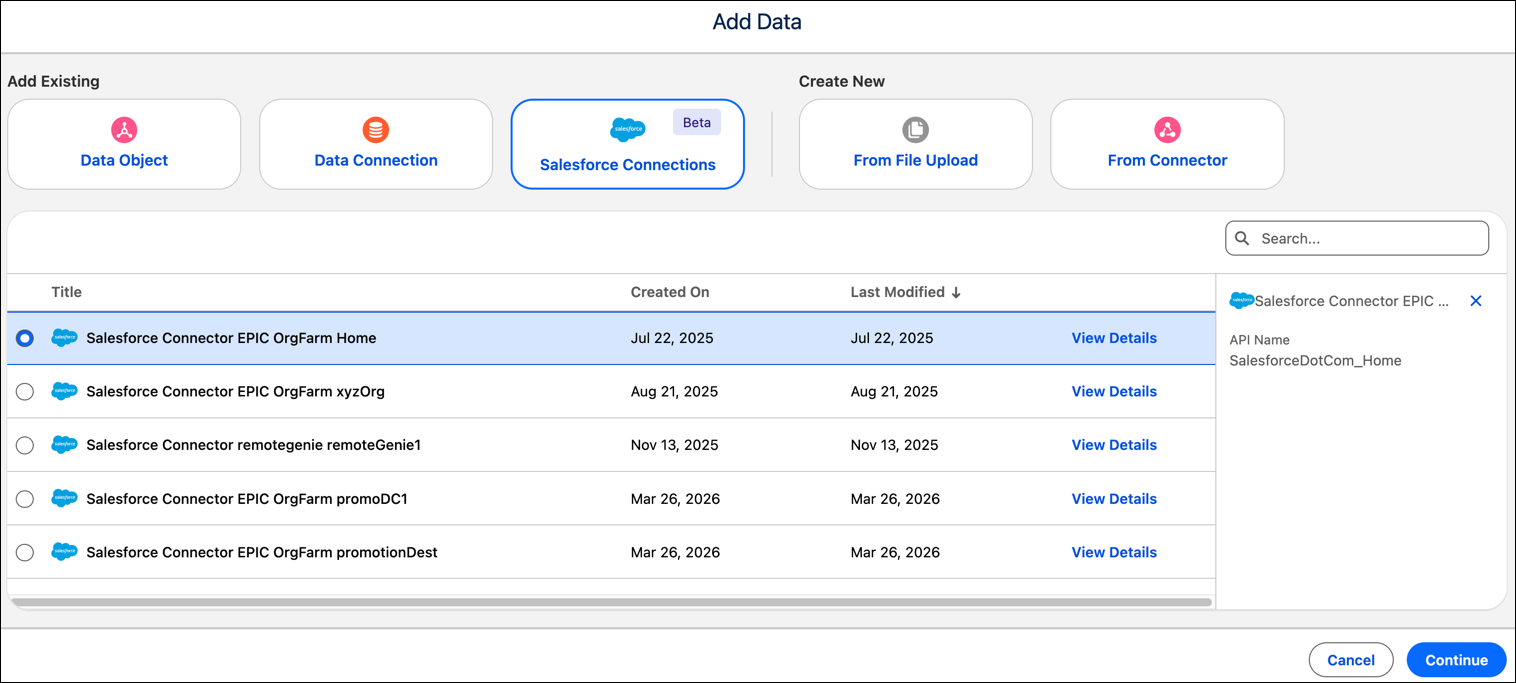
4. Select an object, inspect the fields to verify that the data is appearing correctly.
5. To add the data to Data 360, select one or more sheets and click **Create Data Lake Object**. You can also use the data to create a semantic model or visualization.