---
schema_version: "1"
id: 59996838bd870ec497b81061b2a01a8f2382766a19a579b25addc3d50eb03dbb
title: Analyzing Flow Across Stages with Sankey Charts in Tableau Next
collection: admin
version: current
locale: en-us
portal_url: https://docs.salesforce.com/admin/current/en-us/analytics/264-0-0/tua_create_viz_sankey_about.md
canonical_url: https://help.salesforce.com/s/articleView?id=analytics.tua_create_viz_sankey_about.htm&release=264.0.0&type=5
source_site: help.salesforce.com
content_type: documentation
content_hash: 854ceb5593ce2166bc2ecbe2093165a4cc128db9b9dec4bb60c4ed321e0ff181
description: Review how data values move across stages in a process to understand how they split, combine, or drop off. Define the stages using levels, and show the flow between them with links, where the width reflects the relative value being transferred. Use Sankey charts to evaluate how inputs lead to outcomes and identify the most and least effective paths. The order of levels determines the direction of the flow and what you focus on in the analysis.
products:
- Tableau Next
release: "264"
---
# Analyzing Flow Across Stages with Sankey Charts in Tableau Next
Review how data values move across stages in a process to understand how they split, combine, or drop off. Define the stages using levels, and show the flow between them with links, where the width reflects the relative value being transferred. Use Sankey charts to evaluate how inputs lead to outcomes and identify the most and least effective paths. The order of levels determines the direction of the flow and what you focus on in the analysis.
### Required Editions
These examples show how different business areas can analyze data with Sankey charts.
| Business Area | Use Case |
| --- | --- |
| Sales | Track how deals move across pipeline stages by defining stages as levels and using links to show where opportunities progress, stall, or decline. |
| Marketing | Analyze how leads move from campaigns through engagement stages by structuring stages as levels. Using links, identify which channels drive the most effective conversion paths. |
| Service | Monitor how cases progress across statuses by defining statuses as levels. Spot where resolutions are delayed and which paths lead to faster case closure. |
## Create a Sankey Chart to Analyze Value Flow
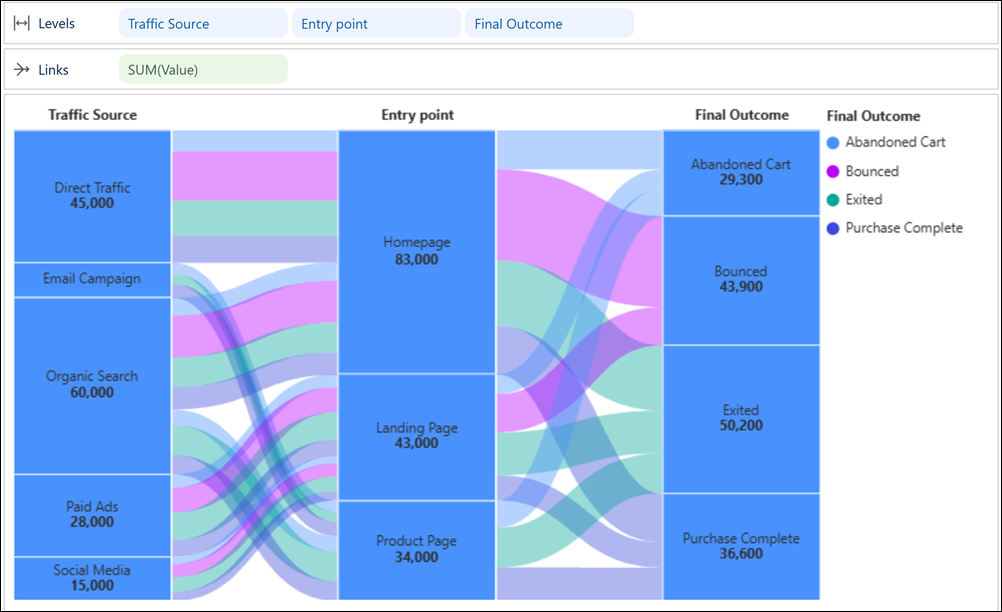
In Tableau Next, you can analyze how values change across stages using Sankey charts. For example, evaluate how traffic sources move through entry points to final outcomes. Compare patterns across paths or focus on specific journeys such as purchases or abandoned sessions.
### Required Editions
Tableau Unmetered Platform Analyst or Tableau Next Platform Analyst permission set
1. From the Show Me pane in your visualization, click the  thumbnail.
The layout changes to **Flow**. And, the Show Me pane shows you the minimum required fields for the chart type: two dimensions on Levels and one measure on Links.
2. For the chart in the example, from the Data pane in your visualization, double-click these fields to add them to **Levels**: **Traffic Source**, **Entry Point**, and **Final Outcome**.
3. To show how values move across stages, add **Order Value** to **Links**.
4. Optionally, color flows by outcome to make traffic patterns easier to spot.