---
schema_version: "1"
id: acf55db969666c387222b72ace8dcbc263b7c3f547f5766fba6038935e5e7cce
title: Comparing Values and Categories with Area Charts
collection: admin
version: current
locale: en-us
portal_url: https://docs.salesforce.com/admin/current/en-us/analytics/264-0-0/tua_create_viz_area_charts_about.md
canonical_url: https://help.salesforce.com/s/articleView?id=analytics.tua_create_viz_area_charts_about.htm&release=264.0.0&type=5
source_site: help.salesforce.com
content_type: documentation
content_hash: 1009df5fe1cee53a1f3be77149f866a0c65e89cf7956d557c20878819e358f87
description: Spot changes in overall volume and how categories contribute to those changes with Tableau Next area charts. Show a measure as a single filled area, or divide it into stacked, colored bands to compare category contributions.
products:
- Tableau Next
release: "264"
---
# Comparing Values and Categories with Area Charts
Spot changes in overall volume and how categories contribute to those changes with Tableau Next area charts. Show a measure as a single filled area, or divide it into stacked, colored bands to compare category contributions.
### Required Editions
## Types of Area Charts
Choose a continuous or discrete area chart based on how you want to display your data values. Continuous area charts use an axis, with labels marking positions on the scale. Discrete area charts use separate headers, one for each distinct value. Choose a continuous area chart to emphasize patterns along a time or numeric scale, such as changes in monthly sales. Choose a discrete area chart to compare values across distinct, ordered groups, such as case counts by customer satisfaction rating.
## When to Use Area Charts
These examples show how different business areas can analyze data with area charts.
| Business Area | Use Case |
| --- | --- |
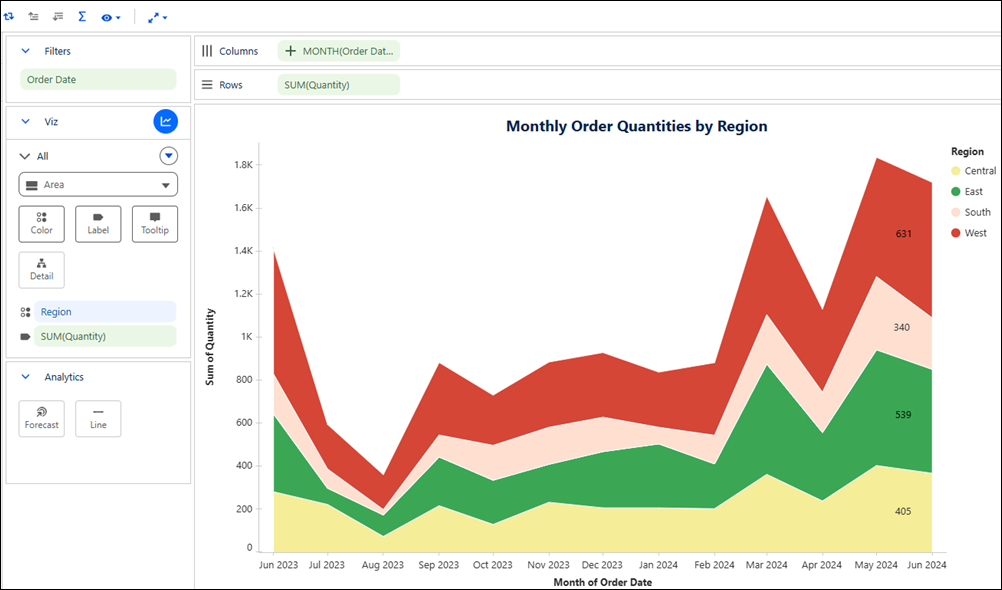
| Sales | Track monthly order quantities by region to identify changes in total demand and each region’s contribution. |
| Marketing | Compare campaign responses across customer age groups, with bands for marketing channels, to identify the most responsive groups and the channels driving their engagement. |
| Service | Compare case counts by customer satisfaction rating, with bands for support channels, to see which channels account for the most low-rated cases. |
## How to Read an Area Chart
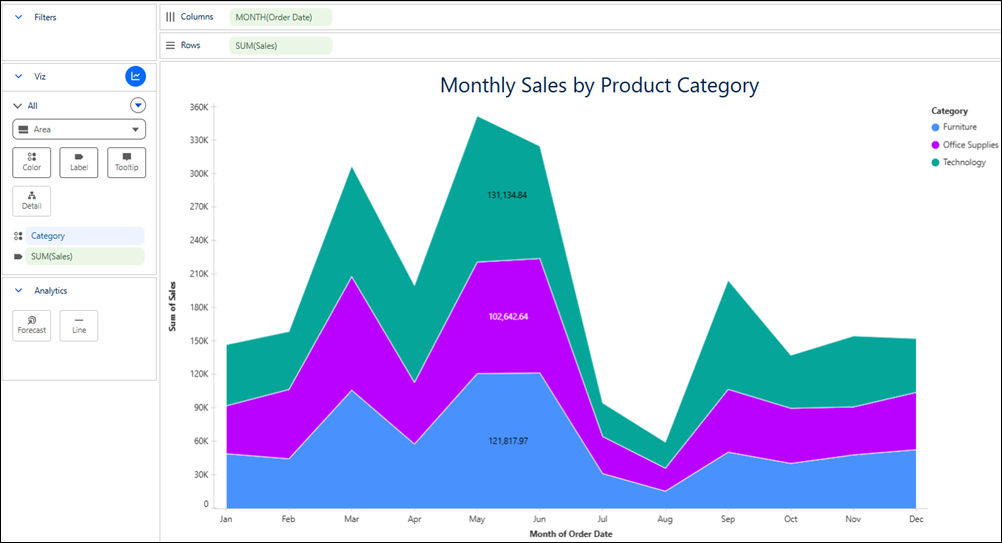
In this example, each colored band represents a product category’s monthly sales. The band’s thickness shows that category’s sales, while the top edge of the stack shows total sales across categories. A thicker band indicates higher sales for that category. Use the legend to identify categories and the labels to review their values.
## Track Totals and Category Contributions with Area Charts
Use area charts in Tableau Next to analyze changes in overall volume and how categories contribute to the total. Choose a continuous or discrete chart to display values along an axis or under separate headers. Customize the chart with colors, labels, and tooltips to make it easier to interpret. For example, create an area chart to track monthly order quantities by region and identify changes in total demand and each region’s contribution.
### Required Editions
Tableau Unmetered Platform Analyst or Tableau Next Platform Analyst permission set
1. From the Show Me pane in your visualization, click the thumbnail for discrete or the  thumbnail for continuous area chart.
When you create area charts without date fields, select **Area** from the layout menu and add fields to your visualization.
The Show Me pane lists the required fields and supported field encodings for the chart type.
2. From the **Data** pane, drag the date field you want to analyze onto **Columns**. For the chart in the example, select **Order Date**.
3. To group orders by month, open the date field’s menu and choose how to combine the dates:
- Select **Month** under **Date Part** to combine the same month across years, such as all Januaries.
- Select **Month** under **Date Value** to keep each month within its year separate, such as January 2025 and January 2026.
4. Drag a measure field, such as **Quantity**, onto **Rows** and set its aggregation to **Sum**.
5. Drag a dimension field, such as **Region**, onto **Color** to divide the total into colored bands.
6. Optionally, add labels or tooltips to make the chart easier to interpret. For example, drag **Quantity** onto **Label** and set its aggregation to **Sum** to show each region’s monthly quantity.