---
schema_version: "1"
id: 41636d0f22f7422701a0b40e1e280d88659b3f6987e61cbd8d46bc3b33eb73ef
title: Configure the Service-Risk Adjusted Win Score Composite Metric
collection: admin
version: current
locale: en-us
portal_url: https://docs.salesforce.com/admin/current/en-us/analytics/264-0-0/tua_create_service_risk_composite_metric.md
canonical_url: https://help.salesforce.com/s/articleView?id=analytics.tua_create_service_risk_composite_metric.htm&release=264.0.0&type=5
source_site: help.salesforce.com
content_type: documentation
content_hash: bc7d877f77320f2286a7594116ca97a4d209a7d9b2f020450b2e8680c22b44c6
description: The Tableau Next Service-Risk Adjusted Win Score composite metric template combines sales conversion performance with service-risk. It signals which accounts have strong win rates and low service escalations, ideal targets for upsell and expansion. This template installs the pre-configured metric and 1 calculated field used to determine your service-risk adjusted win scores. Designed to allow analysts to visualize their data instantly and provide stakeholders with actionable insights, bypassing the time-consuming process of manual chart configuration and complex data modeling.
products:
- Tableau Next
release: "264"
---
# Configure the Service-Risk Adjusted Win Score Composite Metric
The Tableau Next Service-Risk Adjusted Win Score composite metric template combines sales conversion performance with service-risk. It signals which accounts have strong win rates and low service escalations, ideal targets for upsell and expansion. This template installs the pre-configured metric and 1 calculated field used to determine your service-risk adjusted win scores. Designed to allow analysts to visualize their data instantly and provide stakeholders with actionable insights, bypassing the time-consuming process of manual chart configuration and complex data modeling.
### Required Editions
Tableau Unmetered Platform Analyst or Tableau Next Platform Analyst permission set
To install semantic models in Data 360:
Data Cloud Architect permission set
This template requires:
- C360 Semantic Data Model
- C360 DMOs: Account, Opportunity, and Case
This template is designed to work with the C360 data, mapping your data into a composite metric.
1. On the Tableau Next home page, select **Marketplace**.
2. In the Marketplace, select **Metrics**, and then the Service-Risk Adjusted Win Score tile.
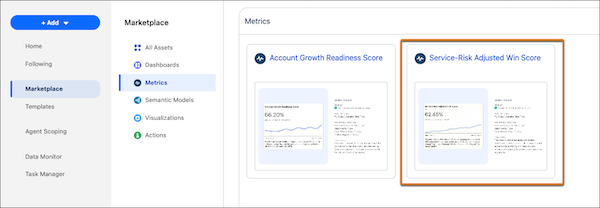
3. View the template details and click **Next**.
4. Configure the metric.
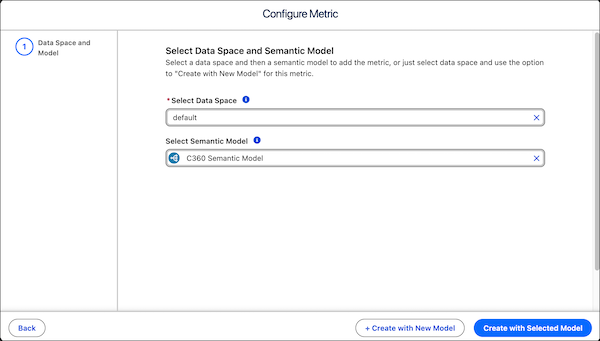
1. Select the data space for the model and metric.
2. Select an existing semantic model to use. To extend the existing C360 semantic into a new model for customization, leave this blank.
5. Click **Create with Selected Model** to start the installation process with your selected model. Or click **Create with New Model** to install with a new semantic model.
The template checks your org to make sure that all prerequisites and permissions are set up correctly to install the metric. If the template validation is successful, the installation process begins. If it fails, you’re provided with a list of errors to resolve.
If you create a model, a successful install opens a new model extended from the C360 semantic model.
Primary Metric Calculation:
```
0.60×WinRate+0.40×(1−EscalationRate)
```