---
schema_version: "1"
id: 078b4e6d934b7b935e2b61d380f0d7811fc3df2367daa2e0249c2cc2ace8a969
title: Reveal Recurring Trends in Radial Line Charts
collection: admin
version: current
locale: en-us
portal_url: https://docs.salesforce.com/admin/current/en-us/analytics/264-0-0/tua_create_radial_line_chart_how_to.md
canonical_url: https://help.salesforce.com/s/articleView?id=analytics.tua_create_radial_line_chart_how_to.htm&release=264.0.0&type=5
source_site: help.salesforce.com
content_type: documentation
content_hash: e0b4c289e3df9232dce9463fb944d5648b91d89932d4b5427c6d76dd32df5461
description: Use a Tableau Next radial line chart to visualize a measure over a repeating sequence and identify cyclical or seasonal patterns. Compare multiple groups across the same cycle to see where trends align or differ. Because the beginning and end of the sequence appear next to each other, you can see whether trends continue or change across the cycle boundary.
products:
- Tableau Next
release: "264"
---
# Reveal Recurring Trends in Radial Line Charts
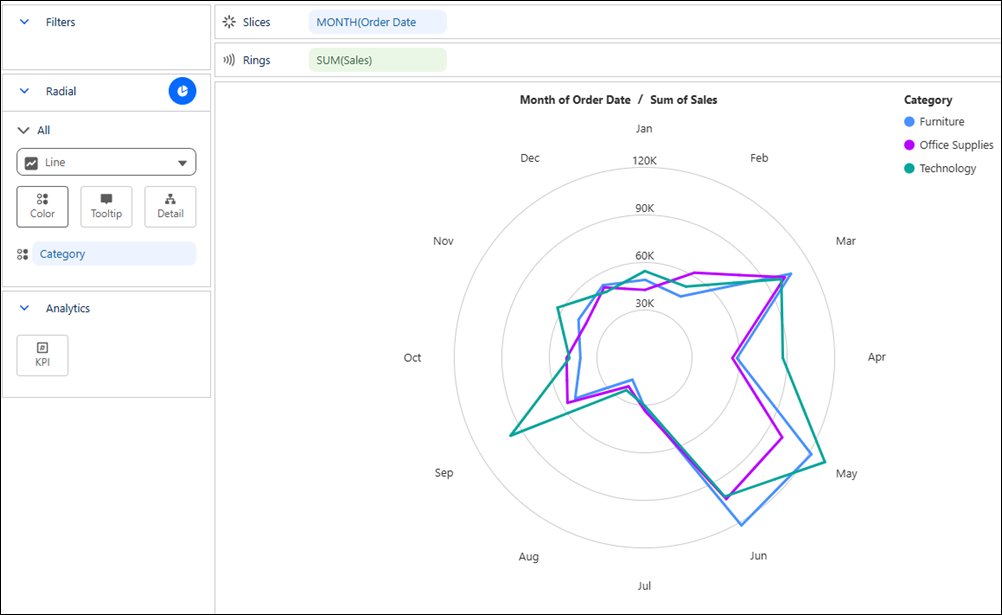
Use a Tableau Next radial line chart to visualize a measure over a repeating sequence and identify cyclical or seasonal patterns. Compare multiple groups across the same cycle to see where trends align or differ. Because the beginning and end of the sequence appear next to each other, you can see whether trends continue or change across the cycle boundary.
### Required Editions
Tableau Unmetered Platform Analyst or Tableau Next Platform Analyst permission set
1. From the **Show Me** pane in your visualization, click the  chart thumbnail.
The layout changes to Radial Timeline, and the pane shows the required fields and supported field encodings for the chart type.
2. From the Data pane, drag a date field to **Slices**. For the chart in this example, select **Order Date** and set the date level to **Month**.
3. Drag the measure that you want to visualize such as **Sales** onto **Rings**.
4. Optionally, to compare multiple groups across the sequence, drag a dimension, such as **Category**, onto **Color**.
5. Optionally, drag a measure onto **KPI** to highlight its value in the center of the chart.
6. You can further customize the visualization with tooltips or other available mark properties to make the chart easier to interpret.
7. Save your visualization.