---
schema_version: "1"
id: dbf8768a9abd1d4171b54d35592d47400bd7908547105f2c25ef33049a18da17
title: Identify Hotspots Across Cyclical Time Periods with Radial Heatmaps
collection: admin
version: current
locale: en-us
portal_url: https://docs.salesforce.com/admin/current/en-us/analytics/264-0-0/tua_create_radial_heatmap_how_to.md
canonical_url: https://help.salesforce.com/s/articleView?id=analytics.tua_create_radial_heatmap_how_to.htm&release=264.0.0&type=5
source_site: help.salesforce.com
content_type: documentation
content_hash: 3ff0294026e8f6494f2fa26ebbf8bc93922fc0cb967cf943b84cc95e03f37a0a
description: Surface trends, gaps, and intensity across equal, cyclical time periods with a Tableau Next radial heatmap. Use color to reveal variations in a measure across categories while preserving the cyclical sequence. For example, visualize weekly case volume by support channel to identify seasonal peaks, quieter periods, and recurring patterns throughout the year.
products:
- Tableau Next
release: "264"
---
# Identify Hotspots Across Cyclical Time Periods with Radial Heatmaps
Surface trends, gaps, and intensity across equal, cyclical time periods with a Tableau Next radial heatmap. Use color to reveal variations in a measure across categories while preserving the cyclical sequence. For example, visualize weekly case volume by support channel to identify seasonal peaks, quieter periods, and recurring patterns throughout the year.
### Required Editions
Tableau Unmetered Platform Analyst or Tableau Next Platform Analyst permission set
1. From the Show Me pane in your visualization, click the  thumbnail. The layout changes to Radial heatmap, and the pane shows the required fields and supported field encodings for the chart type.
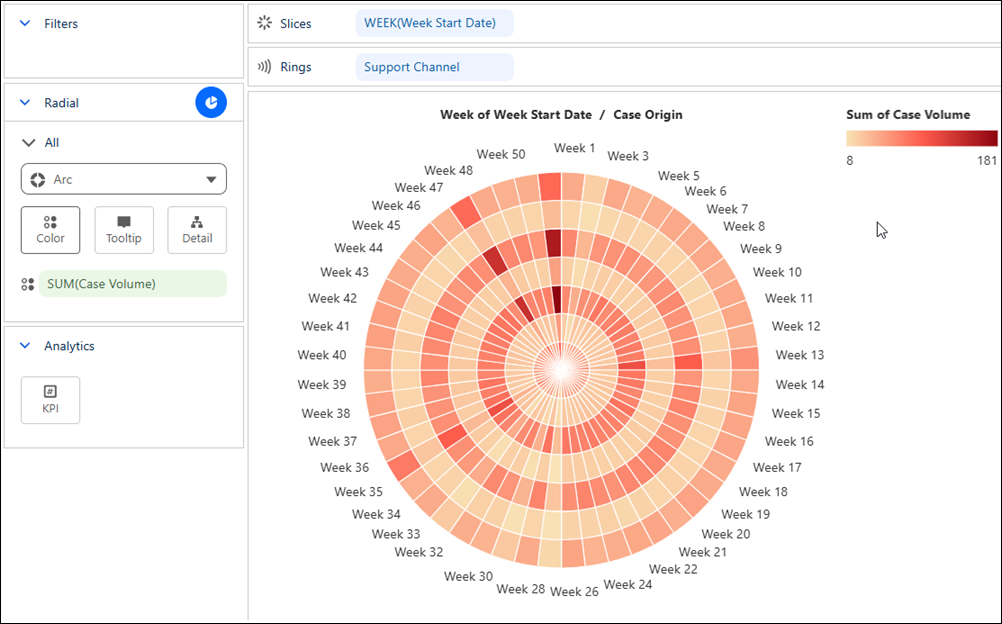
2. From the Data pane in your visualization, drag the dimension field you want to analyze onto **Rings**. For the chart in the example, select **Support Channel**.
3. Drag the time field that represents the analysis period, such as **Start Date** onto **Slices**. For the chart in this example, set the date part to **Week**.
4. Drag a continuous measure field, such as **Sum of Case Volume** onto **Color**.
5. Save your visualization.