---
schema_version: "1"
id: 454432de91ba6cf065887cc9112ed0f5ed5762fa437b229bd1041fc3bf99442d
title: Compare Progress Toward Goals with Radial Bar Charts
collection: admin
version: current
locale: en-us
portal_url: https://docs.salesforce.com/admin/current/en-us/analytics/264-0-0/tua_create_radial_bar_how_to.md
canonical_url: https://help.salesforce.com/s/articleView?id=analytics.tua_create_radial_bar_how_to.htm&release=264.0.0&type=5
source_site: help.salesforce.com
content_type: documentation
content_hash: fcfebc387f57895c638e7dbf06fd1eab8cf32b081d7f9160bfe6c4dcc8ea3b3a
description: Visualize how close each entity is to reaching its goal in a compact circular layout with a Tableau Next radial bar chart. The chart's common scale makes it easy to compare relative performance and quickly identify leaders and areas that need attention. For example, review quota attainment by sales representatives to identify the top performers against their annual sales goals.
products:
- Tableau Next
release: "264"
---
# Compare Progress Toward Goals with Radial Bar Charts
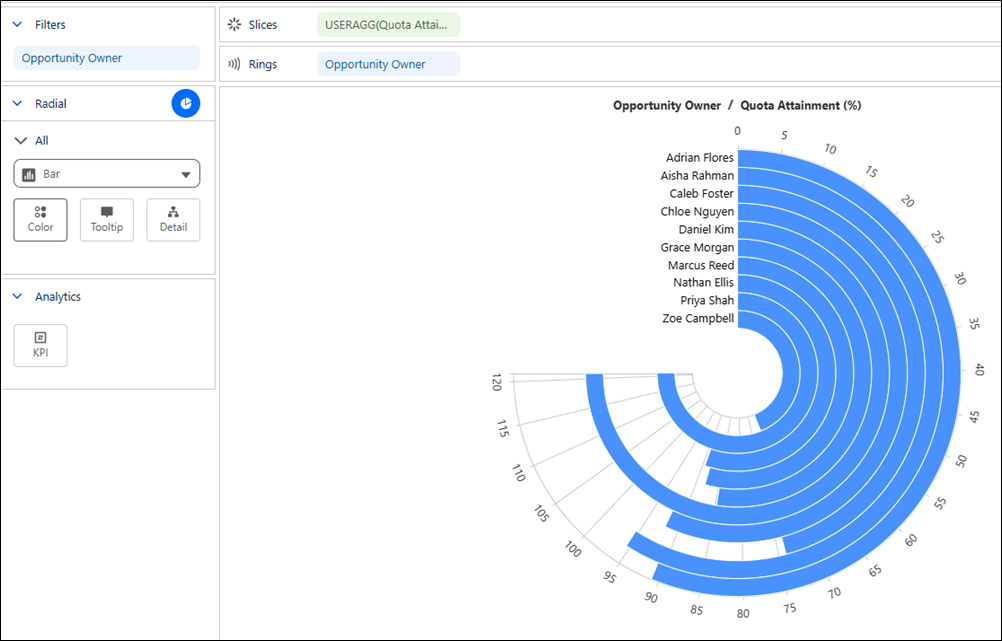
Visualize how close each entity is to reaching its goal in a compact circular layout with a Tableau Next radial bar chart. The chart's common scale makes it easy to compare relative performance and quickly identify leaders and areas that need attention. For example, review quota attainment by sales representatives to identify the top performers against their annual sales goals.
### Required Editions
Tableau Unmetered Platform Analyst or Tableau Next Platform Analyst permission set
1. From the Show Me pane in your visualization, click the  thumbnail. The layout changes to radial bar, and the pane shows the required fields and supported field encodings for the chart type.
2. From the Data pane in your visualization, drag the continuous measure field you want to analyze onto **Slices**. For the chart in the example, select **Quota Attainment (%)**.
3. Drag a dimension field that defines each bar, such as **Opportunity Owner**, onto **Rings**.
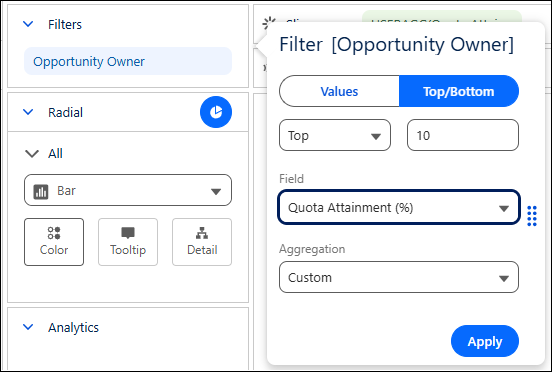
4. Optionally, to focus on the top performers:
1. Drag **Opportunity Owner** to **Filters**.
2. Set the Top/Bottom filter to **Top 10**
3. Set the ranking field to **Quota Attainment (%)**
4. Click **Apply**.
5. Optionally, drag a measure onto KPI to highlight its value in the center of the chart.
6. You can further customize the visualization with colors, labels, or tooltips to make the chart easier to interpret.
7. Save your visualization.