---
schema_version: "1"
id: ee406b0c00b115ddb1109fe58b0bb12ad5b536fe219f7b401f6a7b02a5520bed
title: Compare Contributions to a Total with Pie Charts
collection: admin
version: current
locale: en-us
portal_url: https://docs.salesforce.com/admin/current/en-us/analytics/264-0-0/tua_create_piechart_how_to.md
canonical_url: https://help.salesforce.com/s/articleView?id=analytics.tua_create_piechart_how_to.htm&release=264.0.0&type=5
source_site: help.salesforce.com
content_type: documentation
content_hash: 40490053c1e50162d35b88da2eeedb1c84b0133b12c61e6097ee2c26df3708e8
description: Compare how individual values contribute to a total in a Tableau Next pie chart. Use pie charts when you want to analyze a small number of values that together make up an aggregate. For example, visualize website visits by traffic source to understand how each source contributes to total website traffic.
products:
- Tableau Next
release: "264"
---
# Compare Contributions to a Total with Pie Charts
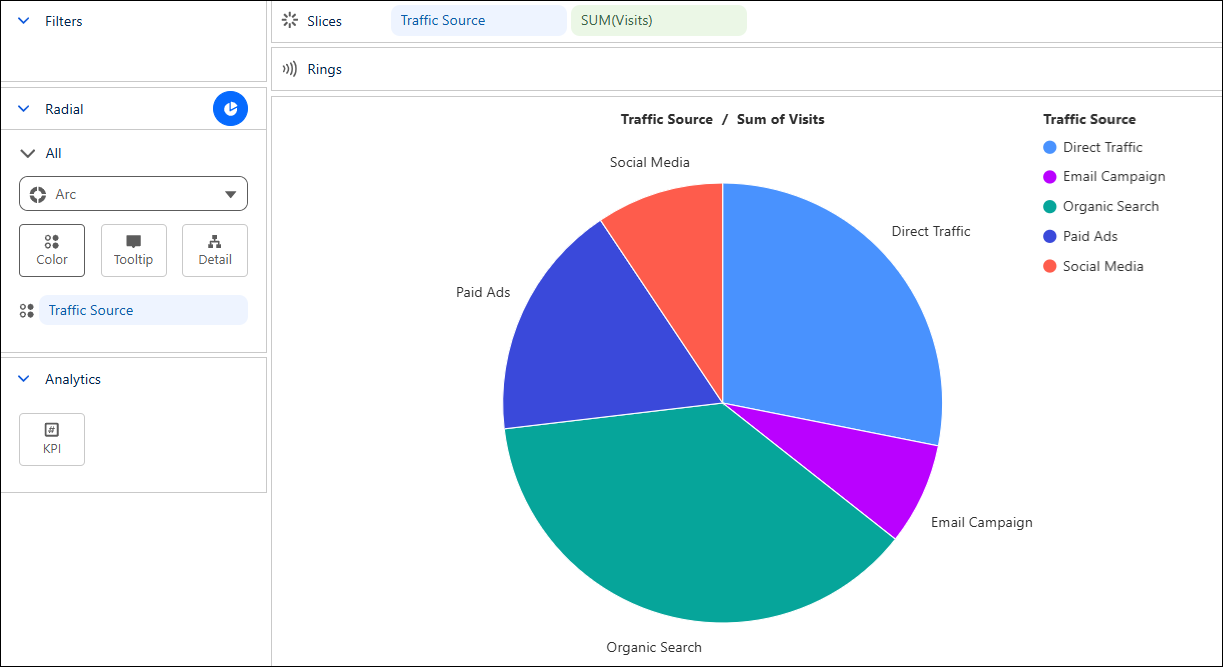
Compare how individual values contribute to a total in a Tableau Next pie chart. Use pie charts when you want to analyze a small number of values that together make up an aggregate. For example, visualize website visits by traffic source to understand how each source contributes to total website traffic.
### Required Editions
Tableau Unmetered Platform Analyst or Tableau Next Platform Analyst permission set
1. From the Show Me pane in your visualization, click the  thumbnail. The layout changes to Pie chart, and the pane shows the required fields and supported field encodings for the chart type.
2. From the Data pane in your visualization, drag the dimension field you want to analyze and the measure field you want to visualize onto **Slices**. For the chart in the example, select **Traffic Source** and **Website Visits**.
3. Optionally, drag **Traffic Source** onto **Color** to make each source easier to distinguish.
4. You can further customize the visualization with labels, or tooltips to make the chart easier to interpret.
5. Save your visualization.