---
schema_version: "1"
id: 93c6a23a4792ca35d45a785039ffe9b471e2cfaaa6c7994d0d9a97c7e2455bd2
title: Analyze Seasonal Patterns with Nightingale Rose Charts
collection: admin
version: current
locale: en-us
portal_url: https://docs.salesforce.com/admin/current/en-us/analytics/264-0-0/tua_create_nightingale_rose_how_to.md
canonical_url: https://help.salesforce.com/s/articleView?id=analytics.tua_create_nightingale_rose_how_to.htm&release=264.0.0&type=5
source_site: help.salesforce.com
content_type: documentation
content_hash: d9b151a102364f5b54af9e2a3a054e67d66f8df0b9ce8ab2dfa09139c72ed2a3
description: Compare values across equal, cyclical time periods to highlight differences in magnitude with a Tableau Next Nightingale rose chart. Include additional dimensions to compare patterns across groups while preserving the cyclical sequence. For example, visualize monthly sales by region to identify seasonal peaks and compare sales patterns across regions throughout the year.
products:
- Tableau Next
release: "264"
---
# Analyze Seasonal Patterns with Nightingale Rose Charts
Compare values across equal, cyclical time periods to highlight differences in magnitude with a Tableau Next Nightingale rose chart. Include additional dimensions to compare patterns across groups while preserving the cyclical sequence. For example, visualize monthly sales by region to identify seasonal peaks and compare sales patterns across regions throughout the year.
### Required Editions
Tableau Unmetered Platform Analyst or Tableau Next Platform Analyst permission set
1. From the Show Me pane in your visualization, click the  thumbnail. The layout changes to Nightingale Rose, and the pane shows the required fields and supported field encodings for the chart type.
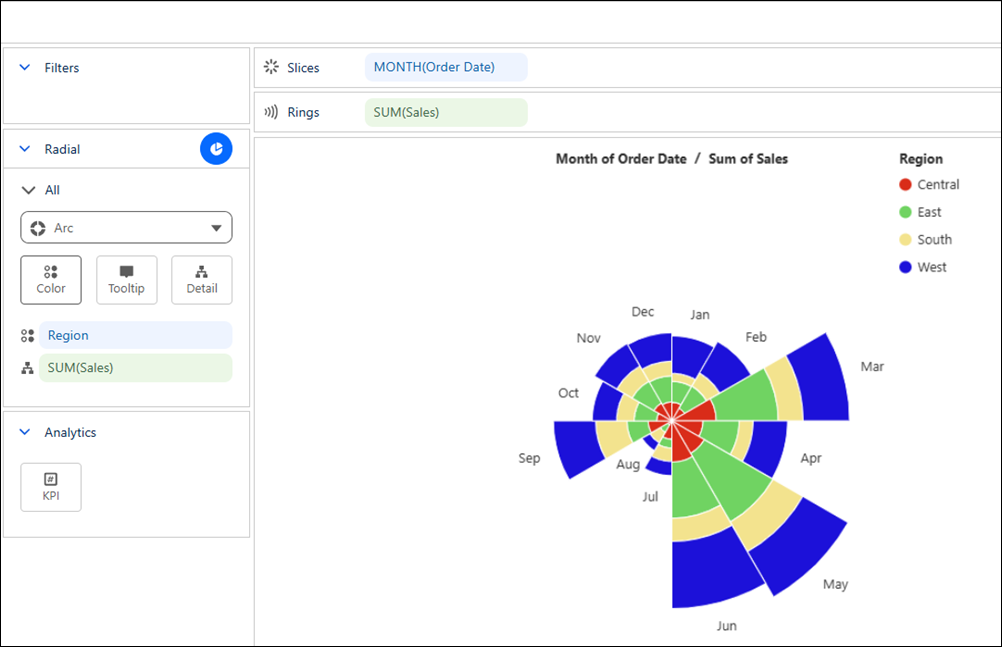
2. From the Data pane in your visualization, drag the dimension field you want to analyze onto **Slices**. For the chart in the example, select **Order Date** and set the date part to **Month**.
3. Drag a continuous measure field, such as **Sum of Sales**, onto **Rings**.
4. To compare patterns across groups, such as regions, drag **Region** onto **Color**.
5. You can further customize the visualization with labels or tooltips to make the chart easier to interpret.
6. Save your visualization.
7. Optionally, drag a measure onto KPI to highlight its value in the center of the chart.