---
schema_version: "1"
id: dfe36391849fd71ed285b71208bbf94f51a4b2c0e9a11330c248bb7da9ae657f
title: Create a Funnel Chart to Show Value Drop-Offs Across Stages
collection: admin
version: current
locale: en-us
portal_url: https://docs.salesforce.com/admin/current/en-us/analytics/264-0-0/tua_create_funnelchart_how_to.md
canonical_url: https://help.salesforce.com/s/articleView?id=analytics.tua_create_funnelchart_how_to.htm&release=264.0.0&type=5
source_site: help.salesforce.com
content_type: documentation
content_hash: 8a5e33b991ac22e7e241bcf73b927c9782f83ac8dd3462320d421ff02fe2ec6c
description: In Tableau Next, you can quickly surface patterns as your data moves through a process or workflow with funnel charts. Compare conversion from one stage to the next and spot bottlenecks in business operations to prioritize areas for improvement and efficiency gains. For example, analyze how opportunities move through your sales stages in a funnel chart to pinpoint the stages where opportunities need attention first.
products:
- Tableau Next
release: "264"
---
# Create a Funnel Chart to Show Value Drop-Offs Across Stages
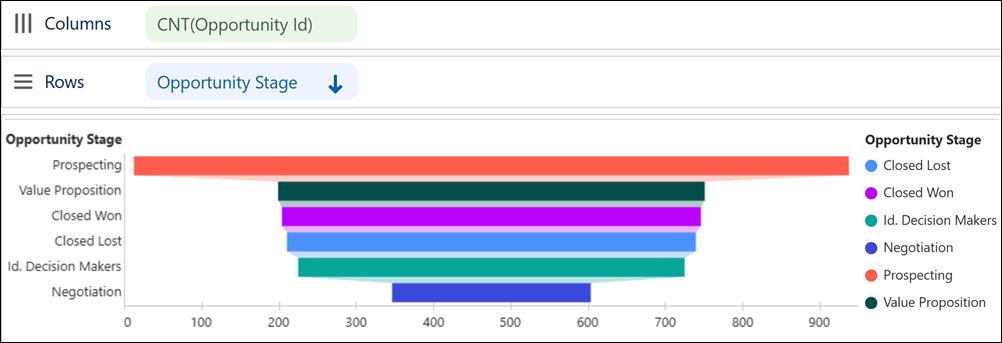
In Tableau Next, you can quickly surface patterns as your data moves through a process or workflow with funnel charts. Compare conversion from one stage to the next and spot bottlenecks in business operations to prioritize areas for improvement and efficiency gains. For example, analyze how opportunities move through your sales stages in a funnel chart to pinpoint the stages where opportunities need attention first.
### Required Editions
Tableau Unmetered Platform Analyst or Tableau Next Platform Analyst permission set
1. From the Show Me pane in your visualization, click the  thumbnail.
The Show Me pane shows you the minimum required fields for the chart type: one measure and one dimension. It also shows the effects that Tableau Next applies automatically to this chart type.
2. Double-click or drag a measure field, such as **Count of Opportunities**, onto **Columns**.
3. To show opportunities by stage, double-click or drag **Opportunity Stage** onto **Rows**.
4. To sort stages by value in descending order, click  in the widget toolbar.
5. Drag the same dimension onto the **Color** encoding to differentiate values more easily.
6. Apply your changes.