---
schema_version: "1"
id: 242e07dc020a3eed58c618dfb646be66ae68cbfdc8ae2baafda7602740dbc57d
title: Show Part-to-Whole Relationships with Donut Charts
collection: admin
version: current
locale: en-us
portal_url: https://docs.salesforce.com/admin/current/en-us/analytics/264-0-0/tua_create_donutchart_how_to.md
canonical_url: https://help.salesforce.com/s/articleView?id=analytics.tua_create_donutchart_how_to.htm&release=264.0.0&type=5
source_site: help.salesforce.com
content_type: documentation
content_hash: f83cf4736fa2ac2d2387da167f5b3a44d37eb3b8ac455e21b9fa0aa7138bbf85
description: Use donut charts in Tableau Next to compare how categories contribute to an overall total. Include additional dimensions to analyze contributions at a finer level of detail while preserving the main categories. Optionally show a KPI in the center of the chart to highlight the total value. You can also add the visualization to a dashboard to provide business context alongside other key metrics. For example, create a donut chart to compare sales by product category and highlight total sales with a KPI in the center.
products:
- Tableau Next
release: "264"
---
# Show Part-to-Whole Relationships with Donut Charts
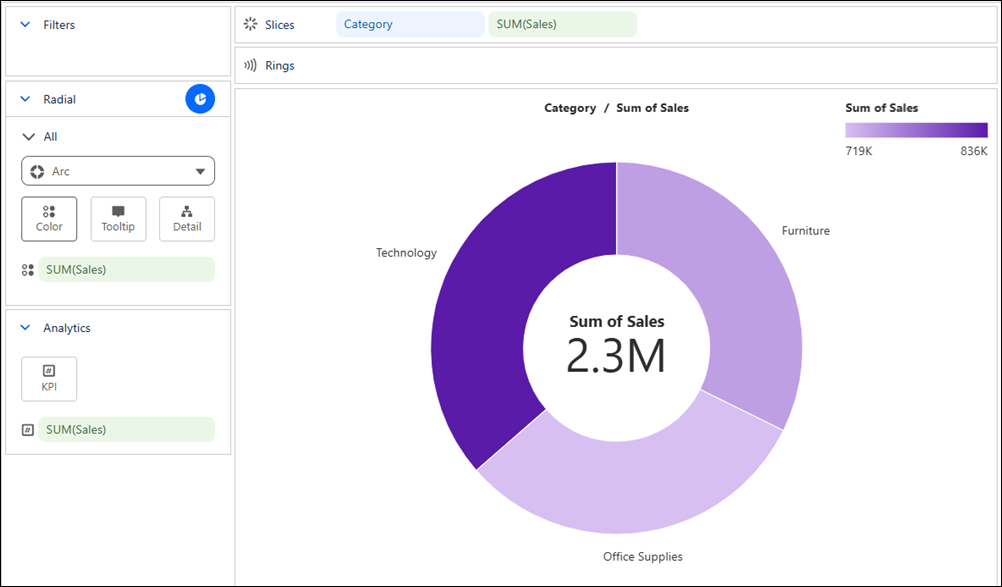
Use donut charts in Tableau Next to compare how categories contribute to an overall total. Include additional dimensions to analyze contributions at a finer level of detail while preserving the main categories. Optionally show a KPI in the center of the chart to highlight the total value. You can also add the visualization to a dashboard to provide business context alongside other key metrics. For example, create a donut chart to compare sales by product category and highlight total sales with a KPI in the center.
### Required Editions
Tableau Unmetered Platform Analyst or Tableau Next Platform Analyst permission set
1. From the Show Me pane in your visualization, click the  thumbnail. The layout changes to Donut, and the pane shows the required fields and supported field encodings for the chart type.
2. From the Data pane in your visualization, drag the dimension field you want to analyze onto **Slices**. For the chart in the example, select **Product Category**.
3. Drag a continuous measure field, such as **Sum of Sales**, onto **Slices**.
4. Optionally, drag **Sum of Sales** onto **KPI** to highlight the total sales value in the center of the chart.
5. You can further customize the visualization with color, labels, or tooltips to make the chart easier to interpret.
6. Save your visualization. You can also add it to a dashboard to compare it alongside other visualizations and business metrics.