---
schema_version: "1"
id: 7ac55bcd85724298dbeb6f41197a8825b8610dabbcad06eb0385e9e0d919a7af
title: Navigate Levels of Detail Efficiently with Dimension Hierarchies
collection: admin
version: current
locale: en-us
portal_url: https://docs.salesforce.com/admin/current/en-us/analytics/264-0-0/tua_create_dimensionhierarchies_how_to.md
canonical_url: https://help.salesforce.com/s/articleView?id=analytics.tua_create_dimensionhierarchies_how_to.htm&release=264.0.0&type=5
source_site: help.salesforce.com
content_type: documentation
content_hash: 33c036cac62ba67db7fca13858bdb37baca014005b9a807fe4f69852f33641e4
description: Define dimension hierarchies in Tableau Next to move between high-level summaries and detailed breakdowns in your analysis. Create hierarchies using related dimensions or date fields, and use them in visualizations or tables to roll up or drill down data.
products:
- Tableau Next
release: "264"
---
# Navigate Levels of Detail Efficiently with Dimension Hierarchies
Define dimension hierarchies in Tableau Next to move between high-level summaries and detailed breakdowns in your analysis. Create hierarchies using related dimensions or date fields, and use them in visualizations or tables to roll up or drill down data.
### Required Editions
To define and use dimension hierarchies in Tableau Next:
Tableau Unmetered Platform Analyst or Tableau Next Platform Analyst permission set
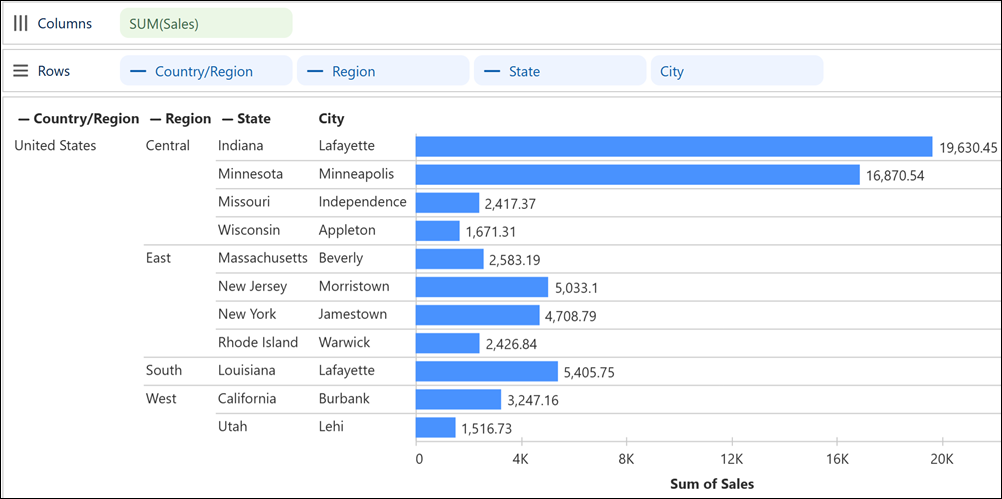
For example, create a hierarchy for geographic levels in a semantic model with sales data, then analyze total sales by country and drill into region and state to identify which locations are driving growth or contributing to declines. To create the dimension hierarchy and use it in a visualization or table, follow these steps.
1. Create a dimension hierarchy in the semantic model.
1. From the data model’s **New** dropdown, select **Dimension Hierarchy**.
2. Enter the dimension hierarchy’s name and optionally, a description.
3. Use the search bar to locate fields to include in the hierarcy and click to add them.
4. Click **Save**.
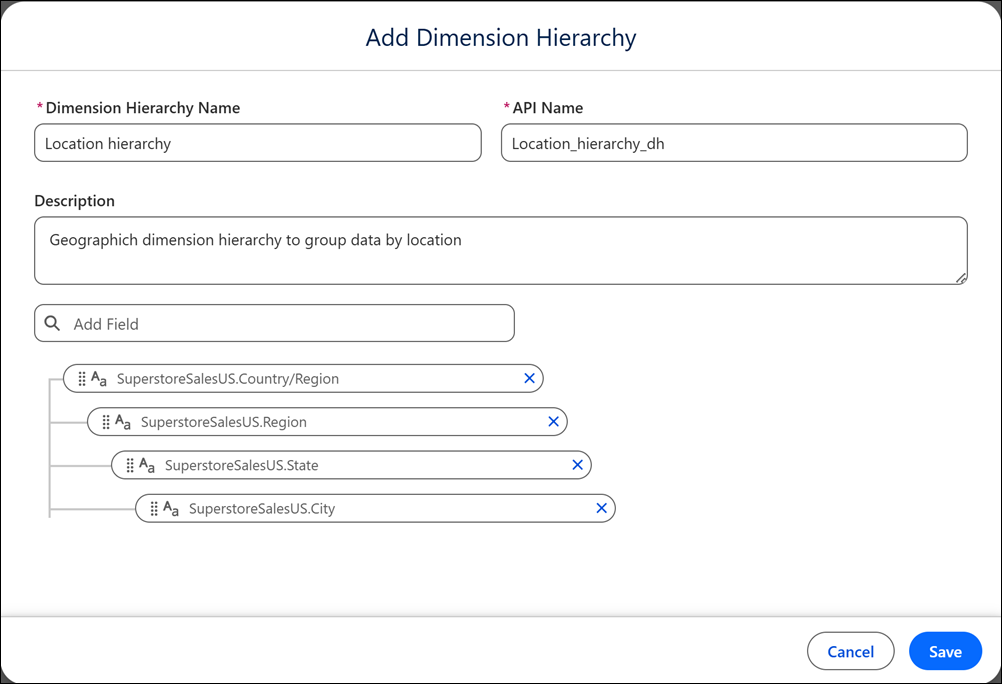
The dimension hierarchy now appears in the Data pane.
2. Review data using the dimension hierarchy in a data view.
1. Drag the dimension hierarchy field onto **Rows** or **Columns** in a visualization. Or, drag it onto **Columns**in a table.
2. To expand the hierarchy, click a field’s  icon. Alternatively, select **Expand Hierarchy** from the field’s context menu. To remove a hierarchy level, click a field’s  icon.
3. To define a filter based on a dimension hierarchy field, click **Edit Filter…** from the field’s dropdown menu and click **Save** when done.
4. To apply your changes to the data view, click **Save**.