---
schema_version: "1"
id: 2da510a72a2beb13e641eee1eb09597623d5eb2954518209d50610003c94b127
title: Integrate Workspace Asset into Tableau Next Dashboards
collection: admin
version: current
locale: en-us
portal_url: https://docs.salesforce.com/admin/current/en-us/analytics/264-0-0/tua_create_dashboard_workspace.md
canonical_url: https://help.salesforce.com/s/articleView?id=analytics.tua_create_dashboard_workspace.htm&release=264.0.0&type=5
source_site: help.salesforce.com
content_type: documentation
content_hash: 22f8b8360fbdd6018f79383d7a70a157b24b36f702c8e7f12e3e020a4317ccb3
description: Access metrics and visualizations directly through a convenient authoring panel to speed up your dashboard creation. The integrated search bar helps you locate specific workspace assets, enabling you to add high-value data into your dashboard layout.
products:
- Tableau Next
release: "264"
---
# Integrate Workspace Asset into Tableau Next Dashboards
Access metrics and visualizations directly through a convenient authoring panel to speed up your dashboard creation. The integrated search bar helps you locate specific workspace assets, enabling you to add high-value data into your dashboard layout.
### Required Editions
Tableau Unmetered Platform Analyst or Tableau Next Platform Analyst permission set
1. Open your dashboard and click **Edit**.
2. Go to the Content tab in the side panel.
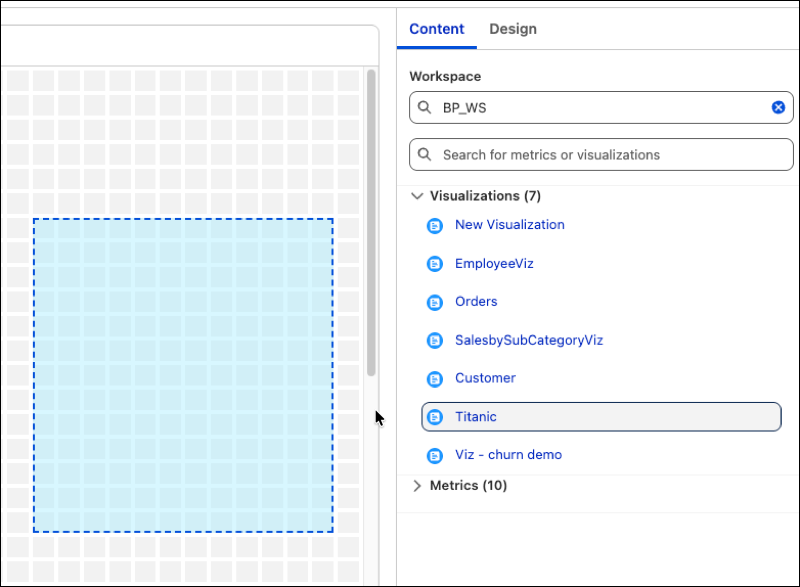
3. Select an asset and move it to the dashboard.
4. To add assets from another workspace, use the top search window. To find metrics and visualizations in the current workspace, use the bottom search bar.
#### See Also
- [_Salesforce Help_: Tableau Next Workspaces](https://help.salesforce.com/s/articleView?id=analytics.tua_workspace.htm&language=en_US)