---
schema_version: "1"
id: 4e5b4c01b364bf753cef907b844955e7046d5c611dfabc0a2807f0c3f781b582
title: Add Live Metrics to Tableau Next Text Widgets
collection: admin
version: current
locale: en-us
portal_url: https://docs.salesforce.com/admin/current/en-us/analytics/264-0-0/tua_create_dashboard_text_embed_metrics.md
canonical_url: https://help.salesforce.com/s/articleView?id=analytics.tua_create_dashboard_text_embed_metrics.htm&release=264.0.0&type=5
source_site: help.salesforce.com
content_type: documentation
content_hash: 02d793253b5c0c03e23d57c8c5a1f0e5ec7a6cc796f4badd820a61c292e3391a
description: Enhance your dashboards by embedding live metric attributes directly into text widgets. This capability provides a highly adaptable formatting space that merges live performance metrics with strategic observations.
products:
  - Tableau Next
release: "264"
---
# Add Live Metrics to Tableau Next Text Widgets

Enhance your dashboards by embedding live metric attributes directly into text widgets. This capability provides a highly adaptable formatting space that merges live performance metrics with strategic observations.

### Required Editions

<table class="slds-table slds-table_bordered slds-max-medium-table_stacked slds-m-bottom_small edition"><colgroup><col></colgroup><tbody><tr class=""><td class="slds-cell-wrap" style="vertical-align:top;"><a href="https://help.salesforce.com/s/articleView?id=analytics.tua_editions.htm&amp;language=en_US" target="_blank">View supported editions.</a></td></tr></tbody></table>

<table class="slds-table slds-table_bordered slds-max-medium-table_stacked slds-m-bottom_small permission">
        <colgroup>
          <col>
          <col>
        </colgroup>
        <thead class="slds-text-title_caps ">
          <tr class="">
            <th scope="colgroup" class="slds-cell-wrap" colspan="2" style="text-align:center;vertical-align:top;" id="d32386e54">User Permissions
              Needed</th>
          </tr>
        </thead>
        <tbody>
          <tr class="">
            <td data-label="User Permissions Needed" class="slds-cell-wrap" style="vertical-align:top;" headers="d32386e54 ">To edit Tableau Next dashboards:</td>

            <td class="slds-cell-wrap" style="vertical-align:top;" headers="d32386e54 "><span>Tableau Unmetered Platform Analyst or Tableau Next Platform Analyst</span> permission set</td>

          </tr>
        </tbody>
      </table>

1. Add a text widget or edit an existing text widget on your dashboard.
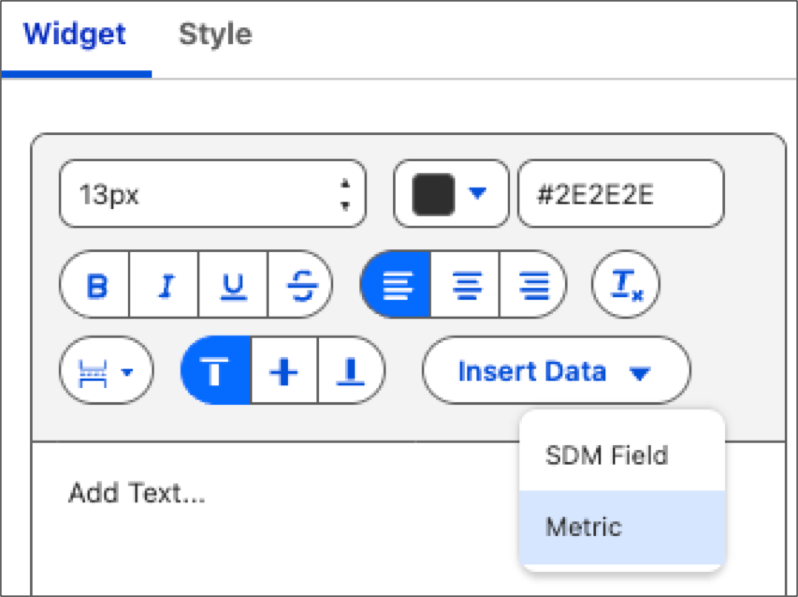
2. Go to the Widget tab, click **Insert Data**, and select **Metric**.
    
    ![Selecting a metric from a menu.](https://sf-zdocs-cdn-prod.zoominsoftware.com/tdta-analytics-tua-264-0-0-production-enus/d794334f-d174-49d3-a4d2-a615bd2e54aa/tua/images/tua_create_dashboard_text_embed_metrics.png)
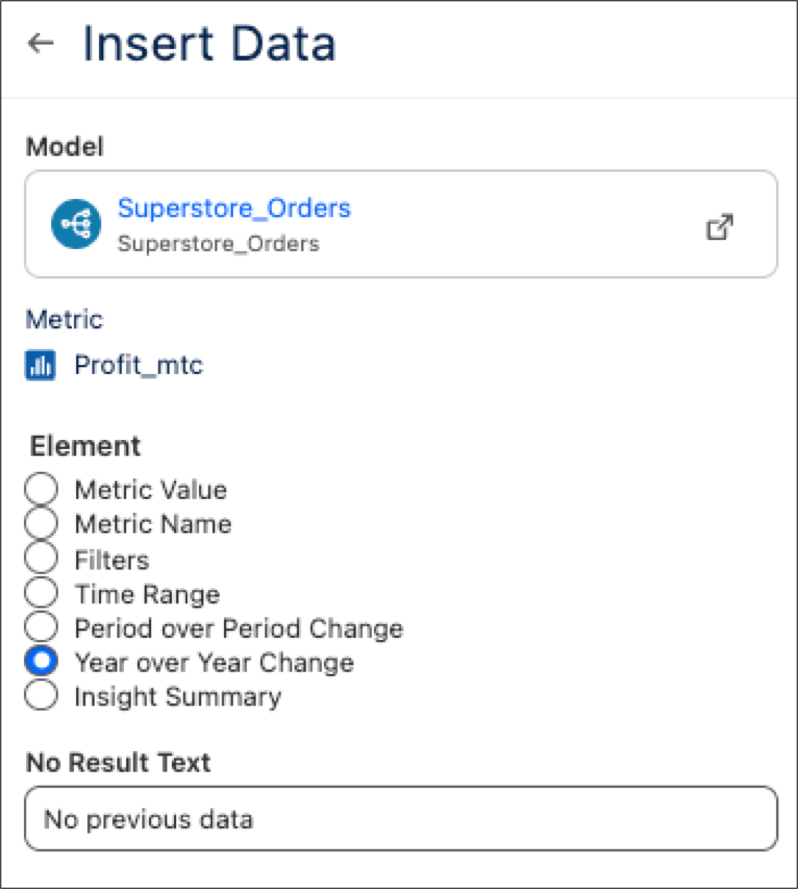
3. Select a data model and metric, followed by the individual metric element you want to add. Add optional text to display when no results occur in the **No Result Text** field .
    
    ![Selecting a metric for the text widget.](https://sf-zdocs-cdn-prod.zoominsoftware.com/tdta-analytics-tua-264-0-0-production-enus/d794334f-d174-49d3-a4d2-a615bd2e54aa/tua/images/tua_create_dashboard_text_embed_metrics_2.png)
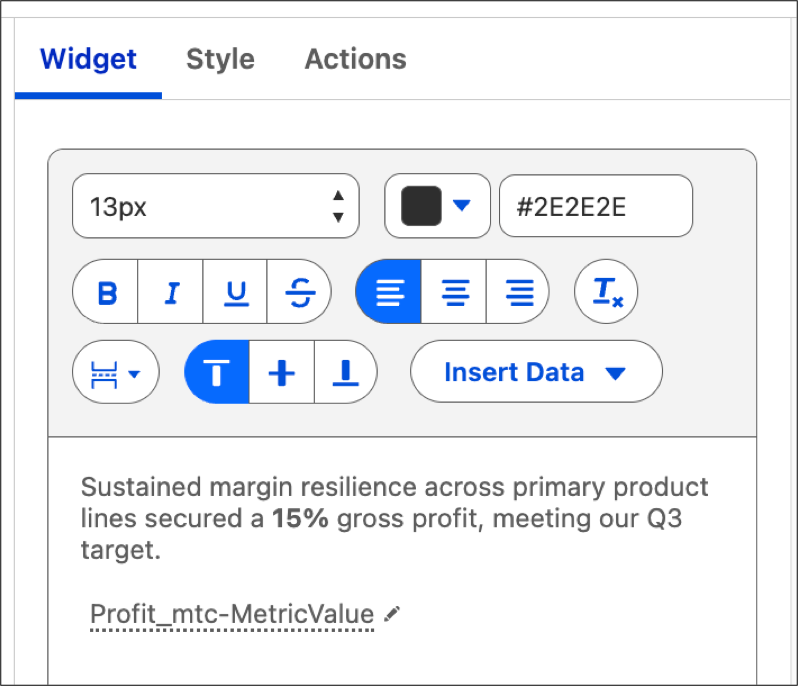
4. Type in qualitative text to accompany the metric.
    
    ![A text widget showing a metric with associated descriptive text.](https://sf-zdocs-cdn-prod.zoominsoftware.com/tdta-analytics-tua-264-0-0-production-enus/d794334f-d174-49d3-a4d2-a615bd2e54aa/tua/images/tua_create_dashboard_text_embed_metrics_3.png)
    
    For further emphasis on critical data fluctuations, use the Style tab to implement conditional formatting.