---
schema_version: "1"
id: d9dc05cac6f1a762cb1ca0088d9cd23ae0909d2972b8b1fdde9ee5d77ed1d3e7
title: Add Descriptive Text Using the Text Widget
collection: admin
version: current
locale: en-us
portal_url: https://docs.salesforce.com/admin/current/en-us/analytics/264-0-0/tua_create_dashboard_text.md
canonical_url: https://help.salesforce.com/s/articleView?id=analytics.tua_create_dashboard_text.htm&release=264.0.0&type=5
source_site: help.salesforce.com
content_type: documentation
content_hash: 4513159645ca6f6dfd00f7a8087c6f949fab6d844502a60e1c4693fdfc2012fa
description: Use text widgets to provide explanations and information to improve user understanding and engagement.
products:
- Tableau Next
release: "264"
---
# Add Descriptive Text Using the Text Widget
Use text widgets to provide explanations and information to improve user understanding and engagement.
### Required Editions
Tableau Unmetered Platform Analyst or Tableau Next Platform Analyst permission set
1. To insert titles or brief explanations that provide meaning for the data, click the Text widget  and add it to the dashboard.
2. Use the available space in the General section to add your text.
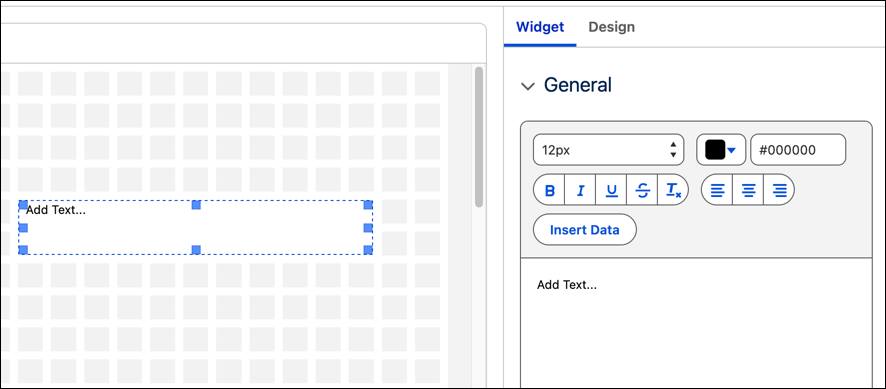
3. To add semantic model data, click **Insert Data** and select **SDM Field**.
4. Select a semantic model then one of its fields.
5. Add static text to the **No Filter Text** field if an applied filter doesn't return any data.
6. Add static text to the **No Result Text** field if an interaction doesn't show results.
7. Click **Done**.
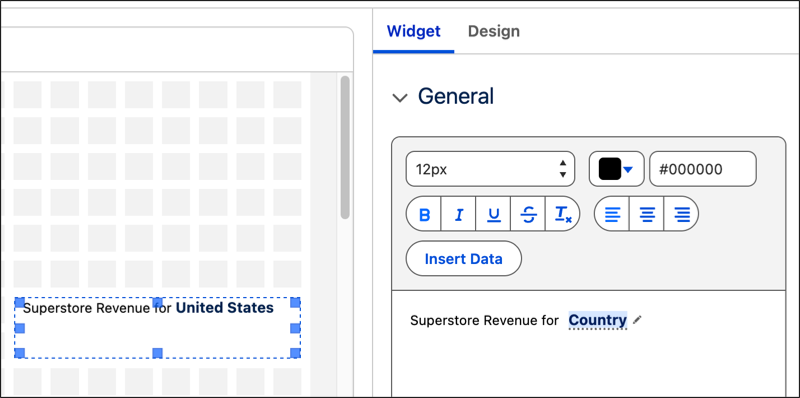
8. Type in text with the semantic model field for added context, and use the menu to format the text.
- **[Add Live Metrics to Tableau Next Text Widgets](https://help.salesforce.com/s/articleView?id=analytics.tua_create_dashboard_text_embed_metrics.htm&release=264.0.0&type=5)**
Enhance your dashboards by embedding live metric attributes directly into text widgets. This capability provides a highly adaptable formatting space that merges live performance metrics with strategic observations.
#### See Also
- [_Salesforce Help_: Reuse Widgets Across Dashboards and Workspaces](https://help.salesforce.com/s/articleView?id=analytics.tua_create_dashboard_reuse.htm&language=en_US)