---
schema_version: "1"
id: 2606675a431df34ff738fcafd1cb8e8b87d2d6b13d230f4a6d38f9435c31bc84
title: Consolidate Multi-Metric Overviews on Tableau Next Dashboards
collection: admin
version: current
locale: en-us
portal_url: https://docs.salesforce.com/admin/current/en-us/analytics/264-0-0/tua_create_dashboard_summary.md
canonical_url: https://help.salesforce.com/s/articleView?id=analytics.tua_create_dashboard_summary.htm&release=264.0.0&type=5
source_site: help.salesforce.com
content_type: documentation
content_hash: 8d52ca45b1c727d6a0b864e2d22abafc4ae3e0b52da17a1f725c44493220ff4f
description: The Summary widget enables you to merge Tableau Next metrics into a cohesive narrative on your dashboard. Instead of scanning individual metrics, the summary widget helps you pinpoint essential performance drivers quickly.
products:
- Tableau Next
release: "264"
---
# Consolidate Multi-Metric Overviews on Tableau Next Dashboards
The Summary widget enables you to merge Tableau Next metrics into a cohesive narrative on your dashboard. Instead of scanning individual metrics, the summary widget helps you pinpoint essential performance drivers quickly.
### Required Editions
Tableau Unmetered Platform Analyst or Tableau Next Platform Analyst permission set
1. Add the Summary widget  to your dashboard.
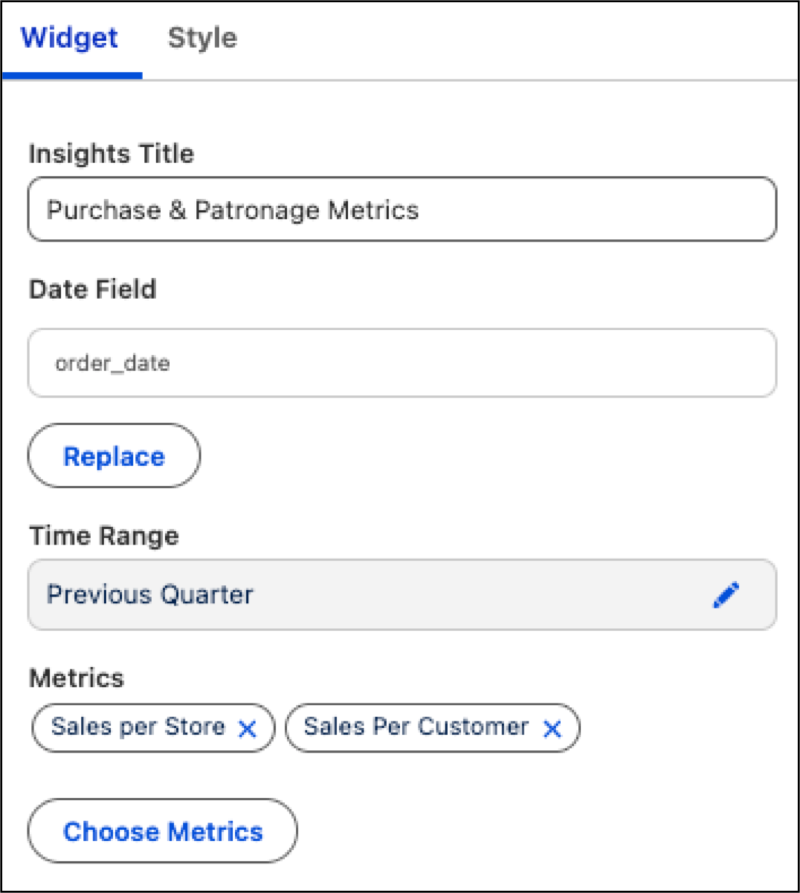
2. Open the Widget panel and click **Choose Metrics**.
3. Select a data model, then select a minimum of two metrics to include in the summary.

Note The summary describes metrics only. It doesn't include data from visualizations or other widgets on the dashboard.
4. Add a heading in the Insights Title section.
5. Refine the data shown by applying constraints through the Date Field and Time Range options.
6. Resize the widget as needed to make sure that all summary contents are in full view.