---
schema_version: "1"
id: c9184208887d90acef34f2f4d2f0b7df2a4376397913445a1a1f0d37a9634751
title: Add a Navigation Action to a Dashboard
collection: admin
version: current
locale: en-us
portal_url: https://docs.salesforce.com/admin/current/en-us/analytics/264-0-0/tua_create_dashboard_navigate_action.md
canonical_url: https://help.salesforce.com/s/articleView?id=analytics.tua_create_dashboard_navigate_action.htm&release=264.0.0&type=5
source_site: help.salesforce.com
content_type: documentation
content_hash: b9b49f5413edb747dc73f06c17a79d80596840d13faf08da597935b60003b3b2
description: Add a Navigate To action to a widget to guide your users to relevant URLs or other Tableau Next dashboards and dashboard pages with detailed information on the selected data.
products:
- Tableau Next
release: "264"
---
# Add a Navigation Action to a Dashboard
Add a Navigate To action to a widget to guide your users to relevant URLs or other Tableau Next dashboards and dashboard pages with detailed information on the selected data.
### Required Editions
Tableau Unmetered Platform Analyst or Tableau Next Platform Analyst permission set
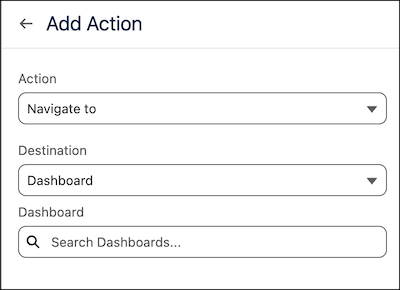
1. Select **Navigate To** as the action type.
2. Select the destination, a URL, a dashboard, or a dashboard page.
3. For the destination type, enter a URL string or select an existing dashboard or dashboard page.
#### See Also
- [Add Single-Click Actions to Your Data](https://help.salesforce.com/s/articleView?id=analytics.tua_create_dashboard_add_action.htm&release=264.0.0&type=5 "Create a data journey for your users by turning your static Tableau Next dashboard into an interactive experience with single-click actions that lead to detailed pages or initiate Salesforce Flows. For example, use actions to add dynamic navigation to guide sales managers from a summary dashboard to pipeline details, progressively revealing more detailed information.")
- [Add a Salesforce Flow Action to a Dashboard](https://help.salesforce.com/s/articleView?id=analytics.tua_create_dashboard_flow_action.htm&release=264.0.0&type=5 "Add a Salesforce Flow action to a widget to execute flows using the Tableau Next dashboard context. Flows empower your users to seamlessly create follow-up tasks, dispatch reminder emails, or refresh records directly from their dashboard insights. For example, add a flow action that lets sales reps create a follow-up task directly from a dashboard widget showing at-risk opportunities.")