---
schema_version: "1"
id: 5f547cf99c045ae2f8f5f271df4a5b96ef329c5959afe2bfbb3ee97b80096faa
title: Personalize Dashboard Visuals with the Image Widget
collection: admin
version: current
locale: en-us
portal_url: https://docs.salesforce.com/admin/current/en-us/analytics/264-0-0/tua_create_dashboard_image.md
canonical_url: https://help.salesforce.com/s/articleView?id=analytics.tua_create_dashboard_image.htm&release=264.0.0&type=5
source_site: help.salesforce.com
content_type: documentation
content_hash: ab853b7b79a2cb288b012c31ffd046709ffbabb8651d5adf38c13a96f64fbd02
description: Upgrade the visual impact of your Tableau Next dashboards by adding custom graphics, such as logos and icons, to your workspace. You can upload image files directly from your local drive or select assets from your existing library to foster brand recognition.
products:
- Tableau Next
release: "264"
---
# Personalize Dashboard Visuals with the Image Widget
Upgrade the visual impact of your Tableau Next dashboards by adding custom graphics, such as logos and icons, to your workspace. You can upload image files directly from your local drive or select assets from your existing library to foster brand recognition.
### Required Editions
Tableau Unmetered Platform Analyst or Tableau Next Platform Analyst permission set
1. To add an image to the dashboard, click the **Image** widget and place it on the dashboard.

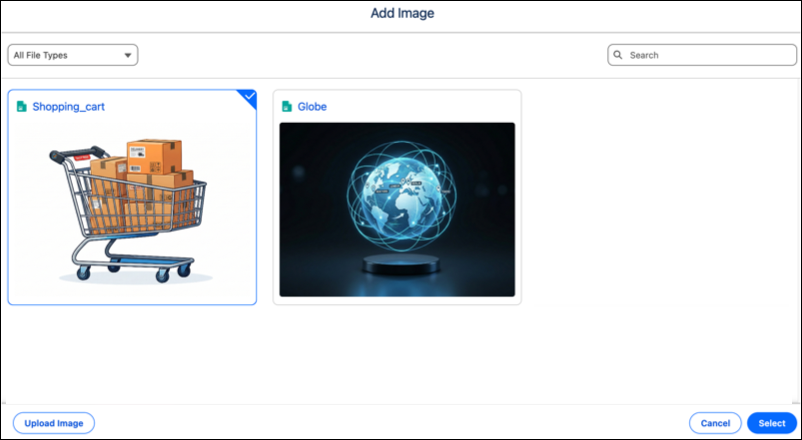
2. Click **Add Image**.
3. Select an image from the image library or click **Upload Image** to add one. Click **Select** when done.

Note Tableau Next supports image uploads up to a maximum file size of 2 GB.
#### See Also
- [_Salesforce Help_: Reuse Widgets Across Dashboards and Workspaces](https://help.salesforce.com/s/articleView?id=analytics.tua_create_dashboard_reuse.htm&language=en_US)