---
schema_version: "1"
id: b64043325fa47b5f0968bd317f39c5443dfa6cc6f8d6c364d95aec835a229d50
title: Configure a F/Z Layout Dashboard
collection: admin
version: current
locale: en-us
portal_url: https://docs.salesforce.com/admin/current/en-us/analytics/264-0-0/tua_create_dashboard_fzlayout.md
canonical_url: https://help.salesforce.com/s/articleView?id=analytics.tua_create_dashboard_fzlayout.htm&release=264.0.0&type=5
source_site: help.salesforce.com
content_type: documentation
content_hash: 6b0e2c2fd27d1a552ee3cc7b7c1314f25545b0be688ed092f77a1686ab8b060a
description: The F/Z Layout dashboard template is designed to show your data insights using proven eye-tracking principles. The layout guides your users naturally through the dashboard content for maximized comprehension. You can select the z-pattern layout for high-impact visuals or the f-pattern layout for text-heavy content.
products:
- Tableau Next
release: "264"
---
# Configure a F/Z Layout Dashboard
The F/Z Layout dashboard template is designed to show your data insights using proven eye-tracking principles. The layout guides your users naturally through the dashboard content for maximized comprehension. You can select the z-pattern layout for high-impact visuals or the f-pattern layout for text-heavy content.
### Required Editions
To create and edit Tableau Next dashboards and view Marketplace templates:
Tableau Unmetered Platform Analyst or Tableau Next Platform Analyst permission set
The template is made to work with an existing semantic model and its metrics to quickly show your existing assets in the predefined layout. You can also just select a layout and skip the data configuration steps, giving yourself a layout to manually add a semantic model and metrics. For more information about creating models and metrics, see [Create Semantic Models and Define Metrics](https://help.salesforce.com/s/articleView?id=analytics.tua_data_sdm.htm&language=en_US).
1. On the Tableau Next home page, select **Marketplace**.
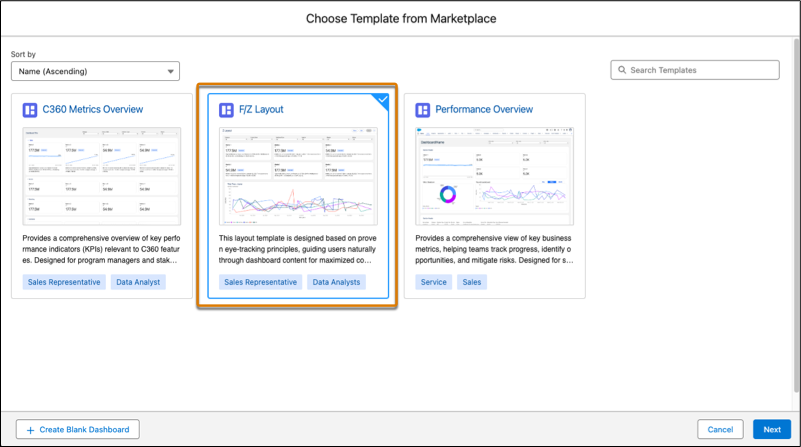
1. In the Search box, enter Layout, and select the F/Z Layout tile.
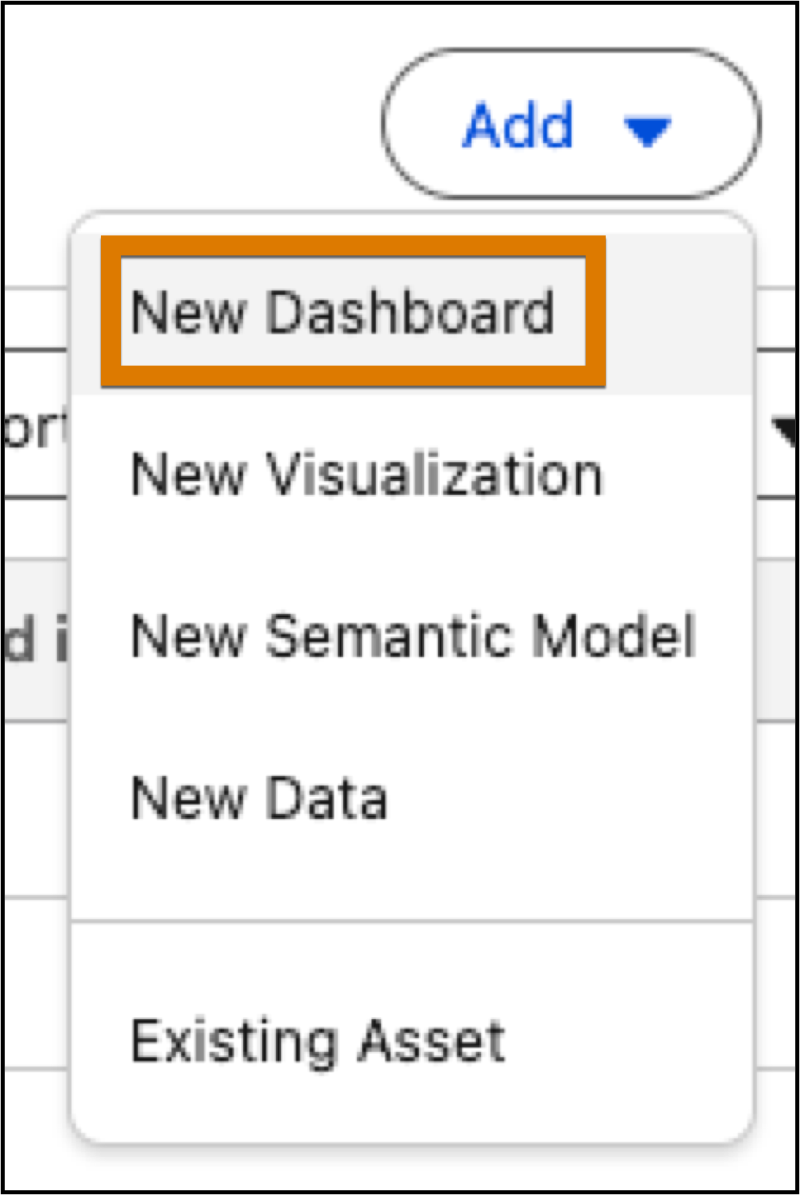
2. Or, from a workspace, click **Add**, and select **New Dashboard**.
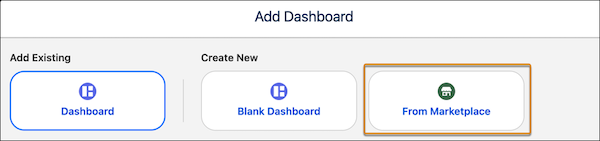
3. To view dashboard templates, select **From Marketplace**.
4. Select the F/Z Layout template tile, and click **Next**.
2. Select the layout for your dashboard and click **Next**.
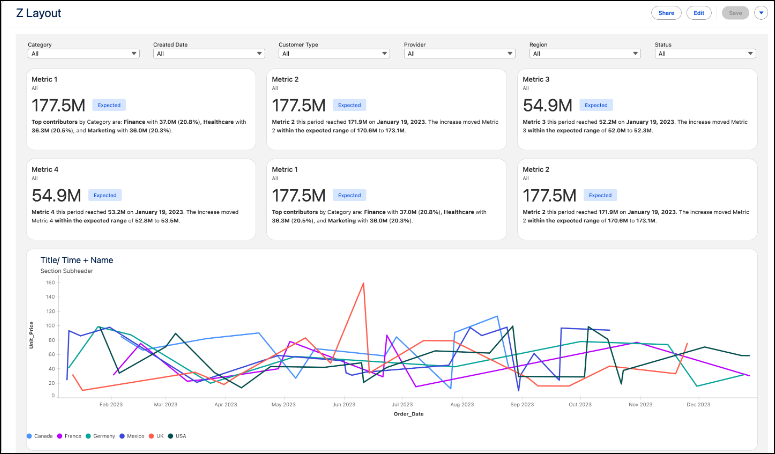
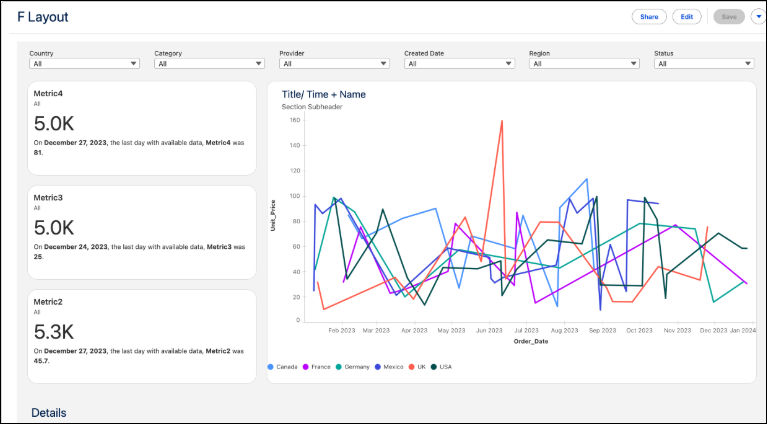
The Z Layout displays metrics horizontally, while the F Layout displays them vertically.
3. Configure your data selections and click **Next**.
You can use your own semantic model or skip this step if you don’t have a semantic model yet.
1. To use an existing semantic model, select the model. The selected model is used to populate the remaining configuration questions.
2. Select up to 6 data fields to use as dashboard filters.
4. Configure any dashboard details to fine-tune your charts and breakdowns. Then, click **Create Dashboard**.
All selections are optional and can be skipped. Only metrics associated with the selected model are available for selection.
1. Select up to 6 metrics to display on the dashboard.
2. Select a measure to use as the line value in the line chart.
3. Select a date to use as the range in the line chart.
4. Select a dimension to use for defining the data groups in the line chart.
5. Select a metric to use for the breakdown details.
We recommend using a different metric than selected before to avoid repeating data.
6. Select up to 3 fields to use as breakdown fields.
7. Select up to 10 fields to use in the breakdown details table.

Example A Z layout dashboard
An F layout dashboard
The template generates the dashboard with your configurations, displaying the installation progress. You can close this window at any time; the dashboard installation continues in the background. After installation is complete, give the dashboard a name, make any edits you want, and then save it to your workspace. If you closed the progress window, on completion, a success message with a link to the dashboard displays.