---
schema_version: "1"
id: fe708e3353a6ebbab53bf683290b4dc118e0566b9638af1209e7dce5ee061b99
title: Add a Salesforce Flow Action to a Dashboard
collection: admin
version: current
locale: en-us
portal_url: https://docs.salesforce.com/admin/current/en-us/analytics/264-0-0/tua_create_dashboard_flow_action.md
canonical_url: https://help.salesforce.com/s/articleView?id=analytics.tua_create_dashboard_flow_action.htm&release=264.0.0&type=5
source_site: help.salesforce.com
content_type: documentation
content_hash: 332ffaf5be3ecffc922b2306d398b1c6f24e16976b86f428f8d5f01fcaf6d6da
description: Add a Salesforce Flow action to a widget to execute flows using the Tableau Next dashboard context. Flows empower your users to seamlessly create follow-up tasks, dispatch reminder emails, or refresh records directly from their dashboard insights. For example, add a flow action that lets sales reps create a follow-up task directly from a dashboard widget showing at-risk opportunities.
products:
- Tableau Next
release: "264"
---
# Add a Salesforce Flow Action to a Dashboard
Add a Salesforce Flow action to a widget to execute flows using the Tableau Next dashboard context. Flows empower your users to seamlessly create follow-up tasks, dispatch reminder emails, or refresh records directly from their dashboard insights. For example, add a flow action that lets sales reps create a follow-up task directly from a dashboard widget showing at-risk opportunities.
### Required Editions
To edit Tableau Next dashboards and run and manage flows:
Tableau Unmetered Platform Analyst or Tableau Next Platform Analyst permission set

Note Only standard screen and autolaunched flows are supported. For more information, see [Automate Tasks with Flows](https://help.salesforce.com/s/articleView?id=platform.flow.htm&language=en_US).
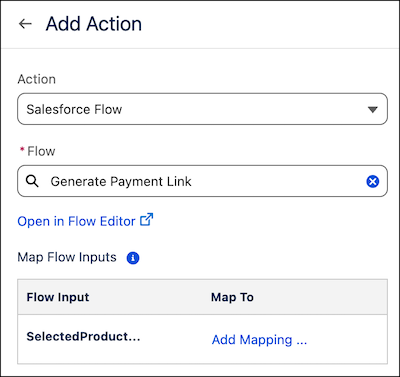
1. Select **Salesforce Flow** as the action type.
2. Select a flow.
If no flows are listed, verify that the flow you want is active and a supported flow type.
3. To view the flow, click **Open in Flow Editor**.
4. Map the required flow inputs to values in the dashboard. For each flow input, click **Add Mapping**.
Each input mapping describes the input type. Select whether to pass the input as a static string or a dynamic data field.
1. Select **Static String** to pass a static string value as the input. Enter a custom input string in the text box.
2. Select **Dynamic Widget Field** to pass a dynamic value as input. Select a widget on the dashboard, a field from the widget, and the interaction type.
For interaction type, a selection interaction passes an input value based on a user selection in the widget. A result interaction passes an input value based on the results of a query.
3. Click **Done**.
Test your flow action to ensure the input values are passed in as expected. When a flow action is triggered, a confirmation message displays the input values and allows user confirmation before starting the flow.
After a flow starts, a confirmation or error message displays to let the user know the status of the flow.
#### See Also
- [Add Single-Click Actions to Your Data](https://help.salesforce.com/s/articleView?id=analytics.tua_create_dashboard_add_action.htm&release=264.0.0&type=5 "Create a data journey for your users by turning your static Tableau Next dashboard into an interactive experience with single-click actions that lead to detailed pages or initiate Salesforce Flows. For example, use actions to add dynamic navigation to guide sales managers from a summary dashboard to pipeline details, progressively revealing more detailed information.")
- [Add a Navigation Action to a Dashboard](https://help.salesforce.com/s/articleView?id=analytics.tua_create_dashboard_navigate_action.htm&release=264.0.0&type=5 "Add a Navigate To action to a widget to guide your users to relevant URLs or other Tableau Next dashboards and dashboard pages with detailed information on the selected data.")