---
schema_version: "1"
id: e140cb90388cc6f4f7bd83d04a6125e5aaccd87bdca97e5f53b79a2aad793818
title: Optimize Dashboard Loading with Query Cache
collection: admin
version: current
locale: en-us
portal_url: https://docs.salesforce.com/admin/current/en-us/analytics/264-0-0/tua_create_dashboard_data_mode.md
canonical_url: https://help.salesforce.com/s/articleView?id=analytics.tua_create_dashboard_data_mode.htm&release=264.0.0&type=5
source_site: help.salesforce.com
content_type: documentation
content_hash: f0a3deed1b1b075bab274430e489a2aadc0514b654a8bc49b24ed43247242979
description: Accelerate page load times for Tableau Next dashboards by switching your system interactions to cached query results. Storing and reusing data for up to thirty minutes eliminates system overhead from expensive live queries during frequent visits.
products:
  - Tableau Next
release: "264"
---
# Optimize Dashboard Loading with Query Cache

Accelerate page load times for Tableau Next dashboards by switching your system interactions to cached query results. Storing and reusing data for up to thirty minutes eliminates system overhead from expensive live queries during frequent visits.

### Required Editions

<table class="slds-table slds-table_bordered slds-max-medium-table_stacked slds-m-bottom_small edition"><colgroup><col></colgroup><tbody><tr class=""><td class="slds-cell-wrap" style="vertical-align:top;"><a href="https://help.salesforce.com/s/articleView?id=analytics.tua_editions.htm&amp;language=en_US" target="_blank">View supported editions.</a></td></tr></tbody></table>

<table class="slds-table slds-table_bordered slds-max-medium-table_stacked slds-m-bottom_small permission">
        <colgroup>
          <col>
          <col>
        </colgroup>
        <thead class="slds-text-title_caps ">
          <tr class="">
            <th scope="colgroup" class="slds-cell-wrap" colspan="2" style="text-align:center;vertical-align:top;" id="d41999e54">User Permissions
              Needed</th>
          </tr>
        </thead>
        <tbody>
          <tr class="">
            <td data-label="User Permissions Needed" class="slds-cell-wrap" style="vertical-align:top;" headers="d41999e54 ">To edit Tableau Next dashboards:</td>

            <td class="slds-cell-wrap" style="vertical-align:top;" headers="d41999e54 "><span>Tableau Unmetered Platform Analyst or Tableau Next Platform Analyst</span> permission set</td>

          </tr>
        </tbody>
      </table>

1. Open the Dashboard Editor.
2. From the **Actions** menu, select **Enable Query Cache**.
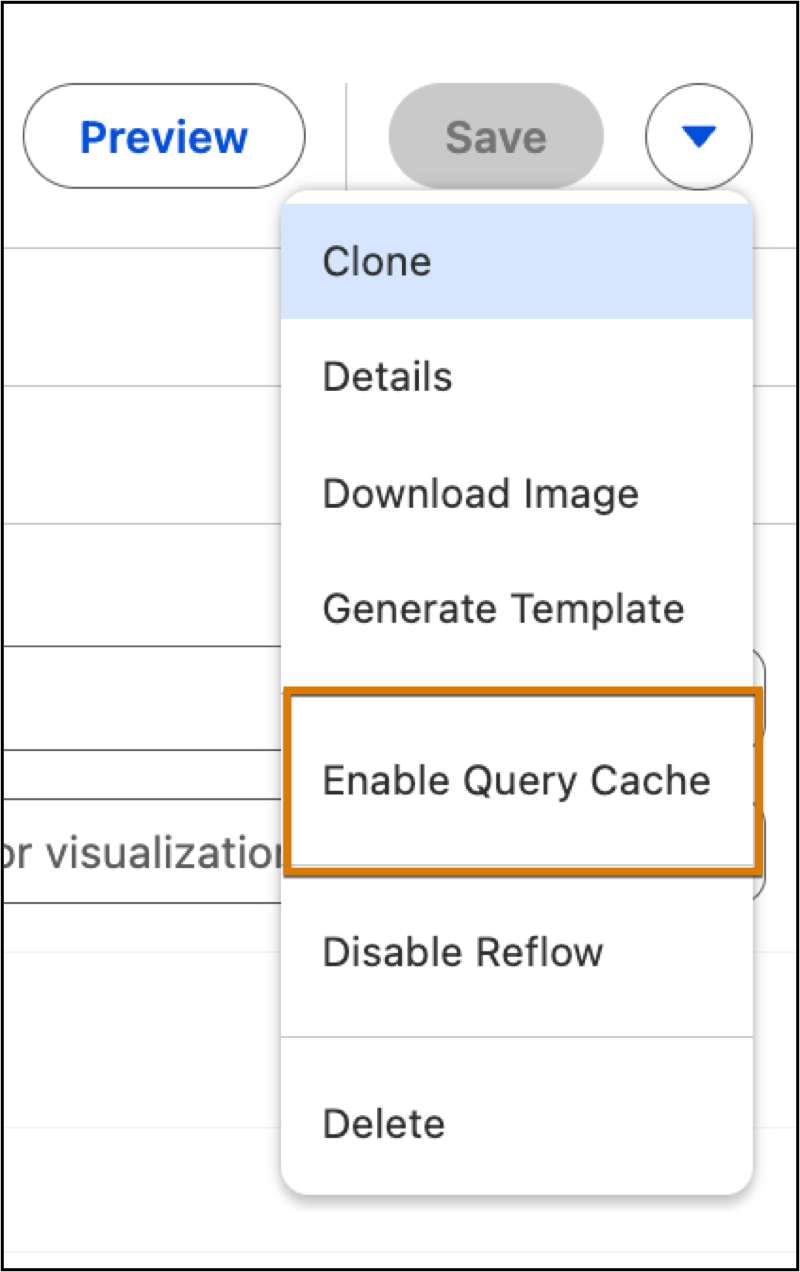
    
    ![Selecting Enable Query Cache from the Actions menu.](https://sf-zdocs-cdn-prod.zoominsoftware.com/tdta-analytics-tua-264-0-0-production-enus/d794334f-d174-49d3-a4d2-a615bd2e54aa/tua/images/tua_dashboard_data_mode.png)
    
    ![Note](https://sf-zdocs-cdn-prod.zoominsoftware.com/tdta-analytics-tua-264-0-0-production-enus/d794334f-d174-49d3-a4d2-a615bd2e54aa/images/icon_note.png)
    
    Note Once enabled, the dashboard utilizes cached query results for 30 minutes before triggering an automatic refresh.