---
schema_version: "1"
id: 949abd448f8580e85b6caccf9fbeb86fef46643042eac1f2ba74a2cfe22bcd92
title: Apply Conditional Formatting to Visualize Dashboard Data Performance
collection: admin
version: current
locale: en-us
portal_url: https://docs.salesforce.com/admin/current/en-us/analytics/264-0-0/tua_create_dashboard_conditional_format.md
canonical_url: https://help.salesforce.com/s/articleView?id=analytics.tua_create_dashboard_conditional_format.htm&release=264.0.0&type=5
source_site: help.salesforce.com
content_type: documentation
content_hash: 648d25d352ef932e2be54a8f48be00406e36e9886d5c4989464987179a0b4a3d
description: Improve your data visualization by adding conditional formatting to Tableau Next dashboards. Create custom rules to automatically highlight important data, making it easier to analyze and interpret key performance metrics. By applying custom text formatting, you can quickly identify areas of success or those needing attention, which helps you make more informed decisions.
products:
- Tableau Next
release: "264"
---
# Apply Conditional Formatting to Visualize Dashboard Data Performance
Improve your data visualization by adding conditional formatting to Tableau Next dashboards. Create custom rules to automatically highlight important data, making it easier to analyze and interpret key performance metrics. By applying custom text formatting, you can quickly identify areas of success or those needing attention, which helps you make more informed decisions.
### Required Editions
Tableau Unmetered Platform Analyst or Tableau Next Platform Analyst permission set
1. Add a text widget to the dashboard, or edit one that already exists.
2. Click **Insert Data** and select a measure on the next screen to add to the widget.
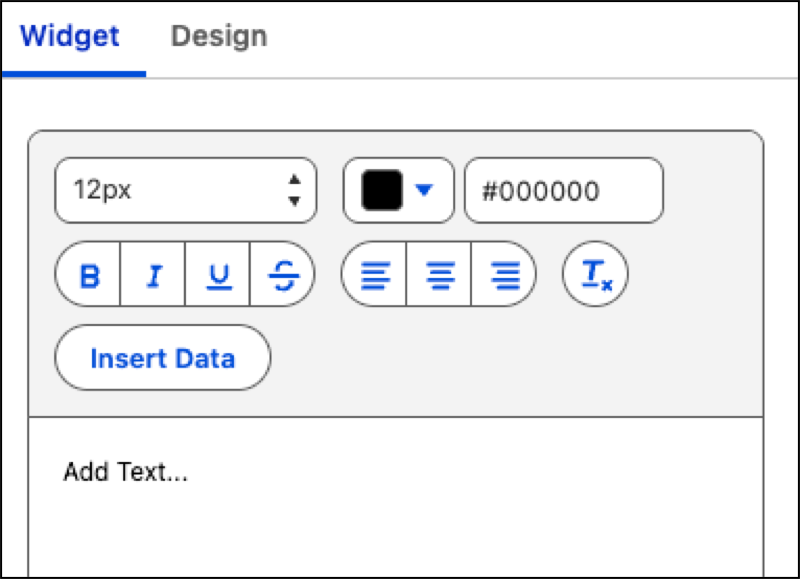

Note Dimensions don't currently support conditional formatting.
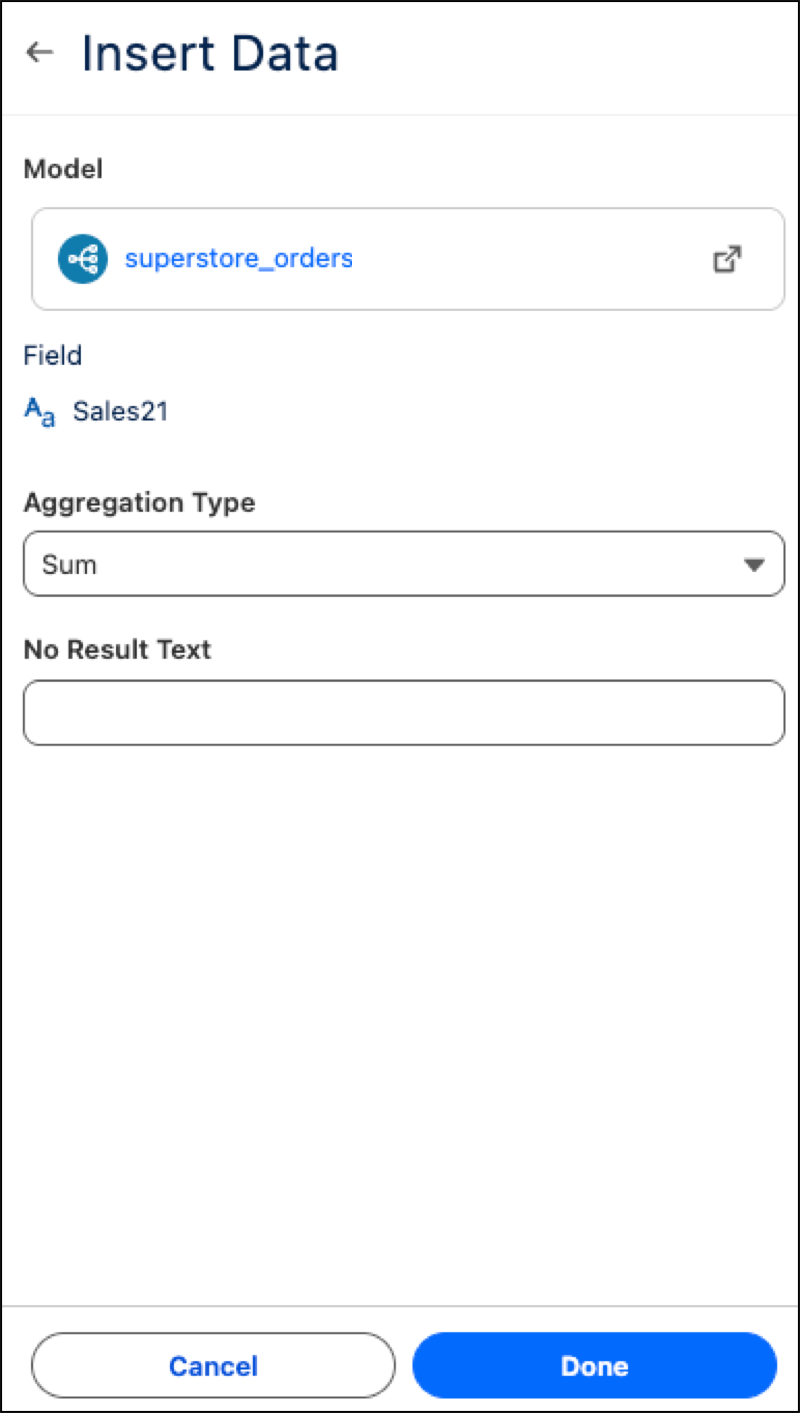
3. Choose how you want to combine your data with the Aggregation Type dropdown menu. If no values are calculated, enter an optional static value in the No Result Text field. Click **Done**.
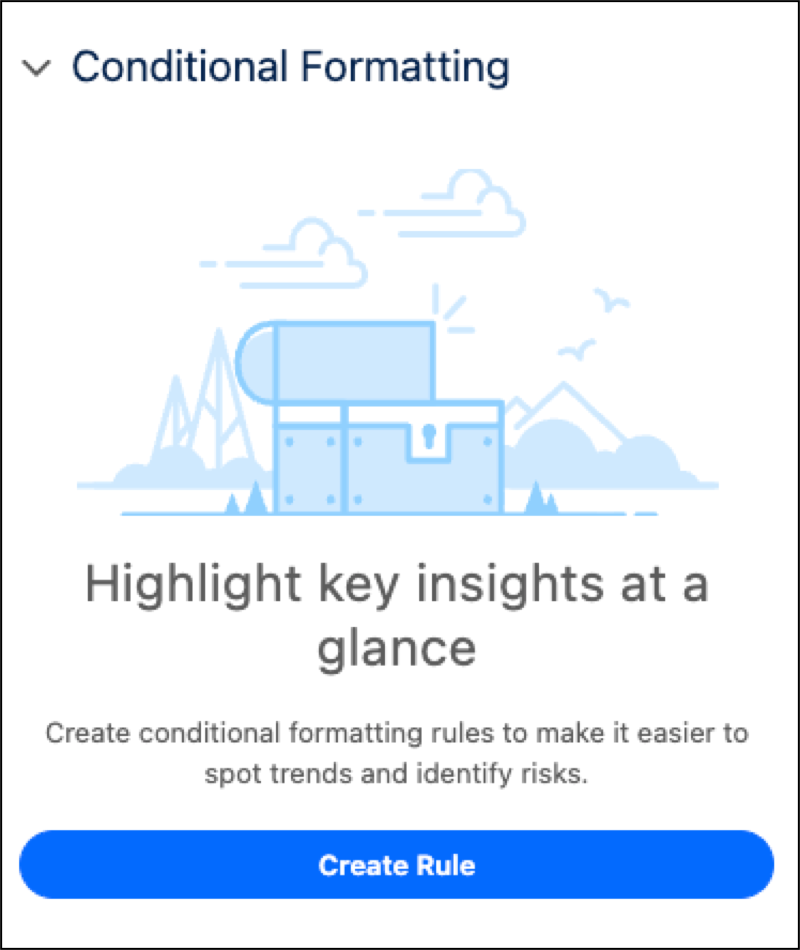
4. Click the Design tab and then **Create Rule**.
5. Select the measure for the rule. Then, build a condition and desired format.
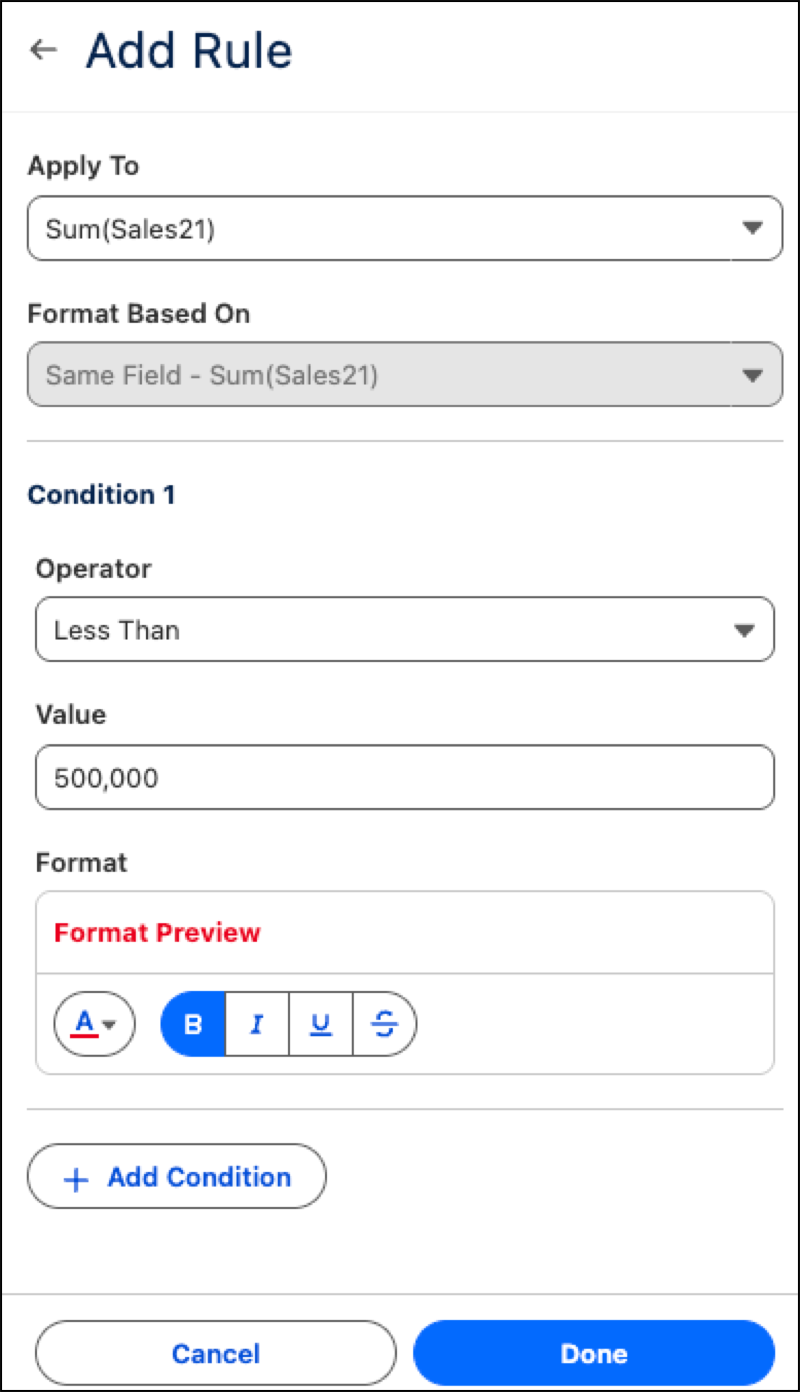

Note The measure’s format is determined by the measure itself and can’t be derived from a different measure.
6. To add another condition for the rule, click **Add Condition**.
7. Click **Done** when finished.
Considerations for Conditional Format Rules:
- When you set multiple conditions within a single rule, they’re all applied at the same time.
- When conditions overlap, their formats will combine.
- When rules conflict, the most recently created rule is applied.