---
schema_version: "1"
id: 11b050a5a3be54a0a8964aad460c81fdc81bf6134e552b68de860a933147a02c
title: Analyze Critical Data with Dashboards
collection: admin
version: current
locale: en-us
portal_url: https://docs.salesforce.com/admin/current/en-us/analytics/264-0-0/tua_create_dashboard_add.md
canonical_url: https://help.salesforce.com/s/articleView?id=analytics.tua_create_dashboard_add.htm&release=264.0.0&type=5
source_site: help.salesforce.com
content_type: documentation
content_hash: 1caf91def21cbd2cc499304236375d7691fb23893b295eafd891451cddec506a
description: Tableau Next dashboards help you view and act on your data to make smart decisions. Whether you're monitoring or analyzing business data, Tableau Next custom and templated dashboards help you organize and understand the information that matters most to you.
products:
- Tableau Next
release: "264"
---
# Analyze Critical Data with Dashboards
Tableau Next dashboards help you view and act on your data to make smart decisions. Whether you're monitoring or analyzing business data, Tableau Next custom and templated dashboards help you organize and understand the information that matters most to you.
### Required Editions
Tableau Unmetered Platform Analyst or Tableau Next Platform Analyst permission set
Dashboard templates come with prebuilt layouts that save time and follow best design practices. You can add your own data and move assets around to make it your own. Custom dashboards give you even more flexibility, enabling you to design your dashboard with advanced tools and interactive features. Both types are easy to use, flexible, and work well on desktop and mobile devices.

Note To analyze data effectively on a dashboard, make sure that you have access to the necessary data, visualizations, and metrics to perform comprehensive and accurate analyses.
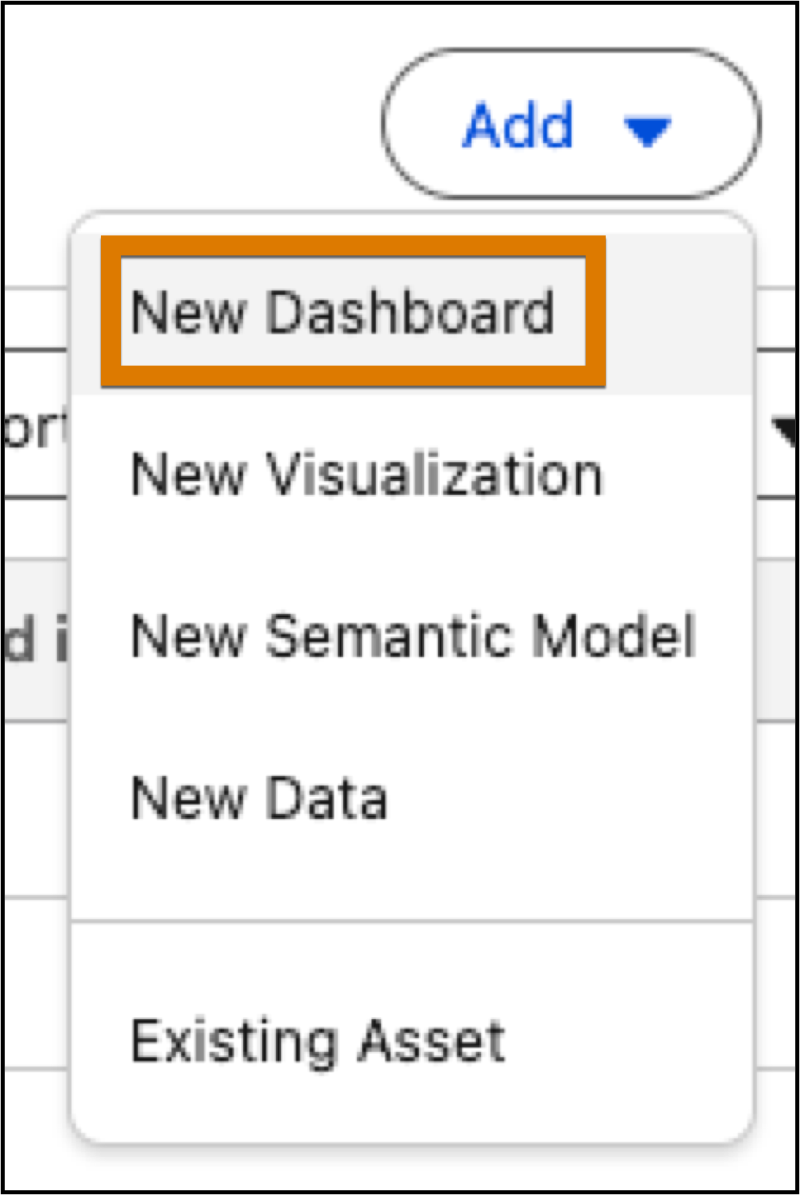
1. From a workspace, click **Add** and select **New Dashboard**.
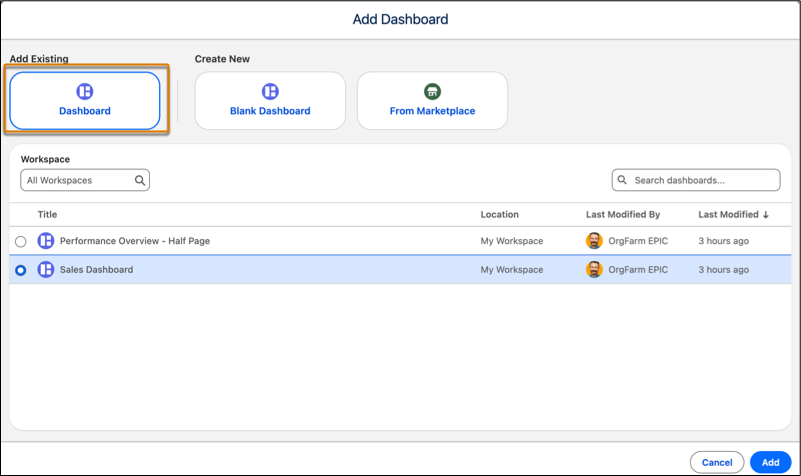
2. To add an existing dashboard from another workspace, click **Dashboard**, select the dashboard, and click **Add**.
3. To start from scratch with a new dashboard, click **Blank Dashboard**.
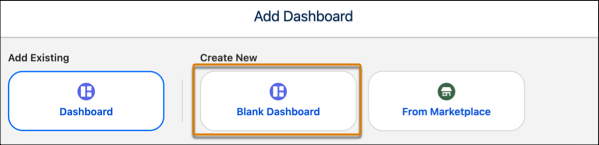
To name the dashboard, click the **New Dashboard** placeholder in the dashboard builder.
4. To create a dashboard from a Marketplace template, click **From Marketplace**.
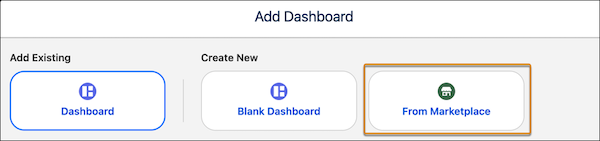
Dashboard templates provide out-of-the-box layouts for visualizing your data. For more information on dashboard templates, see [Use Dashboard Templates from the Marketplace](https://help.salesforce.com/s/articleView?id=analytics.tua_create_dashboard_marketplace.htm&release=264.0.0&type=5 "When designing dashboards, you can start with a blank dashboard or you can use an out-of-the-box dashboard template to decrease your design lift. Tableau Next dashboard templates provide layouts tailored to your data and how you want to present it.").