---
schema_version: "1"
id: 4bac237d0175e4a676d3bde11a9d6a851aa1c33eec0ad07b1ded0d2abb454a0b
title: Configure the Account Growth Readiness Score Composite Metric
collection: admin
version: current
locale: en-us
portal_url: https://docs.salesforce.com/admin/current/en-us/analytics/264-0-0/tua_create_account_growth_composite_metric.md
canonical_url: https://help.salesforce.com/s/articleView?id=analytics.tua_create_account_growth_composite_metric.htm&release=264.0.0&type=5
source_site: help.salesforce.com
content_type: documentation
content_hash: 432ade896d7c8f3d4a34ced69da7dda6d1fd8376ed0a7997391cc89102a47c3d
description: The Tableau Next Account Growth Readiness Score composite metric template integrates sales conversion, service risk, and marketing email engagement data to assess full-funnel readiness of your accounts. This template installs the pre-configured metric and 3 calculated fields used to determine your account growth readiness scores. Designed to allow analysts to visualize their data instantly and provide stakeholders with actionable insights, bypassing the time-consuming process of manual chart configuration and complex data modeling.
products:
- Tableau Next
release: "264"
---
# Configure the Account Growth Readiness Score Composite Metric
The Tableau Next Account Growth Readiness Score composite metric template integrates sales conversion, service risk, and marketing email engagement data to assess full-funnel readiness of your accounts. This template installs the pre-configured metric and 3 calculated fields used to determine your account growth readiness scores. Designed to allow analysts to visualize their data instantly and provide stakeholders with actionable insights, bypassing the time-consuming process of manual chart configuration and complex data modeling.
### Required Editions
Tableau Unmetered Platform Analyst or Tableau Next Platform Analyst permission set
To install semantic models in Data 360:
Data Cloud Architect permission set
This template requires:
- C360 Semantic Data Model
- C360 DMOs: Account, Opportunity, Case, and Market Segment
This template is designed to work with the C360 data, mapping your data into a composite metric.
1. On the Tableau Next home page, select **Marketplace**.
2. In the Marketplace, select **Metrics**, and then then Account Growth Readiness Score tile.
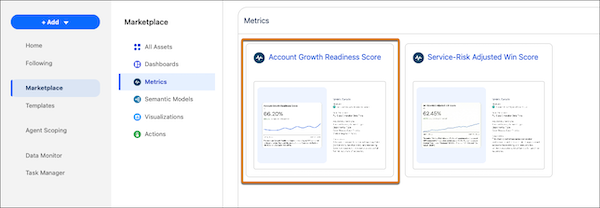
3. View the template details and click **Next**.
4. Configure the metric.
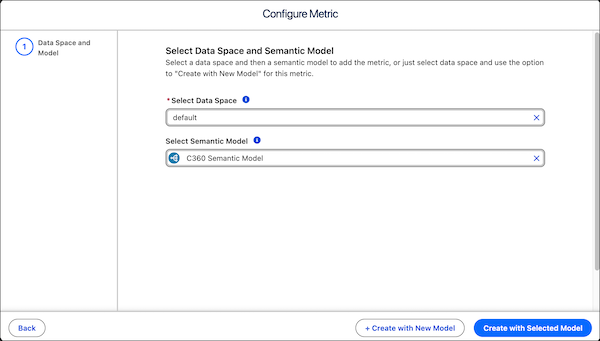
1. Select the data space for the model and metric.
2. Select an existing semantic model to use. To extend the existing C360 semantic into a new model for customization, leave this blank.
5. Click **Create with Selected Model** to start the installation process with your selected model. Or click **Create with New Model** to install with a new semantic model.
The template checks your org to make sure that all prerequisites and permissions are set up correctly to install the metric. If the template validation is successful, the installation process begins. If it fails, you’re provided with a list of errors to resolve.
If you create a model, a successful install opens a new model extended from the C360 semantic model.
Primary Metric Calculation:
```
(0.50×WinRate) + (0.30×(1−EscalationRate))+MIN((0.20×EmailEngagementNorm),1.5)
EmailEngagementNorm = (Email Click Rate) ÷ Benchmark Click Rate
Benchmark Click Rate = 2%
```