---
schema_version: "1"
id: 99cded8c4cb622dfa1a8316724bf8c7688386f50c292e10b687bc6a75a034208
title: Use App Templates
collection: admin
version: current
locale: en-us
portal_url: https://docs.salesforce.com/admin/current/en-us/analytics/264-0-0/tua_build_app_template_use.md
canonical_url: https://help.salesforce.com/s/articleView?id=analytics.tua_build_app_template_use.htm&release=264.0.0&type=5
source_site: help.salesforce.com
content_type: documentation
content_hash: 16df5a2eafa7e7b45cda2652f32dc9587b9847be95d16ccb23d6e5e862e13c15
description: The Templates page in Tableau Next shows app templates that you and other users have created. Create an app from a template to install customized workspace functionality in your org.
products:
  - Tableau Next
release: "264"
---
# Use App Templates

The Templates page in Tableau Next shows app templates that you and other users have created. Create an app from a template to install customized workspace functionality in your org.

### Required Editions

<table class="slds-table slds-table_bordered slds-max-medium-table_stacked slds-m-bottom_small edition"><colgroup><col></colgroup><tbody><tr class=""><td class="slds-cell-wrap" style="vertical-align:top;"><a href="https://help.salesforce.com/s/articleView?id=analytics.tua_editions.htm&amp;language=en_US" target="_blank">View supported editions.</a></td></tr></tbody></table>

<table class="slds-table slds-table_bordered slds-max-medium-table_stacked slds-m-bottom_small permission">
        <colgroup>
          <col>
          <col>
        </colgroup>
        <thead class="slds-text-title_caps ">
          <tr class="">
            <th scope="colgroup" class="slds-cell-wrap" colspan="2" style="text-align:center;vertical-align:top;" id="d55869e54">User Permissions Needed</th>
          </tr>
        </thead>
        <tbody>
          <tr class="">
            <td data-label="User Permissions Needed" class="slds-cell-wrap" style="vertical-align:top;" headers="d55869e54 ">To view, create, and edit Tableau Next templates:</td>

            <td class="slds-cell-wrap" style="vertical-align:top;" headers="d55869e54 "><span>Tableau Unmetered Platform Analyst or Tableau Next Platform Analyst</span> permission set</td>

          </tr>
        </tbody>
      </table>

1. On the Templates page, select the template you want to use.

    
    ![The Templates page in Tableau Next](https://sf-zdocs-cdn-prod.zoominsoftware.com/tdta-analytics-tua-264-0-0-production-enus/d794334f-d174-49d3-a4d2-a615bd2e54aa/tua/images/tua_templates_templates_page.png)
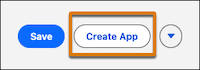
2. Click **Create App**.
    
    ![The Create App action for a Tableau Next template](https://sf-zdocs-cdn-prod.zoominsoftware.com/tdta-analytics-tua-264-0-0-production-enus/d794334f-d174-49d3-a4d2-a615bd2e54aa/tua/images/tua_templates_create_app.png)
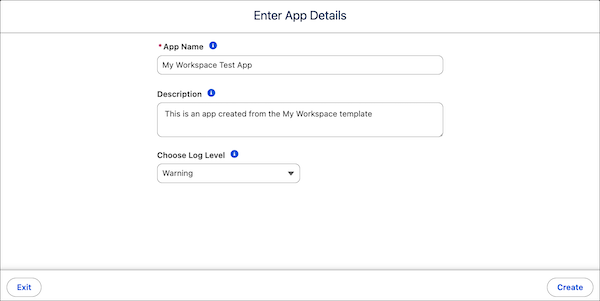
3. Enter the app details.
    
    ![The app details window for creating an app from a template](https://sf-zdocs-cdn-prod.zoominsoftware.com/tdta-analytics-tua-264-0-0-production-enus/d794334f-d174-49d3-a4d2-a615bd2e54aa/tua/images/tua_templates_create_app_details.png)
    
    1. Enter an app name and a description.
        
        The app name is the name of the new workspace that the template generates.
    2. Select the logging level.
        
        During template testing, increase the level for more information.
    3. Click **Create**.

As the app installs, monitor progress and status on the App Install History page in Setup. For more information, see [Monitor and Troubleshoot Templated App Installations](https://help.salesforce.com/s/articleView?id=analytics.bi_monitor_app_install.htm&language=en_US).